Window
The Window menu contains commands that let you organize individual application and document windows within the GUI. You can cascade or tile open document windows, and you can change the theme of the interface.
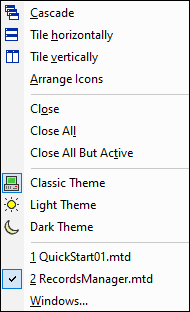
Cascade, Tile Horizontally/Vertically
The Cascade command arranges document windows so that they are staggered in a sequence from back to forward.
The Tile Horizontally and Tile Vertically arranges the windows of open and non-minimized documents so that they are re-sized as tiles that are all visible within the application window.
Close commands
The Close commands provide options to quickly close one of different sets of open files. If any document in the set you are closing has been modified, then you will be prompted about whether you want to save the modified file before closing it.
Themes
MobileTogether Designer offers you a choice of the three themes listed below. When you select a theme, it is applied immediately.
•Classic (the default)
•Light
•Dark
Themes for simulations can be set in the Simulation window.
Currently open windows list
All currently open document windows are listed at the bottom of the Window menu by document name, with the active window being checked. To make another window active, click the name of the window you wish to make active. This list shows all currently open windows, and lets you quickly switch between them. You can also use CTRL+Tab or CTRL+F6 keyboard shortcuts to cycle through the open windows.
Windows dialog
At the very bottom of the list of open windows is an entry for the Windows dialog. Clicking this entry opens the Windows dialog, which displays a list of all open windows by filename and provides button commands that can be applied to the selected window/s. (A window is selected by clicking on its filename. Use the Ctrl key or Shift key to select multiple files.)
The following button commands are available:
•Activate: Makes the selected file the active file and exits the dialog.
•OK: Exits the dialog.
•Save: Saves the selected file/s.
•Close Window(s): Closes the selected file/s.
•Cascade, Tile Horizontally, Tile Vertically: Arranges the selected windows according to the command selected. These commands will be disabled if only one file is selected.
•Minimize: Minimizes the window/s of the selected file/s.