Edit Image
The Edit Image action (screenshot below) enables you to select an image that the end user can edit and to select a target node where the image will be saved. For example, the action can be set on a button. When an end user clicks the button, they can crop, rotate, and/or resize the image. And when they save the image, it will be saved to the target node you selected.
You can then use the edited image in the solution by referencing the target node where it is saved. You can also use the edited image with other actions, such as saving the image to file.
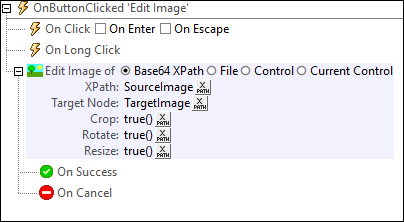
The Edit Image action has the following settings:
•Source image: First select the radio button corresponding to the type of the source image, then locate the source image. For a Base64 image, enter an XPath expression that evaluates to a string that is the Base64 encoding of the image; the Base64-encoded string can be stored in a node. For an Image File, enter the file location. For Controls, select the Image control which holds the image. Instances of these controls that have been created in the design are displayed by their names in the dropdown list of a combo box. Choose the control from the list. Current Controls should be an Image control.
•Target Node: Enter an XPath expression to select the target node where the edited image will be stored.
•Editing Actions to Allow: You can enable one or more of the available editing actions: Crop, Rotate, and Resize. Do this by setting the respective XPath expression to true().
•Background Color: The image to edit is displayed on a background canvas. This property enables you to set the color of the canvas. The value can be either a web color or an RGB color in the #RRGGBB hexadecimal format. Since the values are strings in an XPath expression, enclose them in quotes (see screenshot above).
•Image Quality: Values can be integers from 1 (lowest quality) to 100 (highest quality). Note that higher quality images have a larger file size.
Note that you can set actions to execute when the editing is successful and if the end user cancels editing.
Note: To experiment with editing images, use the tutorial file EditImage.mtd located in in the (My) Documents folder: Altova\MobileTogetherDesigner10\MobileTogetherDesignerExamples\Tutorials.
The editing controls
When an end user starts the Edit Image action on the client, the source image appears on the screen together with the enabled editing controls (see screenshot below).
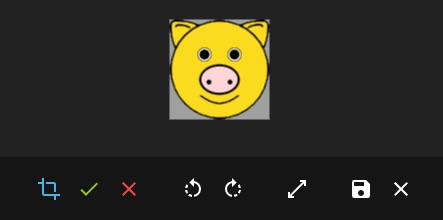
The editing controls are, from left:
•The Crop control. On selecting it, its Confirmation and Cancel icons appear (green and red in the screenshot above).
•The Rotate controls each rotate the image, respectively, 90 degrees anti-clockwise or clockwise.
•The Resize control, which opens a ribbon for entering the new dimensions. The ribbon has icons for confirming or canceling the Resize edit.
•The Save control for saving the edited image to the target node.
•The Cancel control for canceling the editing action. If the end user cancels, then the actions specified on the action's On Cancel event will be executed.
MobileTogether extension functions
MobileTogether provides a range of XPath extension functions that have been specifically created for use in MobileTogether designs. Some functions can be particularly useful with specific actions. For example, mt-available-languages() returns the languages in which the solution is available and could, for example, be used with the Message Box action. If a function is especially relevant to this action, it is listed below. For a full list of extension functions and their descriptions, see the topic MobileTogether Extension Functions.
mt-base64-to-hexBinary()
mt-hexBinary-to-base64()
mt-hexBinary-to-string()
mt-change-image-colors()
mt-image-width-and-height()
mt-string-to-hexBinary()
mt-transform-image()