Biometric Authentication
The Biometric Authentication action (see screenshot below) enables you to require biometric authentication of the user (such as face or fingerprint) at any point in the solution's workflow. The user will need to be authenticated on the device, thus preventing unauthorized users from carrying out sensitive operations that the solution enables. The screenshot below, for example, asks for biometric authentication when a button to save page source data to the device is clicked. On tapping the button in the solution, biometric authentication is started on the user's device. If authentication is successful, then the actions specified in the On Success event is executed. (In the screenshot below, this action is to save the page source data file to the device.) You can also set what actions to execute if the authentication fails (On Error) and if the user cancels the authentication (On Cancel).
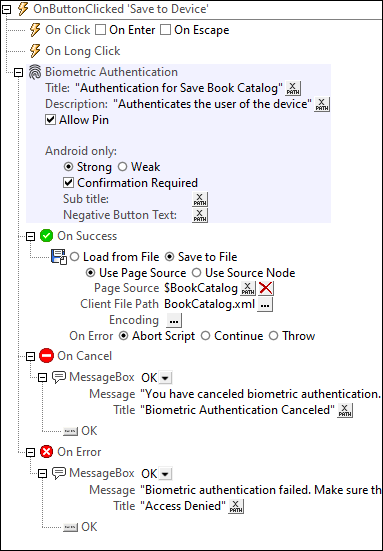
The action has the following settings:
•Title: Sets the title of the Authentication dialog that appears in the solution.
•Description: A description in the Authentication dialog that enables you to provide the user with information about the authentication.
•Allow PIN: If selected, then an option to authenticate the user via the device's PIN is provided. Depending on whether biometric authentication is enabled on the device or not, PIN usage provides an alternative method or a fallback method for authentication. If the option is not selected, then there will be no alternative to biometric authentication.
Android settings
On Android devices, the following additional settings are available:
•The strong/weak authentication choice determines what authentication method is used on the device and will be device-dependent.
•If the Confirmation Required option is selected, then the device will prompt the user for confirmation according to its security settings.
•The Subtitle field entry appears as text in the Authentication dialog.
•Negative Button Text is the text that appears on a button that enables the user to cancel authentication. If the option is not set, then a default text of Cancel will be displayed.
Availability of biometric authentication on the client device
You can check for the availability of biometric authentication on the client device by using the function mt-is-biometric-authentication-available. You can use this function to determine the availability of biometric authentication, as well as other authentication options, and to then set up the workflow according to the available authentication.
Simulate biometric authentication for testing
When running a simulation, you can simulate the availability of biometric authentication via its setting in the Simulation 1 tab of the Options dialog.
MobileTogether extension functions
MobileTogether provides a range of XPath extension functions that have been specifically created for use in MobileTogether designs. Some functions can be particularly useful with specific actions. For example, mt-available-languages() returns the languages in which the solution is available and could, for example, be used with the Message Box action. If a function is especially relevant to this action, it is listed below. For a full list of extension functions and their descriptions, see the topic MobileTogether Extension Functions.
mt-is-biometric-authentication-available()