OpenAPI Schemas
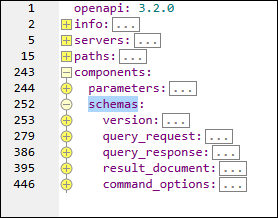
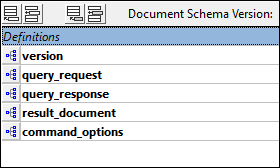
If an OpenAPI 3.1 or newer document contains OpenAPI schemas within its component/schemas object (see Text View screenshot below left), then these schemas can be viewed and edited in the graphical Schema View of XMLSpy (screenshot below right). To do this, simply switch from the Text View or Grid View of the OpenAPI document to Schema View. On doing this, the schemas in the component/schemas object will be displayed in the Definitions Overview Grid (screenshot below right).
You can try this with the file RaptorXmlXbrl.openapi.yaml, which is in the OpenApi Examples folder of the Examples project of XMLSpy (or in the folder C:\Users\<user>\Documents\Altova\XMLSpy2027\Examples).
To view or edit one of the listed schemas, click its icon in the Definitions Overview Grid.
The schemas are also listed in the Overview entry helper of Schema View (screenshot below). You can double-click a schema here to edit it in Design View.
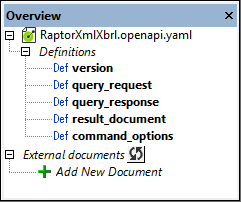
The schemas can be edited in the same way as any JSON Schema. See the section JSON Schemas for more information.
Note the following points:
•The schemas defined within the component/schemas object are known as named schemas.
•Only named schemas are available for editing as schemas in Schema View. If a schema is defined at another location in the OpenAPI document—that is, outside the component/schemas object—then it is not available for Schema View editing.
•In Schema view, if you add a new schema definition, it will be added as a new named schema to the component/schemas object.
Validate JSON/YAML instances against JSON Schemas in OpenAPI files
A JSON or YAML instance can be validated (in Text View or Grid View) against a JSON Schema that is inside an OpenAPI file.
This is a JSON validation—not an OpenAPI validation. The document being validated must be a JSON or YAML object that does not begin with the "openapi" or "swagger" key. If it does begin with either of these keys, then the document is an OpenAPI document and will be validated against the OpenAPI specification; see Edit and Validate OpenAPI Documents.
To assign a JSON or YAML instance file to a JSON Schema that is inside an OpenAPI document, do the following. (Note that the instance file must be a .json or .yaml file and must not have the the openapi or swagger key as its root key.)
1.Go to the Info Window (screenshot below) of the JSON or YAML file that is not an OpenAPI file.
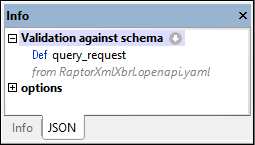
2.Click Validation against schema | Select JSON Schema.
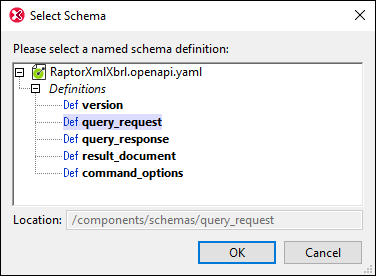
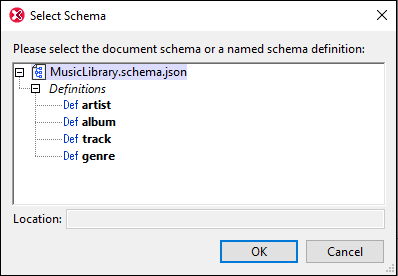
3.Select the file containing the JSON Schema you want. This file can be an OpenAPI file or a JSON Schema file. The Select Schema dialog appears (screenshots below), in which the named schemas of the selected schema file are displayed. If you select an OpenAPI file, then its named schemas are listed and you can select one of them (screenshot below left). If you select a JSON Schema file (screenshot below right), then you can choose, in addition to the named schemas, the root schema.
4.Click OK to complete the assignment. The assignment will be displayed in the Info window (see screenshot in Step 1).
You can now validate the JSON or YAML instance document against its assigned named schema definition or JSON Schema. Use the XML | Validate XML (F8) command to do this.
Generate sample
You can generate a sample JSON or YAML structure from a named schema definition. The structure will be created in a file with the corresponding filename suffix (.json or .yaml).
Do this as follows:
1.Select the command DTD/Schema | Generate Sample XML/JSON/YAML File.
2.In the Select Schema dialog that appears (see screenshots above), select the named schema definition for which you want to create the sample file, and click OK.
3.In the Generate Sample JSON/YAML File dialog that now appears, select the file type you want (JSON or YAML), set the options as appropriate, and click OK.
The generated sample file will automatically have as its assigned schema the named schema definition that you selected, and you can immediately validate the sample file.
Note: A sample file can also be created when you create a new JSON or YAML file (menu command File | New) and if you choose, at this time, to assign the new file a JSON schema.