Altova AI (for Specific XML Tasks)
In XMLSpy, you can use AI to do the following:
•Generate a sample XML document from an XML schema. Not only will the document have a structure that is valid against the selected XML Schema, but it will also contain realistic AI-generated sample data.
•Create an XSLT stylesheet for transforming a selected source XML document to a target XML document.
•Create an XQuery document for executing a selected source XML document into a target XML document.
The sections below describe how to use these features.
Sample XML from XML Schema with AI
Access this functionality via AI Guide or the menu command DTD/Schema | Generate Sample XML File.
Then do the following:
1.Select the XML schema (DTD or XML Schema) to use and click OK.
2.In the Generate Sample XML File dialog that appears, select, in the Sample Values pane, the option Use AI Server (see screenshot below).
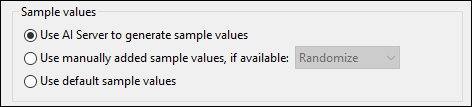
3.Set the other options in the dialog as required. If you want realistic data make sure that you check the options to fill elements and attributes with data. Other significant options are the number of repeatable elements to generate and the maximum number of nesting levels. You might also want to add a reference to the XML schema if you want to validate the XML document. For information about these options, see DTD/Schema | Generate Sample XML File.
4.Click OK when done.
A progress window is displayed while the AI processes your request. On completion, the generated XML document is displayed in a new window. You can edit the generated document if you like, validate it against the XML schema, and save it to file.
Create XSLT with AI
You can create an XSLT stylesheet for transforming a selected source XML document to a target XML document. Access this functionality via AI Guide or the menu command File | New | XSLT Stylesheet.
Then do the following:
1.In the Create New dialog that appears, select the Generated by Altova AI option.
2.Select the source and target XML files and click OK.
A progress window is displayed while the AI processes your request. On completion, the AI-created XSLT document is displayed in a new window. Test it by running it on the source document. If you wish to improve the XSLT document, you can edit it. After you have finalized the document, save it to file.
Create XQuery with AI
You can create an XQuery document to transform a selected source XML document into a target XML document. Access this functionality via AI Guide or the menu command File | New | XQuery.
Then do the following:
1.In the Create New dialog that appears, select the Generated by Altova AI option.
2.Select the source and target XML files and click OK.
A progress window is displayed while the AI processes your request. On completion, the AI-created XQuery document is displayed in a new window. Test it by running it on the source document. If you wish to improve the XQuery document, you can edit it. After you have finalized the document, save it to file.