AI Assistant
MapForce AI Assistant helps you create and refine your mappings. The AI Assistant sends information about your mapping to the Altova AI Server and displays its suggestions.
To activate the AI Assistant, do one of the following:
•Click the  toolbar command.
•Select the menu item View | AI Assistant.
Below are some scenarios in which the Assistant can be useful:
•Creating connections and processing components
•Mapping data to or from nodes
•Mapping descendants
For details, see the subsections below.
Scenario 1: Create connections and processing components
When a mapping has at least one source and one target component, the AI Assistant can automatically create connections and processing components for you.
1.Click anywhere in the blank area of the mapping.
2.Click the green button in the AI Assistant window (screenshot below). The Assistant will send a request to the MapForce AI Server and display its suggestions.
3.Review the suggestions, which appear in green in both the mapping and the AI window. You can accept or reject individual suggestions (screenshot below). You can also undo and redo actions.
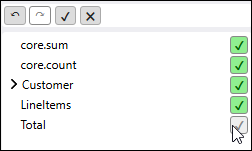
4.Click Commit to finalize the changes or Cancel to discard them.
Tip: The Assistant may provide different results each time. If the suggestions are not satisfactory, click the green button again to regenerate the request.
Example
In this example, the mapping has two source XML files (Customers.xml and ShortPO.xml) and one target XML file (CompletePO.xml). The Assistant has provided the following suggestions:
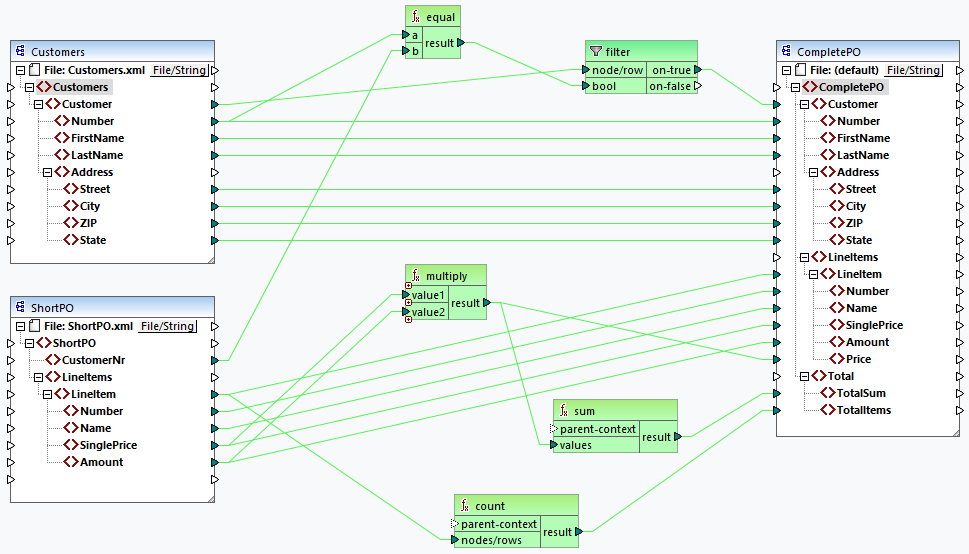
The AI suggestions are suitable for our mapping and require no further adjustments. After committing these suggestions, we can preview the output:
<CompletePO> <Customer> <Number>10245</Number> <FirstName>Fred</FirstName> <LastName>Landis</LastName> <Address> <Street>Oakstreet</Street> <City>Boston</City> <ZIP>23320</ZIP> <State>MA</State> </Address> </Customer> <LineItems> <LineItem> <Number>1</Number> <Name>Wireless Mouse</Name> <SinglePrice>25</SinglePrice> <Amount>2</Amount> <Price>50</Price> </LineItem> <LineItem> <Number>2</Number> <Name>Mechanical Keyboard</Name> <SinglePrice>85.5</SinglePrice> <Amount>1</Amount> <Price>85.5</Price> </LineItem> <...> </LineItems> <Total> <TotalSum>301</TotalSum> <TotalItems>5</TotalItems> </Total> </CompletePO> |
Scenario 2: Map data to or from nodes
If there are some missing connections in your mapping, you can ask the Assistant to create them:
1.Click on the source or target node of interest to see mapping suggestions.
2.Click the green button in the Assistant.
3.Review the suggestions and commit them when done.
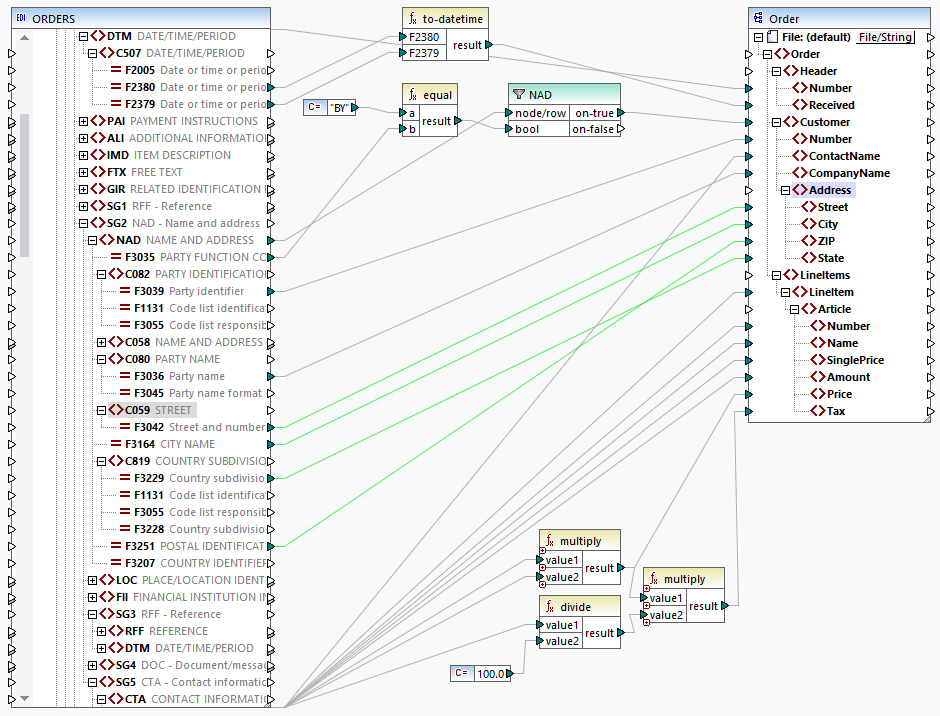
For example, in the mapping below, the Assistant has correctly identified the required source nodes to create connections between the EDIFACT document and the target Address element.
Scenario 3: Map descendants
If parent nodes are connected, you can ask the Assistant to map their descendants:
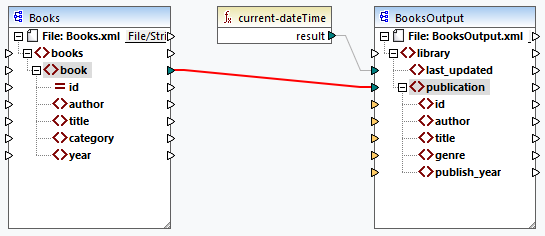
1.Click the parent connection of interest (see screenshot below).
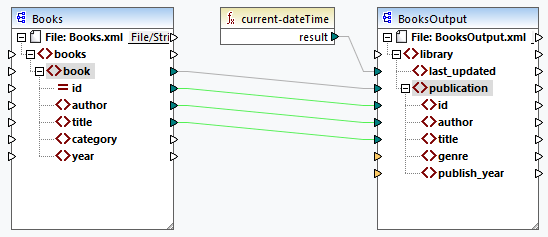
2.The Assistant will suggest mapping the descendants of these parent nodes (see screenshot below). Click the green button in the Assistant to see its suggestions.

3.Review the suggestions (displayed in green). Note that only the matching nodes have been connected.
4.Commit the changes.
AI-suggested connection replacements
The Assistant identifies existing connections that could be improved. You can review these suggestions and choose to accept or reject them.
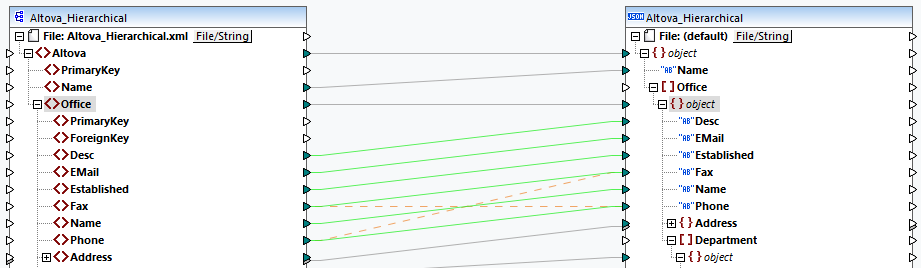
In the mapping window (screenshot below), connections are shown as follows:
•Green lines represent new suggested connections.
•Dotted orange lines represent the original connections being replaced.
The AI pane marks suggested connection replacements with green-orange check boxes: