Window Menu
The Window menu contains commands that let you organize document windows and GUI panes, as well as set the application theme and start its AI Assistant.
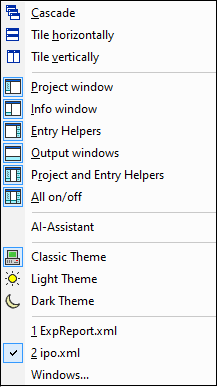
Cascade, Tile Horizontally/Vertically
The Cascade command arranges document windows so that they are staggered in a sequence from back to forward.
The Tile Horizontally and Tile Vertically arranges the windows of open and non-minimized documents so that they are re-sized as tiles that are all visible within the application window.
Project Window, Info Window, Entry Helpers, Output Windows
These commands switch the display of, respectively, the Project Window, Info Window, Entry Helpers, and Output Windows on or off.
Each of these windows is a dockable window. Dragging on the window's title bar detaches it from its current position and makes it a floating window. Click right on the title bar, to allow docking or hide the window.
AI-Guide
The AI-Guide command opens the AI Guide window, which contains buttons to access the AI functionality of XMLSpy in one centralized location. See the AI in XMLSpy section for information about this functionality and how to use it.
AI-Assistant
The AI-Assistant command opens the AI-Assistant dialog, in which you can ask for assistance from Altova AI for your work in XMLSpy. Note that, in order to use AI-Assistant, you will need one of the XMLSpy AI plans available at the Altova webshop..
The AI-Assistant works as follows:
•Type your request in the input field at the bottom of the dialog and click Send. (Alternatively, you can select a sample request in the combo box. This request will be entered in the input field, where you can modify it before sending.)
•The response from the AI will be displayed in the dialog's main pane.
•You can send additional requests, and these, followed by the respective responses from the AI, will be appended to the chat history in the main pane.
•You can start an additional chat by clicking the + icon to the right of the chat tab/s at the top of the main pane. The new chat will be opened in its own tab.
•You can copy a response (by clicking it in its tab) or a part of a response (by selecting the part you want) either to the clipboard or to a new file. Click the respective command icon (Copy to clipboard or Create new file) in the toolbar of the dialog. You can also use regular Windows command shortcuts, such as Ctrl+C to copy to clipboard. You can also copy a selection to the XPath/XQuery Window by clicking the corresponding toolbar command icon.
•To close a chat, click the X icon in the chat's tab header.
Project and Entry Helpers
This command toggles on and off the display of the Project Window and the Entry Helpers together. It saves you the trouble of switching on/off the display of these windows individually.
All On/Off
This command lets you switch all dockable windows (listed below) on or off.
This is useful if you want to hide all non-document windows quickly, to get the maximum viewing area for the document/s you are working on.
Themes
XMLSpy offers you a choice of the three themes listed below. When you select a theme, it is applied immediately.
•Classic (the default)
•Light
•Dark
For the currently active theme, you can customize the formatting of a document type's individual text components. Do this in the Fonts and Colors tabs of the Options dialog (Tools | Options).
Currently open window list
All currently open document windows are listed at the bottom of the Window menu by document name, with the active window being checked. To make another window active, click the name of the window you wish to make active. This list shows all currently open windows, and lets you quickly switch between them. You can also use CTRL+Tab or CTRL+F6 keyboard shortcuts to cycle through the open windows.
Windows dialog
At the very bottom of the list of open windows is an entry for the Windows dialog. Clicking this entry opens the Windows dialog, which displays a list of all open windows by filename and provides button commands that can be applied to the selected window/s. (A window is selected by clicking on its filename. Use the Ctrl key or Shift key to select multiple files.)
The following button commands are available:
•Activate: Makes the selected file the active file and exits the dialog.
•OK: Exits the dialog.
•Save: Saves the selected file/s.
•Close Window(s): Closes the selected file/s.
•Cascade, Tile Horizontally, Tile Vertically: Arranges the selected windows according to the command selected. These commands will be disabled if only one file is selected.
•Minimize: Minimizes the window/s of the selected file/s.