Add a Variable
This topic explains how to add a variable to a mapping. The first option is to add a variable via the menu or toolbar command. The second option allows you to add a variable via the context menu.
Option 1: via the menu or toolbar command
This option enables you to add a variable via the menu or toolbar command. Take the steps below:
1.Go to the Insert menu and click Variable. Alternatively, click the  toolbar button (Variable).
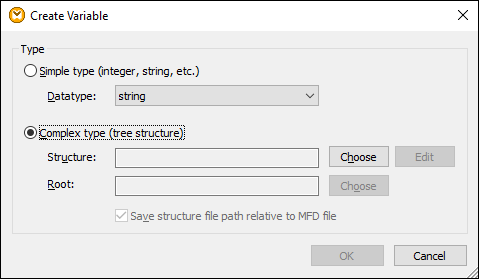
2.Select the type of variable you want to insert (simple or complex type).
If you select Complex type, follow these additional steps:
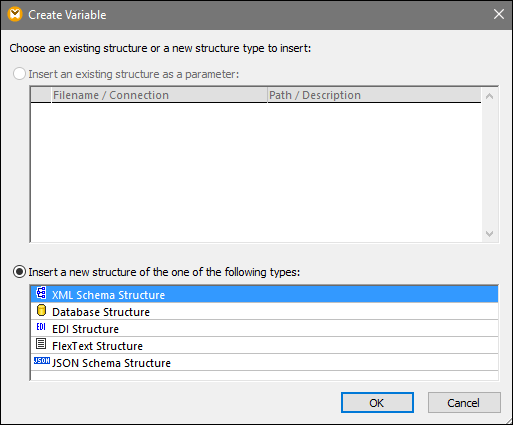
3.Click Choose to select the source which should provide the structure of the variable. The structures illustrated in the screenshot below only apply to MapForce Enterprise Edition. See the list of structures relevant to other MapForce editions in the previous topic.
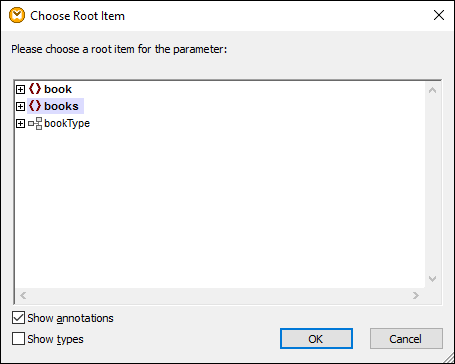
4.When prompted, specify the root item of the structure of the variable. For example, in XML schemas, you can select any element or type from the selected source (see screenshot below).
Option 2: via the context menu
You can create a variable using the context menu. The possible options are listed below.
Variable from a source/target node
To create a variable from a source or target node, right-click the relevant connector and select Create Variable from Source/Target Node. Note the following points:
•If a node does not have any descendants, a simple variable containing only this node is created.
•If a node has descendants, a complex variable containing the node and its descendants is created.
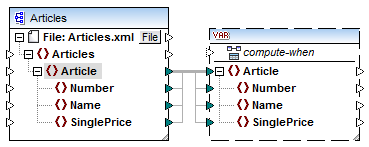
In the example below, we want to create a variable from the output connector of the Article element.
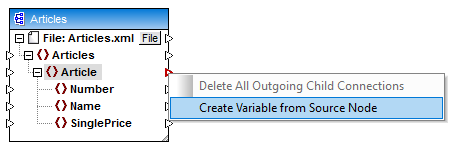
This creates a complex variable with the source schema of the Articles component. All the items are automatically connected with a copy-all connection.
Variable from a filter
To create a variable using a filter, right-click the output connector of a filter component (on-true/on-false) and select Create Variable from Source Node. This creates a complex component with the source schema and automatically uses the item linked to the filter input as the root element of the intermediate component.