Mapping Difference
The Mapping Difference pane (screenshot below) enables you to compare an older and a newer version of the same mapping.
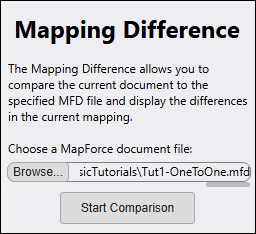
Activate Mapping Difference
To activate the pane, do one of the following:
•Click the  toolbar command.
•Select View | Mapping Difference.
How to compare two versions of a mapping
To compare two versions of the same mapping, take the following steps:
1.Open the mapping that you want to use as the current mapping.
2.Browse for the other mapping in the Mapping Difference pane.
3.Click Start Comparison to compare the current mapping with the selected one.
You can compare a newer version with an older one, and vice versa.
Differences are displayed in the current mapping and in the Mapping Difference pane.
Close comparison mode
To disable the comparison mode, click Close in the Mapping Difference pane. The mapping will not be modified.
Types of differences
The possible types of differences are summarized below.
•Component changes:
oA component is present in the current mapping but absent from the compared mapping.
oA component is present in the compared mapping but absent from the current mapping.
oA component's properties have changed.
•Connection changes:
oA connection is present in the current mapping but absent from the compared mapping.
oA connection is present in the compared mapping but absent from the current mapping.
oA connection's properties have changed.
•Node changes:
oNodes present in the current mapping but absent from the compared mapping are not marked.
oA node is present in the compared mapping but absent from the current mapping.
oA node's properties have changed.
oA node's descendants have changed.
To see descriptions of all possible difference types and their illustrations, click the  button in the Mapping Difference pane.
Diff report
To export a mapping difference report in XML format, click the  button in the pane.
Grouping
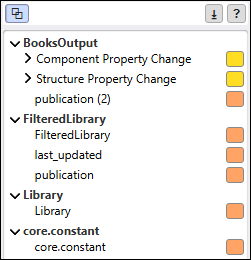
The Mapping Difference pane allows you to group differences by component. To enable grouping, click the  button in the pane. The screenshot below shows an example of grouped differences.
MapForce command-line interface
You can also compare mappings and generate a report using the MapForce command-line interface.
Examples
In this subsection, we show two comparison scenarios: comparing a newer version with an older one, and vice versa.
Scenario 1
The example below shows BasicTutorials/Tut2-MultipleToOne.mfd, which we use as the current mapping. We compare this mapping with BasicTutorials/Tut1-OneToOne.mfd.
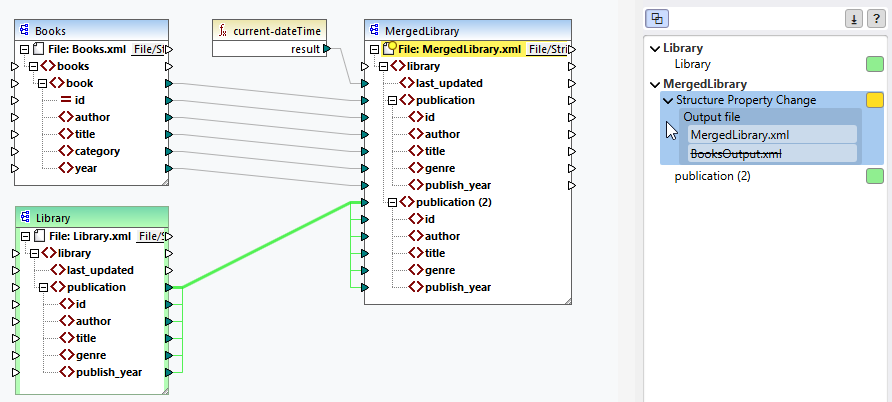
MapForce has identified the following differences:
•Green: The Library component and the outgoing copy-all connection are shown in green because they are present in the current mapping but absent from the compared mapping. The corresponding items are also marked with green boxes in the Mapping Difference pane.
•Yellow: The File node of the target component has a yellow dot, which indicates that this node has changed. When you hover over the corresponding item in the Mapping Difference pane, the File node is highlighted in yellow. The pane shows that the target file is called BooksOutput.xml in the compared mapping and MergedLibrary.xml in the current mapping.
Scenario 2
In the second scenario, we use Tut1-OneToOne.mfd as the current mapping and compare it with Tut2-MultipleToOne.mfd. The comparison results are illustrated below.
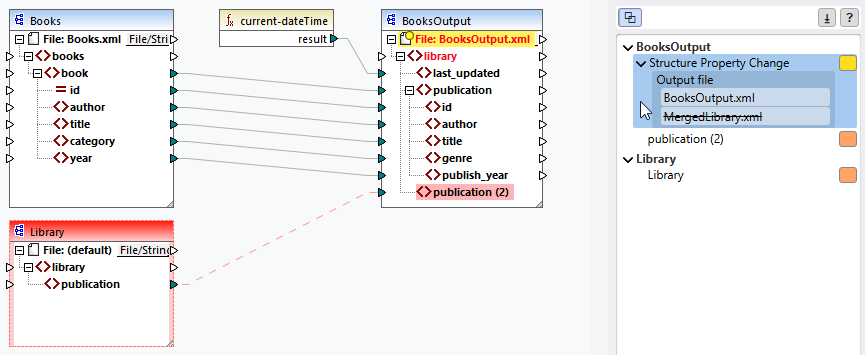
MapForce has identified the following differences:
•Red: The Library component and its outgoing connection are shown in red because they are present in the compared mapping but absent from the current mapping. The publication (2) node has a red background, which indicates that it is also present in the compared mapping but absent from the current mapping.
•Pink node names: The File and library node names in the target component are shown in pink, which indicates that some of their descendant nodes have changed (publication (2)).
•Yellow: The File node has a yellow dot because its name differs from the compared mapping.