Letting AI Decode Your EDI Mappings in MapForce
Of all the data formats an integration developer deals with, EDI is the one most likely to slow you down at the mapping stage. The standards are decades old, the identifiers are terse by design, and the structure is deeply nested. A segment like NAD or a group like SG29 carries real, specific business meaning, but nothing about the name tells you what that meaning is. Before you can connect a single EDI field to a target database, you have to know what it represents, which usually means cross-referencing the message specification.
That decoding work is the part of EDI integration that resists automation. Figuring out which cryptic source element maps to which target column is a slow, manual process that is entirely dependent on someone who already knows the format.
This is exactly where Altova AI in MapForce helps most. It understands the meaning behind those opaque EDI identifiers, proposes the right connections, and lets you accept them one at a time — without making you translate the spec first.

EDI Data Mapping
MapForce supports a broad range of EDI standards and their current and previous versions, including:
- EDIFACT
- ANSI X12
- HL7 (Health Level 7)
- HIPAA X12
- SAP IDOC
- IATA PADIS
- TRADACOMS
- SWIFT
- ODETTE
- VDA EDI
- FORTRAS
This means you can map and convert EDI between any of the other supported data formats, which include databases, XML, JSON, Excel, PDF, and more.
Real-world EDI Data Integration Example
Let’s take a look at a common requirement in the data integration and ETL world: mapping an EDI document to a backend database and see how it works using Altova AI.
We begin by inserting source EDI order file and the target database schema in a new MapForce project. The database has several tables — Customers, Orders, Articles, and so on — connected by relationships, which is typical of a normalized order-management schema.
Rather than turning the AI loose on the entire schema at once, we'll build the mapping table by table. That keeps the suggestions focused and makes them easier to review.
We select the Customers table in the target database as a starting point and ask Altova AI to find connections for mapping to Customers from somewhere in the EDI source.
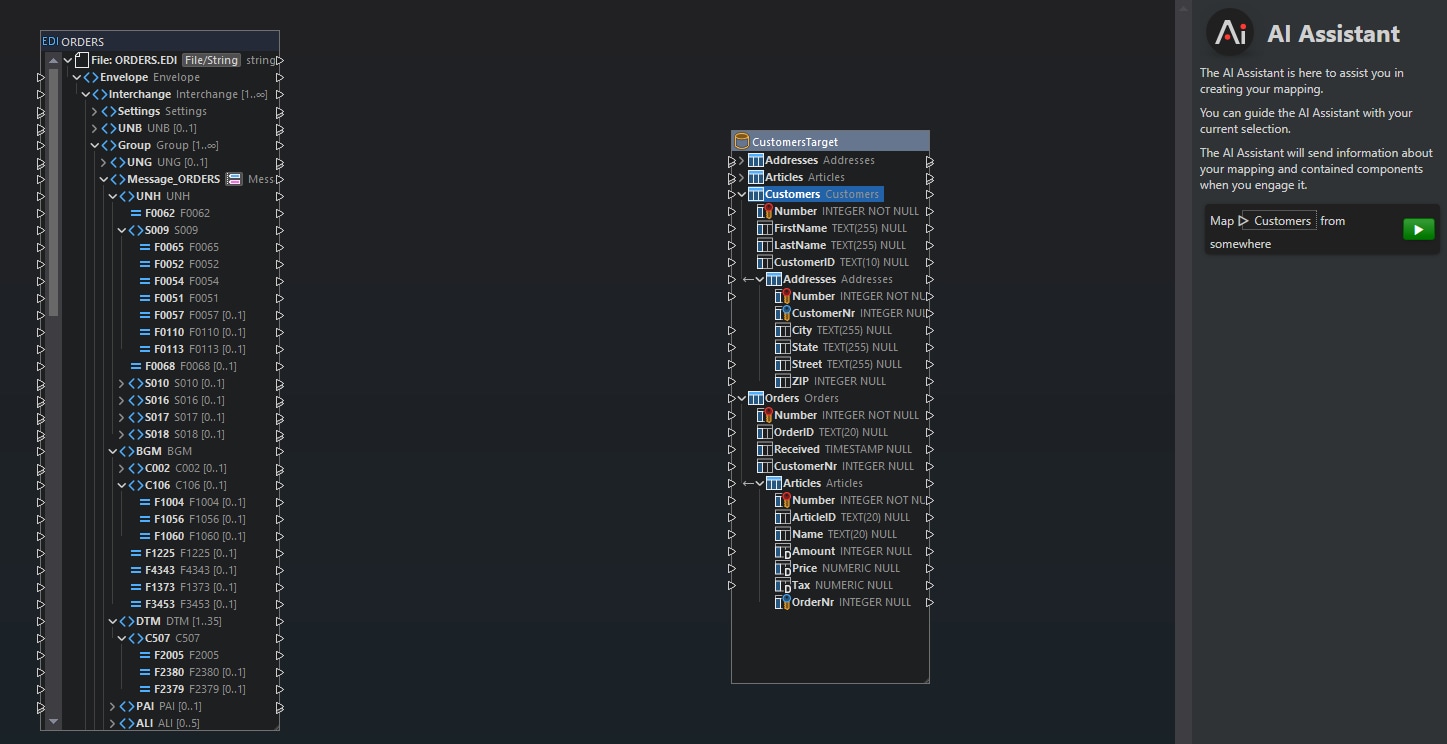
It analyzes the source data structure and proposes a set of connections, shown in green.
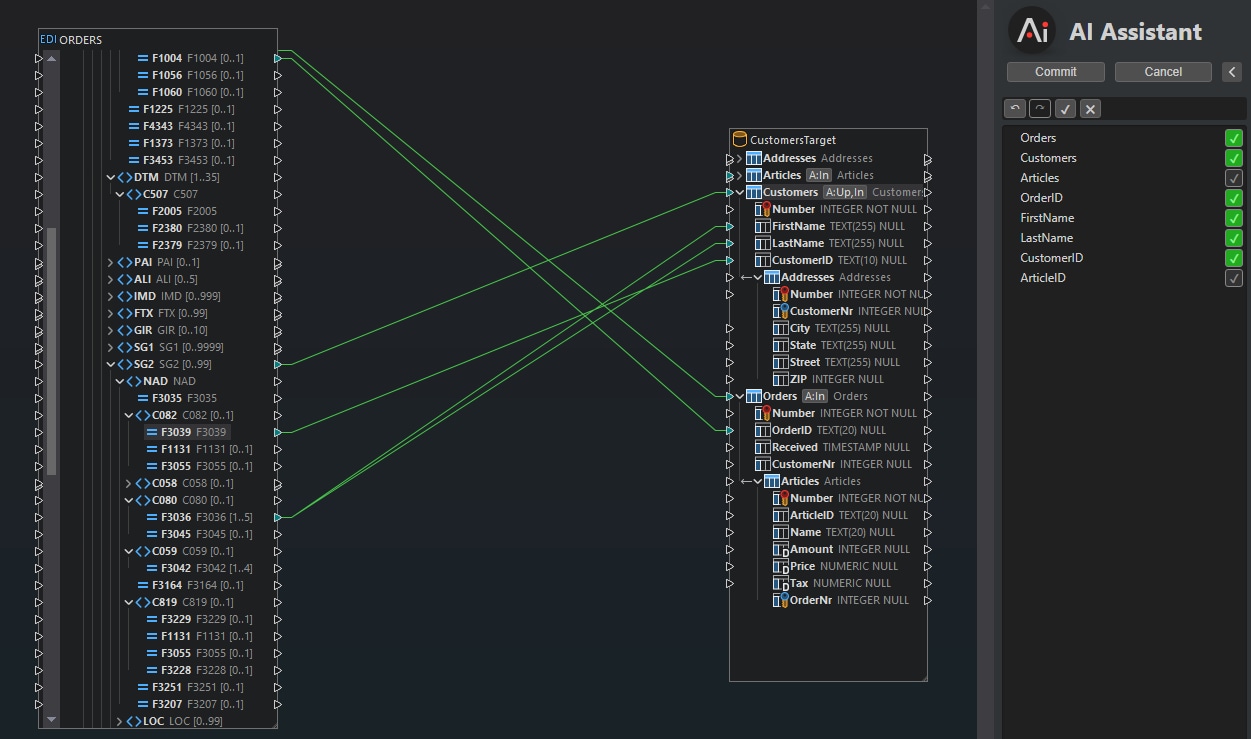
It actually suggests more than we want right now: along with the customer fields, it proposes connections for Articles and ArticleID. Because we're deliberately focusing on the Customers table first, we decline those by unchecking them, and then click Commit to keep the customer-relevant connections.
This is the value of the interactive, accept-or-decline workflow: the AI offers a generous first draft, and we decide what belongs.
Completing the address fields
With the core customer fields in place, we move on to the address. We ask Altova AI to find connections for the address fields, and it returns matches for Address and City.
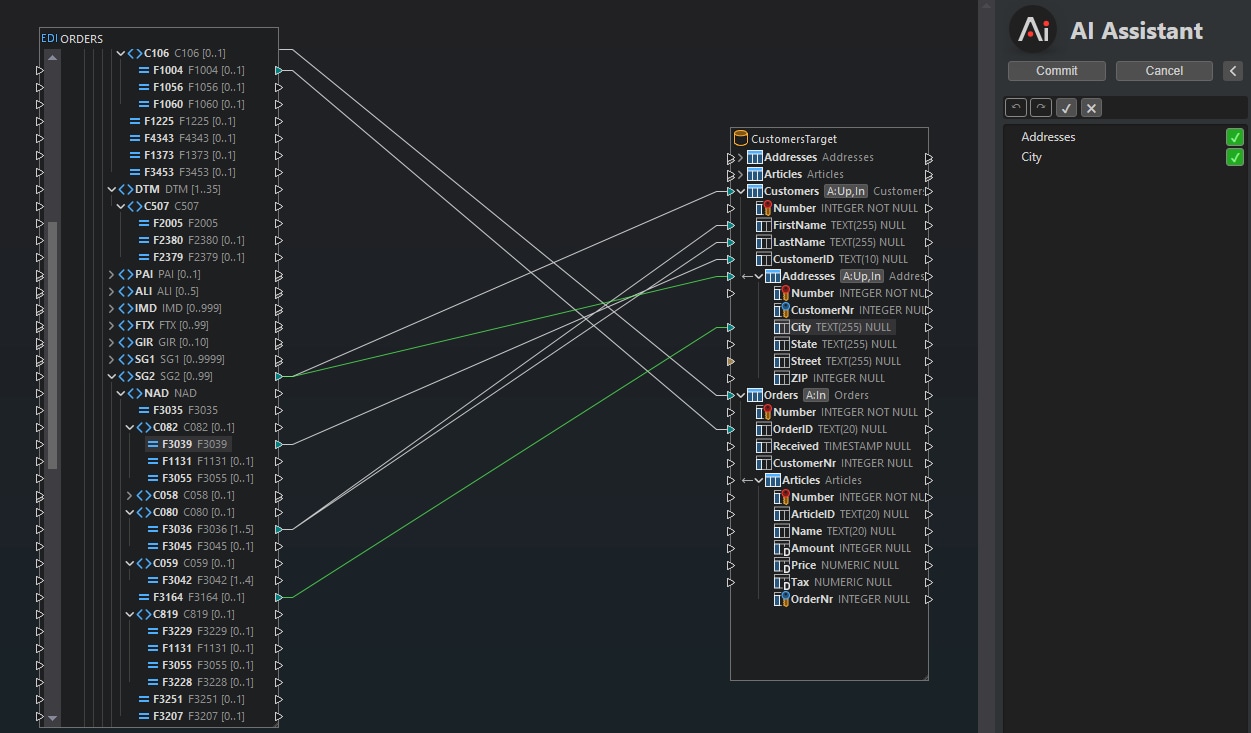
We still need connections for State and Street, so we ask for those too. On the follow-up requests, it locates the correct source elements for both.
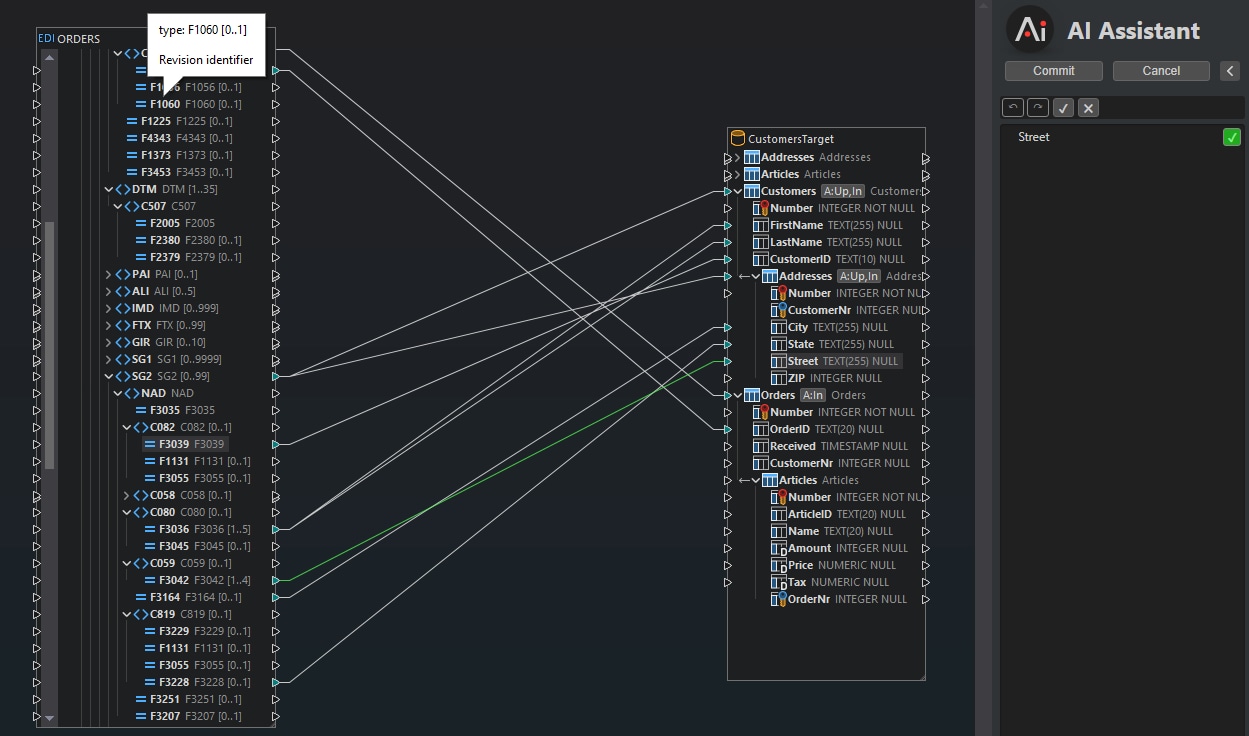
This is worth highlighting: when a first pass doesn't cover everything, you don't drop back to manual mapping. You point the AI at the specific fields still open and let it generate more suggestions for just those. Each request narrows the work that's left.
Mapping the Articles inside the order
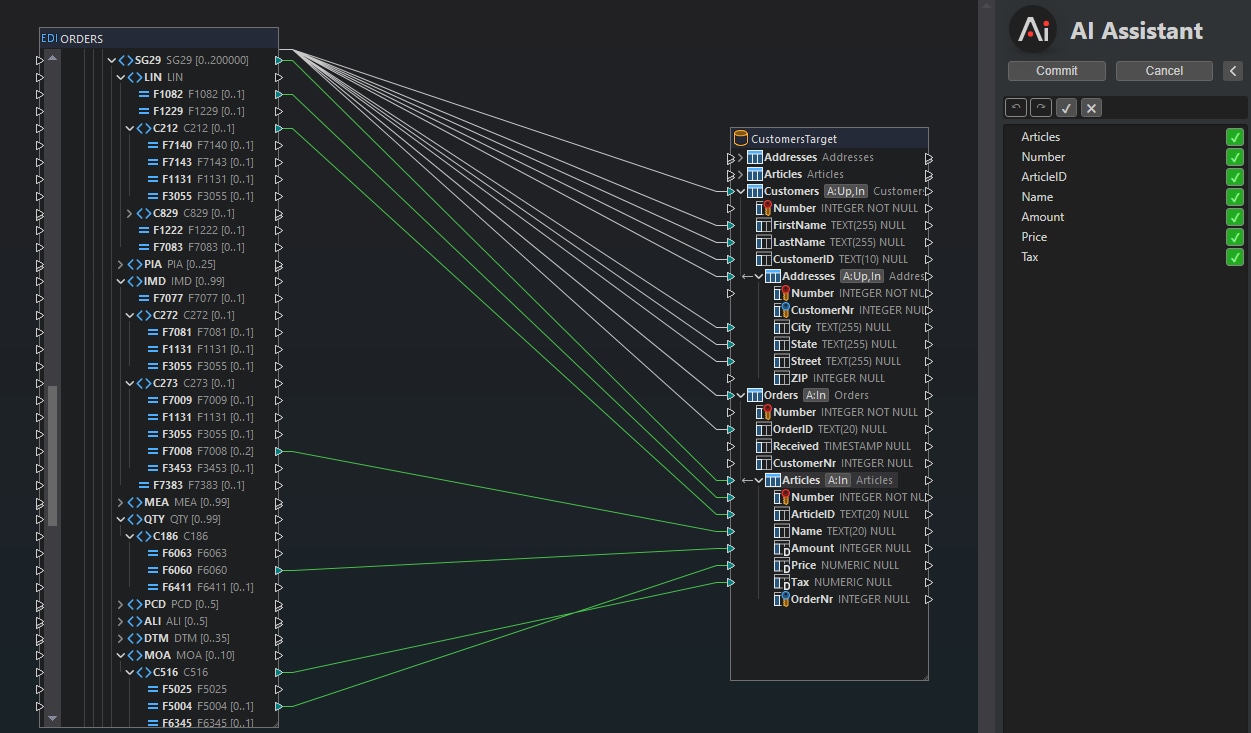
Now we can handle the line items. In the target database, the Articles table is linked from within the Order table, so we select it there and again ask Altova AI to find connections from the source.
This is the part of an EDI mapping that's usually the most painful, because the line-item data lives deep inside a nested segment group, often with cryptic field names. Altova AI handles it cleanly: it locates the correct elements inside SG29, the segment group that carries the line-item detail, and proposes the right connections.
Why this matters for EDI specifically
The example above is fairly basic one, but it stands in for the work that makes EDI integration slow at scale:
Cryptic identifiers are decoded for you. You don't have to know up front what
NAD,LIN, orSG29represents. Altova AI reads the data and proposes the connection.Nested structure is handled. Line items buried in segment groups are found and connected without manually walking the hierarchy.
You stay in control. Every suggestion is reviewed and accepted or declined individually (or all at once when it makes sense), so a generous first draft never becomes a black box.
Iteration is cheap. When a pass misses a field, you ask again for just that field instead of finishing it by hand.
The output is a real MapForce project. Everything lands in the standard graphical environment, ready to run, automate with MapForce Server, or refine like any other mapping.
For teams that move EDI data regularly across EDIFACT, X12, HL7, HIPAA, and the other standards MapForce supports this turns the slowest, most specialized part of the job into a draft you review rather than a document you decode.
Try it on your own EDI mappings
Altova AI is available as a subscription added to your MapForce license and requires an active Support and Maintenance Package (SMP). The fastest way to see what it does is to point it at an EDI file and target you already know, and watch how it handles the connections you'd normally trace by hand.
Review the options and start a subscription on the Altova Online Shop or learn more about Altova AI in MapForce.