Files and Folders
The Files and Folders page is where users manages their folders. They can add, rename, share, and delete folders, and they can upload files to folders. These folders are then scanned for displaying SPS and PXF files on the Projects page, where the SPS or PXF file can be clicked to view or edit it on the Authentic Editor page.
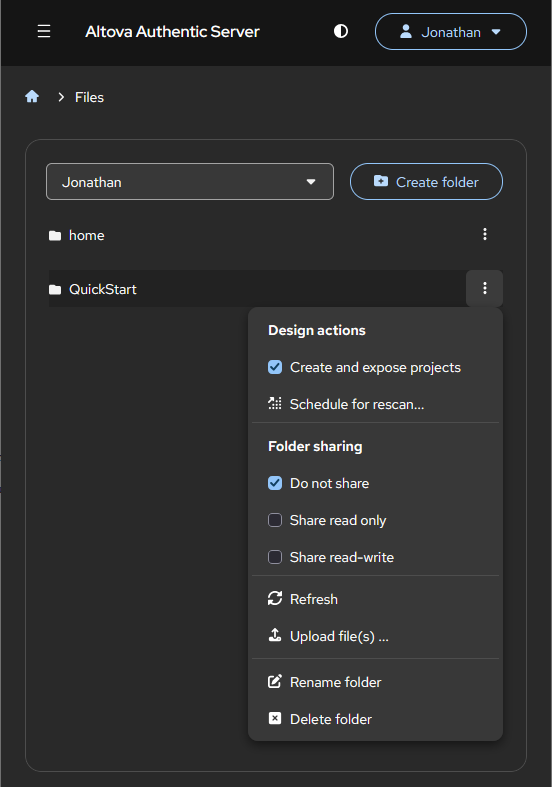
When a user is registered, an initial folder, called home, will automatically be created for storing uploaded files (see screenshot below). More folders can be added by clicking Create folder. For example, in the screenshot below, we created a new folder named QuickStart, which has been added to the list of folders. Users can create as many new folders as they like.
About folders and their contents
A folder is where you upload the files that you want to work with in Authentic Editor. The file-set that you would need for a single Authentic project will be one of two types.
•An SPS file together with its associated files, which are XML and XML schema files, as well as other files, such as graphics files, that are used in the SPS design.
•A single PXF file, which is a package that contains the SPS file and all the files associated with the SPS design.
Both the SPS file and PXF file are generated in Altova StyleVision.
SPS and associated files
In Altova StyleVision, an SPS designer creates an Authentic template on the basis of an XML schema. This Authentic template is the SPS file. Now, if an XML file that is valid according to the schema is associated with the SPS, then that XML file can be edited graphically in Authentic Editor. It is this SPS file and its associated files that must be uploaded to a user folder so that the XML file can be viewed or edited as an Authentic project in Authentic Editor.
PXF file
In Altova StyleVision, you can package an SPS and all its associated files together into a PXF file. This is useful because all the relevant source files of your Authentic project are packaged into a single file. You would need to upload only this one file to a user folder.
Folders and projects
The relationship of a user folder to Authentic projects can be either one of the following:
•One user folder contains the files of one Authentic project.
•One user folder contains the files of multiple Authentic projects.
How you organize your project files into folders is entirely up to you and would depend on the number and type of Authentic projects with which you will be working.
Note: In order for a folder to be listed on the Projects page, select its Create and Expose Projects command and then its Schedule for Rescan command (see next section below).
Folder actions
On each folder, you can run actions by clicking the More Actions button at the far right of each folder row (screenshot below) and then selecting the action you want from the dropdown menu.
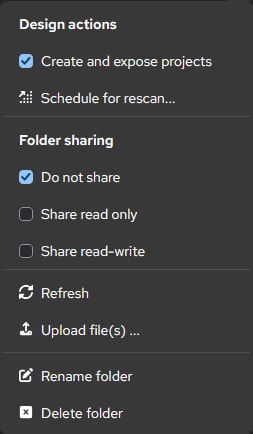
Upload files, Refresh
Click Upload file(s) to upload files to the folder. In the File Upload pane that appears, add the files you want to add. You can also add an entire folder from your local disk as a subfolder. Do this by dragging the local folder into the File Upload pane and onto the entry field for file uploads. Note that subfolders on this page cannot be deleted or renamed because they represent actual folders on the local disk. However, you can refresh subfolders and upload files to it from other folders.
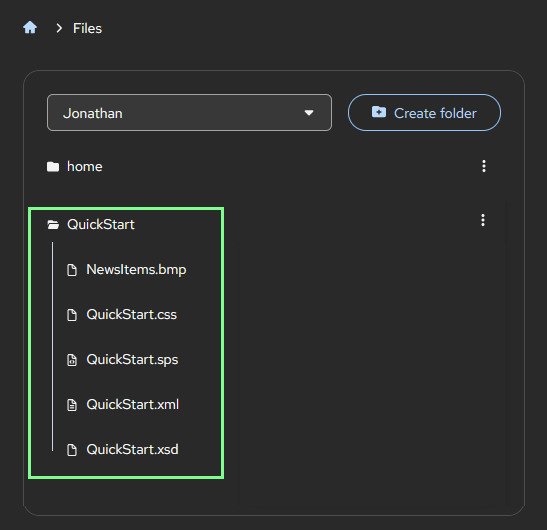
Click the Refresh command to reload the folder's file list and see the newly added files. In the screenshot below, for example, after uploading files to the QuickStart folder and refreshing the view, the uploaded files are displayed. The folder contains one SPS file and the files associated with the SPS.
Design actions
After files have been uploaded to the folder (see above), click the More Actions button of the folder (see first screenshot of this section). Then toggle on Create and expose projects so that all SPS and PXF files of the folder are displayed on the Projects page as Authentic projects. You should also click Schedule for rescan to rescan the folder and update project information on the Projects page.
For the QuickStart example shown in the screenshot above, QuickStart.sps will be displayed as an Authentic project on the Projects page (screenshot below). The project can then be clicked to view it in Authentic Editor and to edit it there.
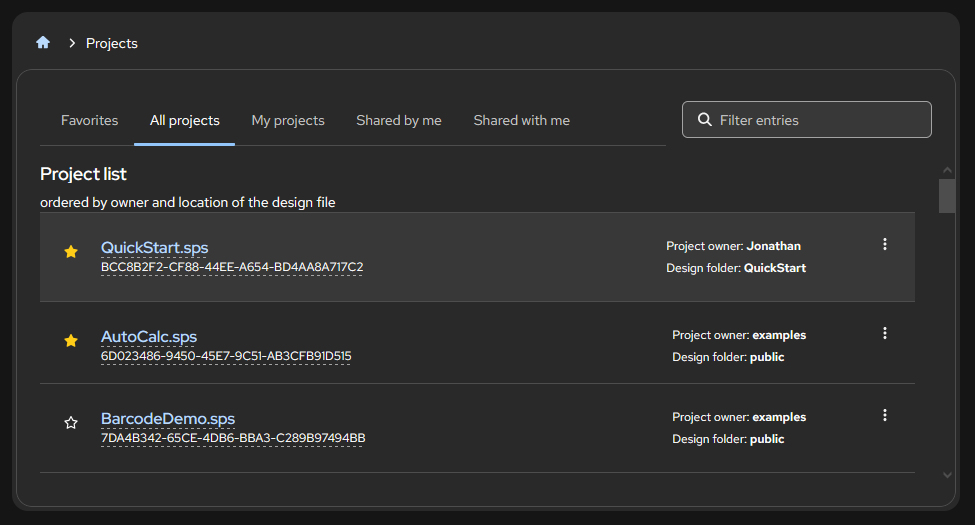
Note: The Create and expose projects command makes the folder public, displaying the folder's projects on the Projects page. The Schedule for rescan command rescans the folder to discover the SPS and PXF files in it—and to update the Projects page with any newly discovered Authentic projects. The two commands serve different functions. The first makes the folder public on the Projects page, while the second scans the folder for new SPS and PXF files and updates the the Projects page.
Folder sharing
You can set sharing options on the folder. The selected setting would apply to all projects in the folder.
Select one of the following mutually exclusive options:
•Do not share: This means only the current user can view and edit projects in the folder.
•Share read-only: All users of the Authentic Server can view—but not edit or save—all projects of the folder.
•Share read-write: All users of the Authentic Server can view, edit, and save all projects of the folder.
Rename folder, Delete folder
Use these commands to rename or delete the folder, respectively. If you delete the folder, all the files in it will be deleted as well.
Local projects and local folders
You can create editable local projects from projects that are in the Projects page. On a project of the Projects page, click More Actions | Create an Editable Local Copy. This adds a new top-level folder for that project. The new folder has a name with the pattern project_instance_data-<UniqueID>. Being top-level folders, these folders will also display the menu commands that are listed in the Folder Actions section above. With these commands, you can, for example, display the folder as a project, or rescan a folder, or delete it.
The advantage of local projects is that you can work with a separate instance of a project, which enables multiple users to work separately. Users can also download the XML files of the project, either before or after editing them, via a file's More Actions | Download File command (see below).
File actions
Click the More Actions button at the far right of each file row (see screenshot below) to select a file action.
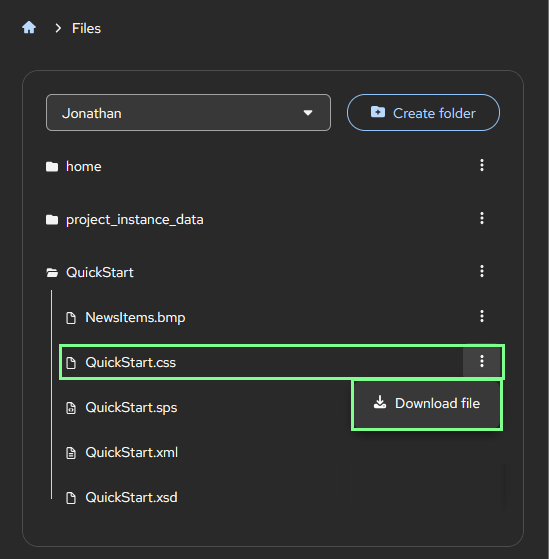
You can download the selected file to the browser's Downloads folder.