Manage Users (Admin Only)
The Manage Users page (screenshot below) is listed in the navigation bar only if the current user is an admin. The page lists all users and allows the admin to create new users and manage users.
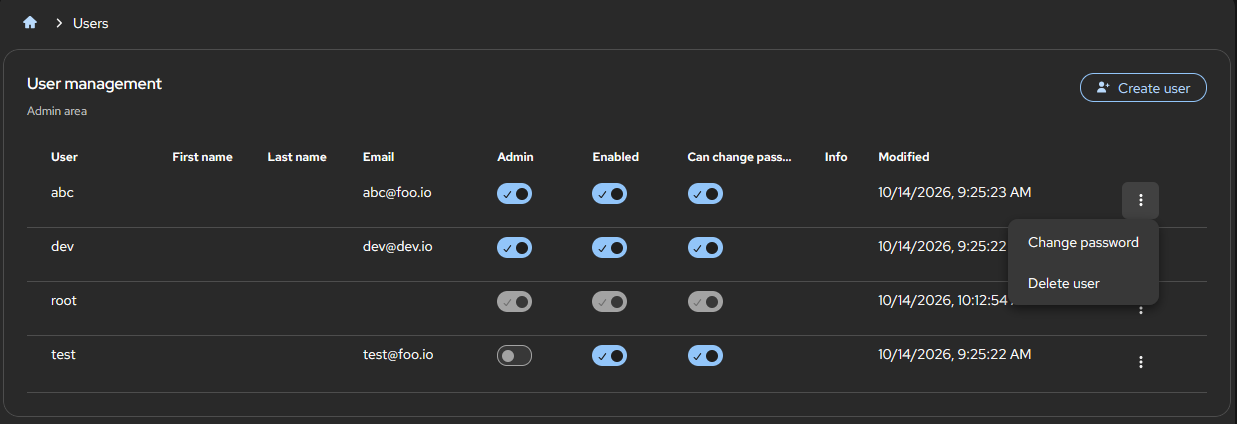
Admin procedures
Every Authentic Server has a root user, with the username root and password root. After you log in as the root user, you can change the password of the root user so that only authorized users can log in as the root user. The next steps would be to create and activate users (see below) and to set up the folders for Authentic editing of your documents.
Create new users
An admin can create new users, register them, enable them, and assign them permissions. The procedure consists of the following three steps:
1.Click Create User at top right of the main window (see screenshot above). This brings up the user registration form.
2.In the user registration form, enter the user's details. See the topic Register User for more information.
3.On registering the new user, you are returned to the Manage Users page. The new user will be in the list of users. In order for a user to be able to use Authentic Server, the user must be enabled. Additional permissions are described in the Manage Users section below.
Manage users
As an admin, you can set the following permissions for any user except the root user.
•Admin: Whether the user is an admin or not. Click the toggle button on or off. The default is Off.
•Enabled: Whether the user has access to the system or not. Click the toggle button on or off. The default is Off.
•Can change password: Whether the user can change the user password or not. Click the toggle button on or off. If this permission is granted, then a user can change the user password via the dropdown menu on the User button (at top right of the interface). The default is On.
The More Actions button at the far right of each user row drops down a menu with more admin actions for that user (see screenshot). The available actions are:
•Change the user's password. The Change Password form will open and you, as admin, can enter the new user password there. Note that you can also reset a user's password by using the CLI command passwd.
•Delete the user. You will be prompted for a confirmation.
About the root user
Note the following points about the root user:
•The root user cannot be deleted.
•The root user permissions cannot be changed.
•The root user password can be changed.