Projects
The Projects page displays SPS and PXF files of the folders that have been made public by their creators. For example, in the screenshot below, we see that the following Authentic projects are available:
•The user Jonathan has made public the folder QuickStart, which contains one project indicated by QuickStart.sps.
•The user examples has made public the folder public, which contains two projects.
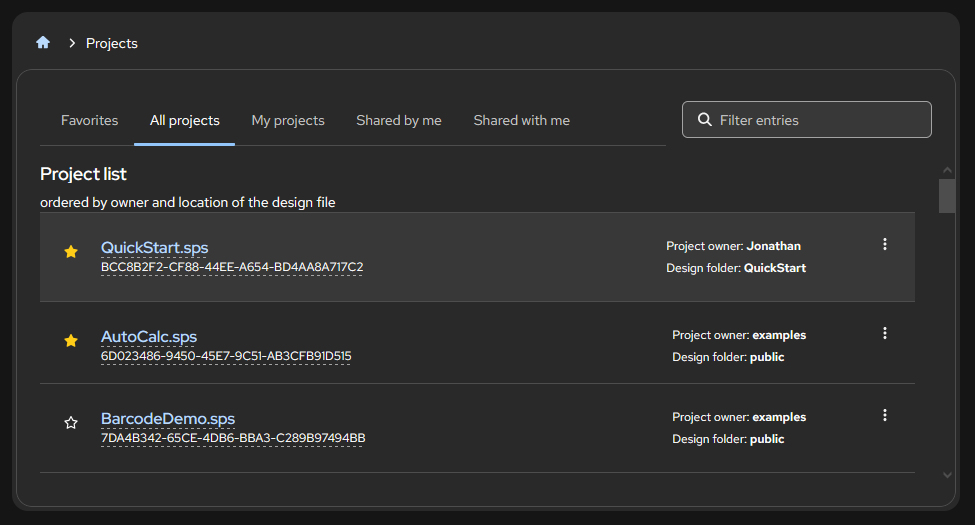
The listed project names are links. Click a project name to open that Authentic project in Authentic Editor.
Filter the project list
The projects can be filtered in the following ways by selecting the respective tab at the top of the page.
•Favorites: This tab lists projects that have been marked as favorite. A favorite is marked by clicking the star icon on the left of a project name (see screenshot above). When a project has been marked as a favorite, the star icon turns yellow. To remove a favorite status, click the yellow star.
•All projects: This tab lists projects in the public folders of all users. In the screenshot above, the All projects tab has been selected—indicated by the blue underline.
•My projects: This tab lists projects of the current user.
•Shared by me: These are projects that are in folders that the current user has shared—either read-only or read-write. This set of folders will be a sub-set of the folders in My projects.
•Shared with me: These are projects in folders that other users have shared—either read-only or read-write. This set of folders will not include the folders in My projects.
Another way to filter the project list is by entering a string in the Filter entries text box. Only projects with file names that match the filter string will be displayed.
Project actions
Click a project name to open it in Authentic Editor.
Additionally, the following actions are available in the menu of the More Actions button, which is located at the right of each project row.
•Is Enabled: If you have shared a folder, then this toggle command allows you to enable or disable the sharing of individual projects of the shared folder. The command will be disabled for projects that are in folders that do not belong to the current user or to folders that the current user has not shared..
•Create an editable local copy: Creates a local copy in a separate project_instance_data folder. This local copy is indicated by a chain icon (circled red in screenshot below). You can click this project to edit it in Authentic Editor.
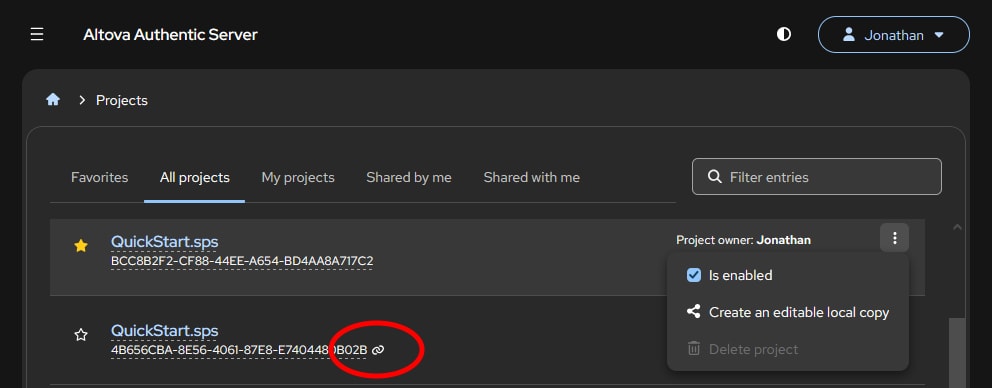
•Delete: This command is enabled only on projects that are local copies (see previous point), and enables you to delete a local copy.