Register User
User registration refers to a two-step process: (i) enter user details; (ii) enable the user to access the system and assign the user permissions. These steps are described below.
How to register users
There are two ways in which a user is registered:
•An admin creates a new user and registers the user. This is done from the Manage Users page.
•On the Login page, a new user is directed to the registration form to carry out the first step of registration (entering user details). The second step (activation and permissions) must be carried out by an admin, who should inform the user once activation has been completed.
Registration form (for user details)
The registration form (screenshot below) is opened when an Admin clicks Create User on the Manage Users page or a new user clicks Register on the Login page.
The form is straightforward. The Username, Email, and Password fields are mandatory. The username and password are required for logging in. The email is required so that Admins can contact the user.
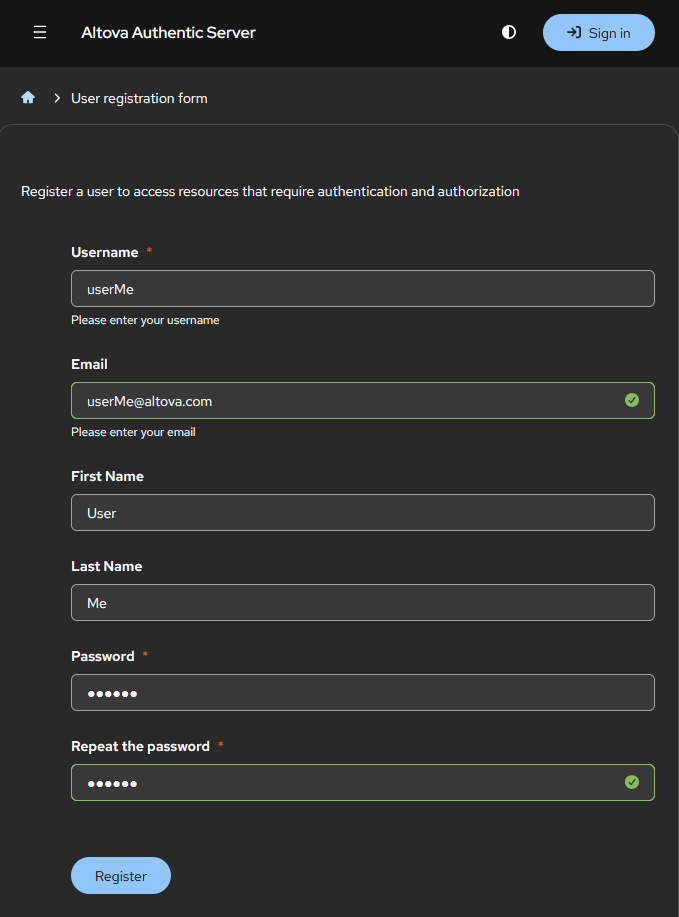
Click Register when done.
Activation by Admin
After a user's details have been registered (see above), the user appears in the Manage Users page of admins (who are users with admin rights). In order to activate a user, an admin switches on the user's Enabled setting. Once a user has been activated in this way, the user can access the user account and start using Authentic Server. See the topic Manage Users for more information about how to create users and set up permissions for them.
After an admin has enabled a user and set the user's permissions, the admin should inform the user about their activation and permissions.
Note: By default, every registered user must be activated by an admin. However, user activation can be set to occur automatically after registration has been completed. The setting for this is in the Config file.