Navigate the Interface
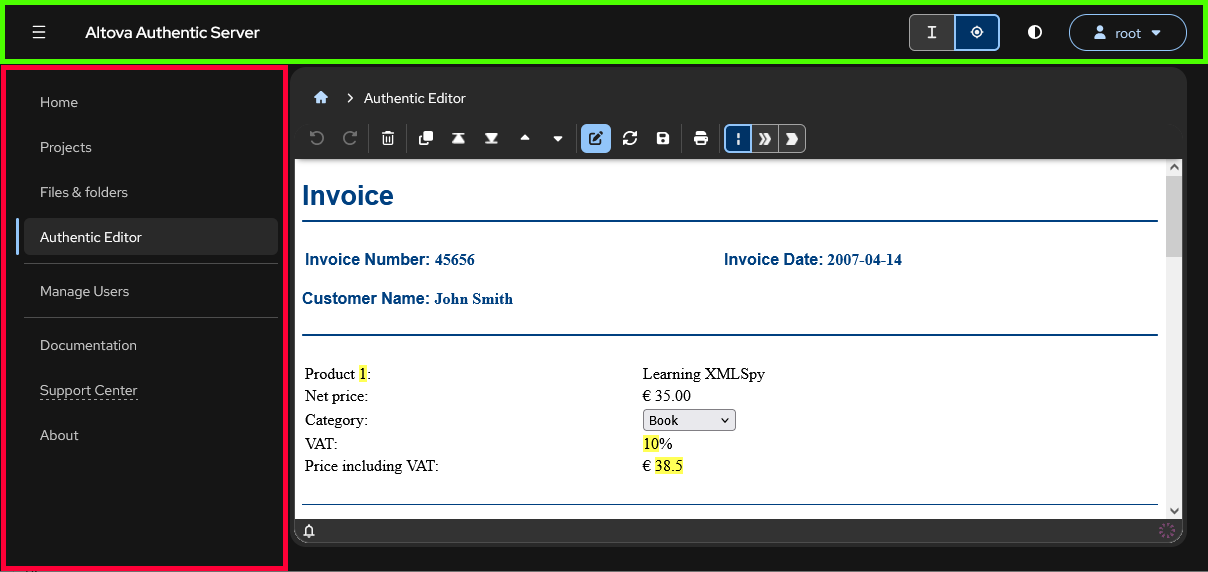
The Authentic Server interface (screenshot below) can be seen as having three parts:
•A header bar (highlighted green below)
•A navigation bar (highlighted red below)
•A main window (the rest of the interface)
Header bar
The header bar (highlighted green above) contains, from left, the following:
•A button to show/hide the navigation bar.
•The application title: Altova Authentic Server.
•A button pair to toggle the cursor between a beam and a crosshair. These buttons appear only when Authentic Editor is active in the main window—as in the screenshot above, .
•A button to toggle between light and dark modes.
•The User button, which (i) displays the username of the currently logged-in user and (ii) provides a dropdown menu of user-level actions available to the current user (screenshot below).
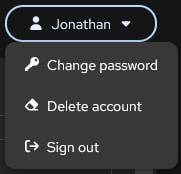
The commands in the dropdown menu enable the user to change the user password (if this has been enabled by an admin), delete the user account, and log out. Admins additionally have a Manage User command that takes them to the Manage Users page.
Navigation bar
The navigation bar (highlighted red above) contains the following items. Select an item in the navigation bar to display it in the main window.
Home
•When no user is logged in or the current user has not marked any project as a favorite, displays the contents of the About page (see below).
•When a user is logged in and at least one project has been marked as a favorite, displays a list of the user's Favorite projects. This enables you to click a favorite project right away and start work.
Projects
Displays projects available to the current user together with their details. Projects can be filtered in various ways, by selections made at the top of the Projects page.
Files & Folders
Displays the files and folders available to the current user. Click an item's Actions button (on the item's right-hand side) to select an action. The available actions for files are different than those for folders.
Authentic Editor
Displays the XML file for Authentic editing in the main window. You can display this page in the main window either by (i) clicking an SPS/PXF file on the Projects page or (ii) clicking Authentic Editor in the navigation bar. In Case (i), the document is opened in the main window for editing (as in the screenshot above). In Case (ii), the main window displays a list of recently opened documents; you can click a document to open it.
Manage Users
The Manage Users page is listed in the navigation bar only if the current user is an admin. This page lists all users and allows the admin to create new users and manage users. For example, an admin can enable a user and set user permissions, change user passwords, and delete a user.
Documentation
Opens the Authentic Server user manual (this document) in the main window.
Support Center
Opens an Altova Support Form at the Altova website, in which you can enter a support request.
About
Contains information about Altova Authentic Server.
Main window
The main window displays the item clicked in the navigation bar. At the top left of the main window is a navigation element that show's your location within the structure of the navigational hierarchy.