Authentic Editor
The Authentic Editor page is where the XML file of an Authentic project is edited.
Access the Authentic project
There are two ways to access an Authentic project:
•Select a project from the projects list displayed on the Projects page.
•Click Authentic Editor in the navigation bar. This displays a list of projects that are active (open) on the server. Select the project you want.
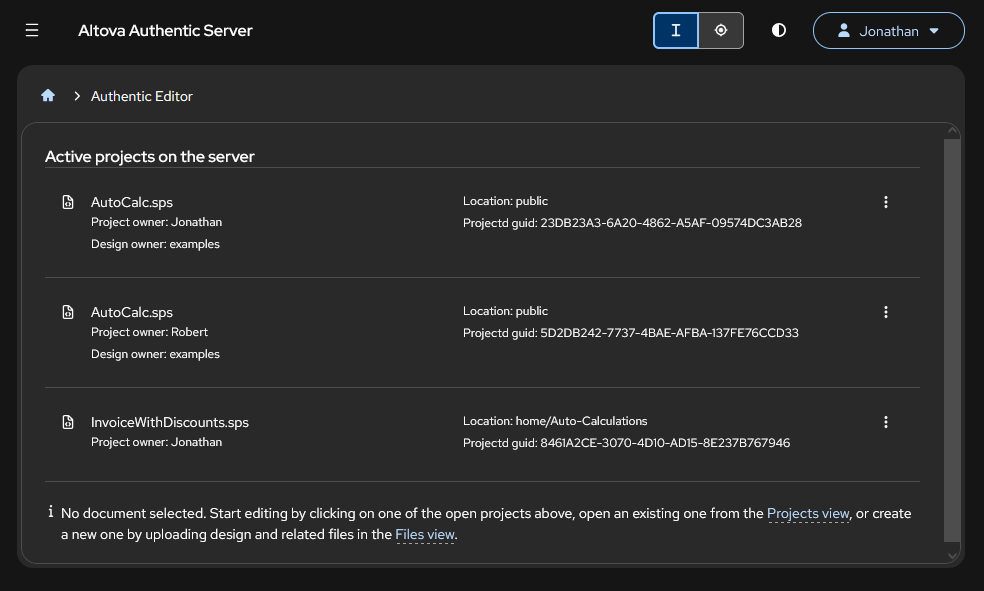
Note that the list of active projects displays the projects of all users of the server. Furthermore, if one project has been opened by multiple users, then all the open instances of that project are listed, each with a different GUID (globally unique ID). A project is active on the server if it has not been explicitly closed or has not been timed out. To close an active project, click More Actions | Close project on server.
Authentic Editor features
Authentic Editor displays the XML file in an Authentic template that has been designed to enable you to graphically edit the XML data. This template can additionally contain presentation information that is not part of the XML data and which you will not be able to edit. For example, in the XML file shown below, the names of cities and their populations can be edited by you, but you cannot edit the column headers, which are not part of the XML data—but have been added as part of the table-form presentation of the data. The template can additionally process the data in order to generate new data (for example, column summations or percentage calculations) or other representations of the data. In the example shown in the screenshot below, the Authentic template dynamically generates a bar chart from the data as the data is edited.
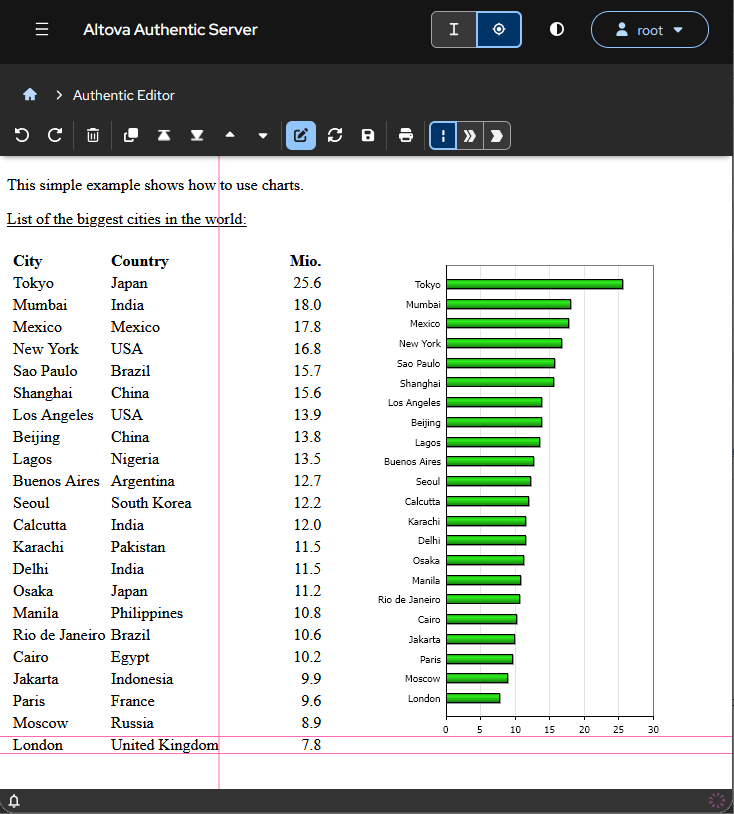
You can do the following with the XML file in Authentic Editor:
•View the XML data as presented in the Authentic Editor template.
•Edit the XML data and save your modifications to the file.
•Validate the XML document.
•Print the XML document in its Authentic Editor representation.
View and edit the XML data file
Your projects are listed on the Projects page. You can click a project there to open it for Authentic Editor viewing and editing.
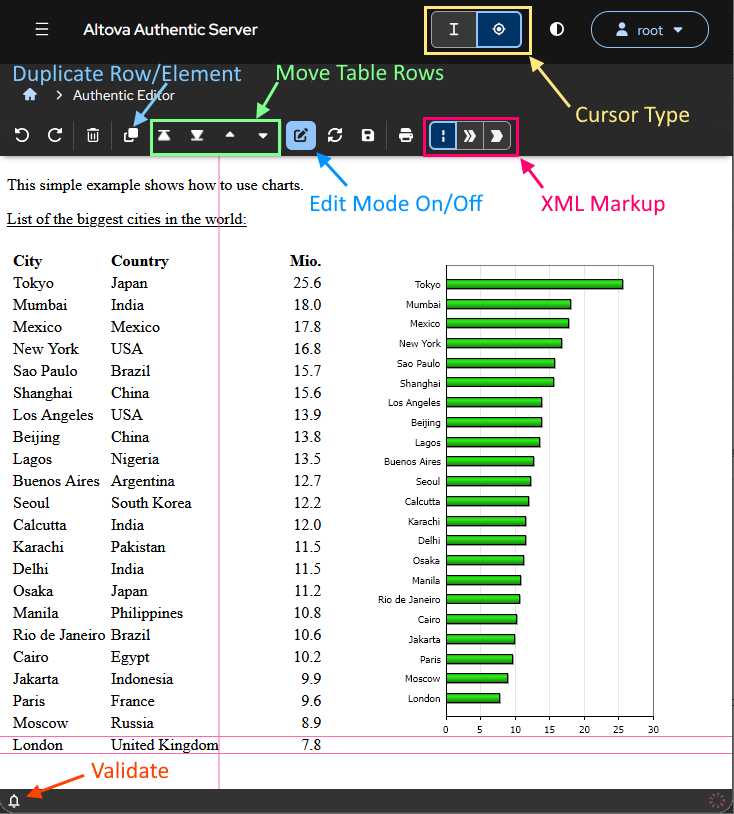
The viewing and editing features of Authentic Editor are best explained by describing the commands available in the app's toolbar. These features are listed below and their descriptions should be read with reference to the screenshot below.
Edit Mode on/off
To edit a document, make sure that the Edit Mode is toggled on with the Edit Mode button (see screenshot below). When the Edit Mode is off, you cannot use any of the editing features of Authentic Editor, but you can switch on/off XML markup, switch between cursor types, reload the document from the server, and print the Authentic document. In Editing Mode, you can edit content and modify selections via data entry devices (such as combo boxes and check boxes).
Note: If an Authentic project has already been opened by another user, then the XML file will automatically be locked for editing. The Edit Mode button will be toggled off, and you will not be able to toggle it on.
Cursor type
You can select between the well-known I-beam cursor type and a crosshair cursor type. The crosshair cursor is shown in the screenshot above and is a set of thin red lines: two parallel horizontal and one vertical. The cursor entry point is on the vertical line. To select the cursor type (I-beam or crosshair), use the buttons in the interface (highlighted yellow in the screenshot).
XML markup tags
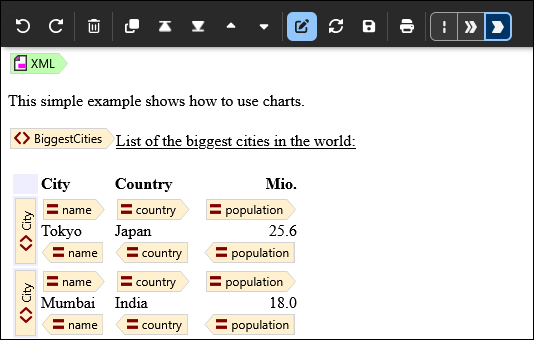
The document can be displayed without XML markup tags, as in the screenshot above, or you can switch on XML markup tags. The markup tags enable you to see the XML markup of the document and can be useful to understand the structure of the document, especially what content is part of the XML document and what content is extraneous to the XML document. There are two types of XML markup that you can choose from: large markup (which shows XML node names) and small markup (where node names are not shown). To select the XML markup you want, use the corresponding buttons in the toolbar (highlighted deep pink in the screenshot).
The screenshot below shows large XML markup. Notice that each City element corresponds to a row of the table representation of the BiggerCities element and that the columns of each row are given by the attributes of the City element: name, country, and population. Notice also the difference between the tag symbols for elements and those for attributes.
Move table rows
A table row in which the cursor is placed can be moved by using the buttons highlighted green in the annotated screenshot above. The selected row can be moved one row up or down, or all the way to the top or bottom.
Duplicate table row or XML element
This button in the toolbar duplicates a table row or an XML element. If the cursor is in a table row, then a duplicate row is created below the selected row. If the cursor is inside an XML element that is not inside a table row, then the XML element is duplicated immediately after the currently selected XML element.
Delete table row or XML element
You can use this button in the toolbar to delete a table row or an XML element. If the cursor is in a table row and the button is clicked, then the table row is deleted. If the cursor is inside an XML element that is not inside a table row, then that XML element is deleted.
Undo, Redo
You can undo and redo as many editing steps as you like, including steps such as duplicating and deleting table rows, moving table rows up and down, adding new XML elements, and textual edits.
Reload, Save, Print
These three buttons, respectively, reload the XML file, save the XML file with your current modifications, and print the Authentic Editor template of the XML document.
Validate XML
Validate the XML document by clicking the Validate button at bottom left of the main window. Validation errors, if any, will be displayed in a pop-up frame at the bottom of the main window.