Start and Login
Start Authentic Server
Start Authentic Server in a browser window by entering the Authentic Server URL in the address bar:
http(s)://Servername:PortNumber
For users
Your administrator will inform you about the address.
For admins
The port number will be set during the installation. The default port at which the installer tries to install Authentic Server is 8091. If this port is unavailable at the time of installation, then the installer will install at the next available port number, incrementing by 1 till it finds the next free port. So, if 8091 does not work in the address URL, try 8092 and so on, till you identify the port through which Authentic Server communicates. You can also use your system tools to find out the port being used by Authentic Server. You can subsequently set up a port number of your choice via the Config File.
Login
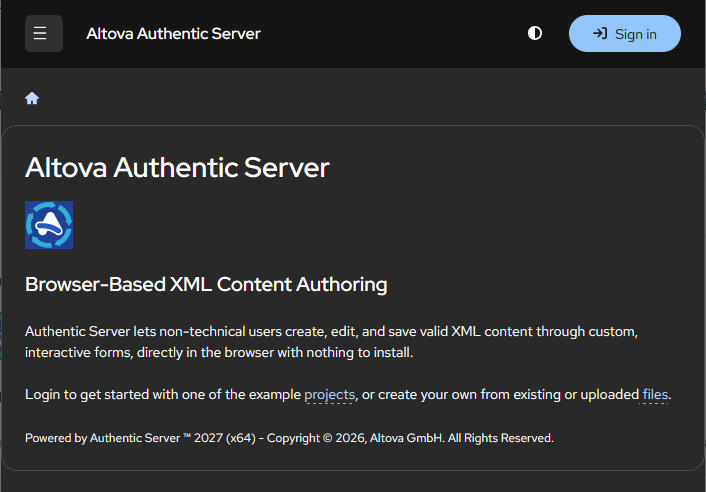
When you start Authentic Server, it will open at its Home Page (screenshot below). To access the Login page, click Sign In at top right of the Home page.
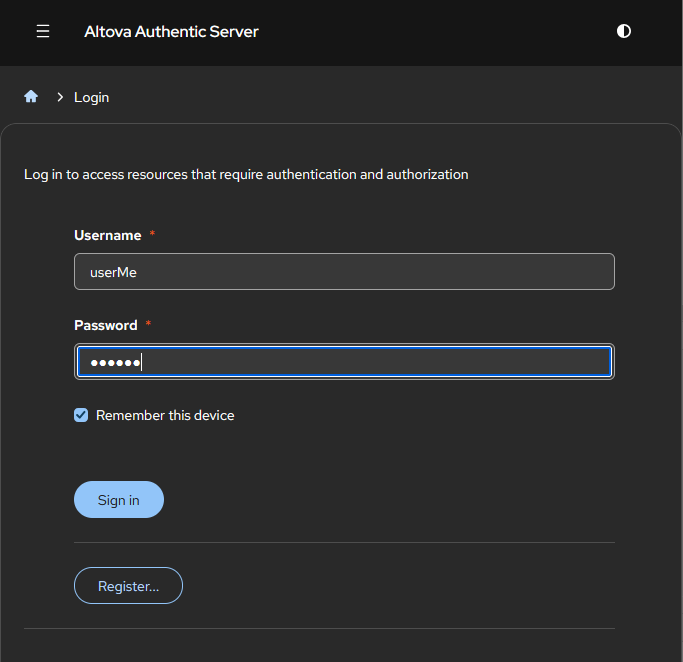
On doing this, the Login page will be displayed (screenshot below). Enter your username and password and click Sign in.
For users
If you are a new user, you must register before being able to log in. In this case, click Register. This opens the registration form, where you can enter your user details. Note that an admin might need to enable your access before you can use Authentic Server.
If you are an already enabled user, enter your login details and click Sign in.
For admins and root user
You can initially log in as the root user, with username root and password root. The root user has full admin rights, and this cannot be changed.
Subsequently, you (as the root user) can create a new user with admin rights and work as this user. Or you can continue working as the root user. The root user cannot be deleted.