Via Altova XMLSpy
Altova's XMLSpy application contains HTTP functionality that enables you to easily interact with OpenAPI documents and send HTTP requests from them. You can try out this functionality by using the Raptor OpenAPI file (in YAML format) that is installed with Altova XMLSpy, in its Examples folder. You can use this file to communicate with the Raptor HTTP Server API.
In XMLSpy, you can open this file in one of the following ways: RaptorXmlXbrl.openapi.yaml The file is located in the folder:
•From the Examples project of Altova XMLSpy. In the XMLSpy Project Window, click the file OpenAPI Examples | RaptorXmlXbrl.openapi.yaml.
•The file path on your system is: C:\Users\<username>\Documents\Altova\XMLSpy2027\Examples\RaptorXmlXbrl.openapi.yaml. If you have installed a 32-bit version of Altova XMLSpy, the folder will be Program Files (x86).
Note: Make sure that the RaptorXML Server service has been started (Windows, Linux) before you send your HTTP requests.
Note: The mechanism for sending requests to RaptorXML Server's HTTP API and receiving responses is described in the section Client Requests.
OpenAPI documents in XMLSpy
Altova XMLSpy can generate an HTTP request directly from within individual operation paths of an OpenAPI document. For example, in the screenshot below, you can right-click any HTTP request in the OpenAPI file, for example, /version/get, and select New HTTP Request from the context menu that appears.
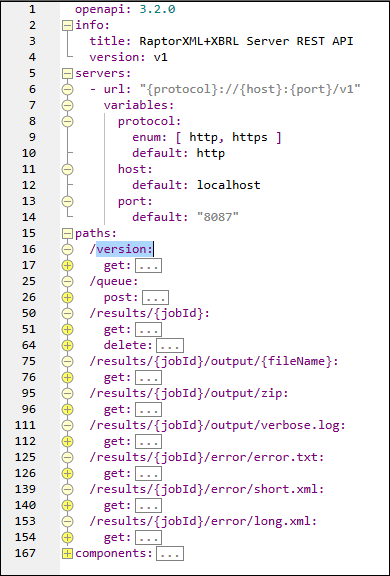
The HTTP Request Parameters dialog will appear with parameter values filled in based on the data in the OpenAPI file. On completing the parameter information and then clicking OK, the URL of the request will be displayed in the HTTP window of XMLSpy. You can review the request before sending it to the server API. The response from the server will be displayed in the right-hand pane of the HTTP window.
Connect to Raptor and GET version information
If you create a request on the /version path, the HTTP Request Parameters dialog shown in the screenshot below appears. In the dialog, the values of the connection parameters are filled in based on data in the OpenAPI file (compare with connection data in the screenshot above). Notice that, according to the OpenAPI file (see screenshot above), the protocol field can take one of two values (http or https). For this reason, the protocol field in the dialog has a combo box that restricts your choice to one of the two values. Notice also that the Output URI field constructs the HTTP request that will be used to get the version information
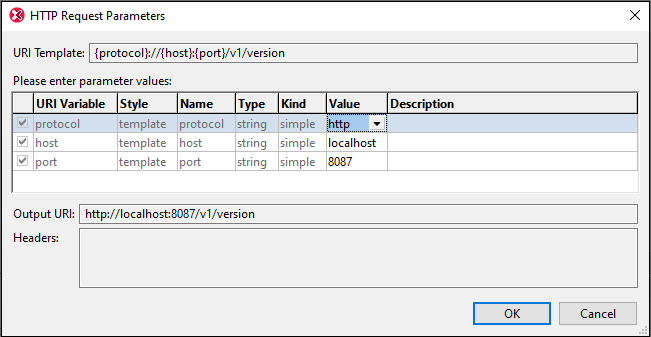
On clicking OK, the HTTP window appears with the GET request ready to go (screenshot below). Click Send in the HTTP window. The request is sent and the response from the server will be displayed in the right-hand pane of the window (screenshot below).
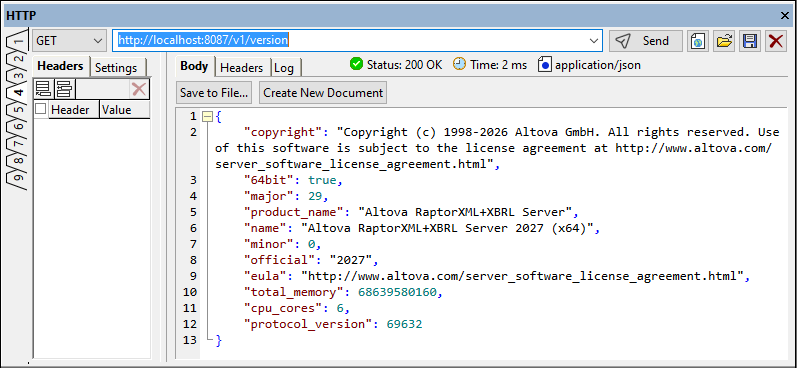
If you get an error, you can clear the response, fix the error, and execute again. Common errors are a failed connection, which might be because RaptorXML Server has not been correctly started or licensed.
POST a request, GET the server response
To send a POST request for an XML validation, do the following:
1.Right-click /queue/post in Text View or Grid View of XMLSpy and select New HTTP Request from the context menu.
2.In the Select Request Body Content Type dialog that appears, select xml_validation and click OK.
3.In the HTTP Request Parameters dialog that appears, review the pre-filled data and click OK.
4.The HTTP window now contains the POST request with data filled in from the OpenAPI file (screenshot below). You can change parameter values here if you like. For example, RaptorXML Server's XML validation command requires an XML file and XSD file/s to be specified as additional files. In the HTTP window, you can select the XML file you want (in the additional-files field). Click Send when done.
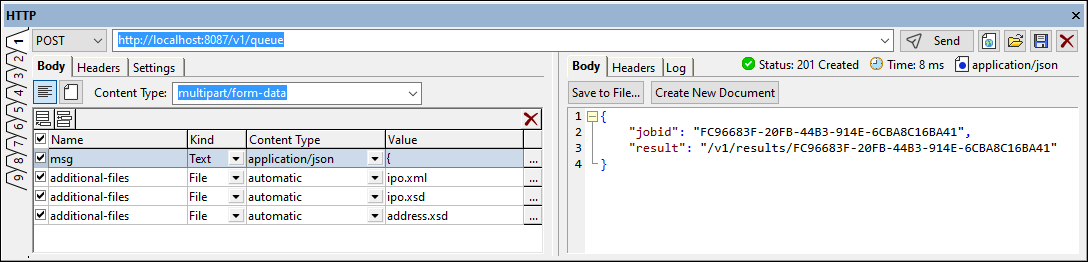
The server response will be displayed in the right-hand pane (see screenshot above). The response contains a job id and the location of the file containing the validation result. See the topic Server Response to POST Request for more information. The job id will be needed in the next GET request, which gets the validation-result file. To create this HTTP GET request, right-click the description of the GET request. In the HTTP Request Parameters dialog that appears, enter the job id as the value of the jobId parameter and send the request.
Using the steps described above, you can do the following:
1.Create other HTTP requests from any request description in the OpenAPI. Note that you can keep an old request and create a new request in a new numbered tab.
2.Fill in or edit parameter values in the HTTP Request Parameters dialog
3.Send the request from the HTTP window
4.View the server response in the HTTP window.
For more information about server responses, see the topics Server Response to POST Request, Getting the Result Document, and Getting Error/Message/Output Documents.