Preparing Mappings for Server Execution
This topic describes the main aspects of preparing mappings for execution on a server. Running mappings in a server environment usually requires some preparation for the following reasons:
•A mapping designed in MapForce may refer to resources which are not available on the current machine and operating system (for example, databases).
•Mapping paths follow Windows-style conventions by default.
•The machine on which MapForce Server runs might not support the same database connections as the machine on which the mapping was designed.
Prerequisites
If MapForce Server runs in standalone mode (without FlowForce Server), the following licenses are required:
•Source machine: MapForce Enterprise or Professional Edition is required to design mappings and compile them to server execution files (.mfx).
•Target machine: MapForce Server or MapForce Server Advanced Edition is required to run the mappings.
If MapForce Server is managed by FlowForce Server, the following requirements apply:
•Source machine: MapForce Enterprise or Professional Edition is required to design mappings and deploy them to a target machine.
•Target machine: Both MapForce Server and FlowForce Server must be licensed.
•FlowForce Server must be running at the configured network address and port and must not be blocked by a firewall.
•You have a FlowForce Server user account with permissions to the appropriate container (by default, the /public container is accessible to any authenticated user).
Note: The term source machine refers to the computer on which MapForce is installed. The term target machine refers to the computer on which MapForce Server and/or FlowForce Server is installed. In a typical scenario, MapForce runs on a Windows machine, whereas MapForce Server and FlowForce Server run on a Linux machine.
General considerations
Consider the following important points:
•If you intend to run the mapping on a target machine with standalone MapForce Server, all input files referenced by the mapping must also be copied to the target machine.
•If MapForce Server is managed by FlowForce Server, manual copying is not required. In this case, instance and schema files are included in the deployment package sent to the target machine.
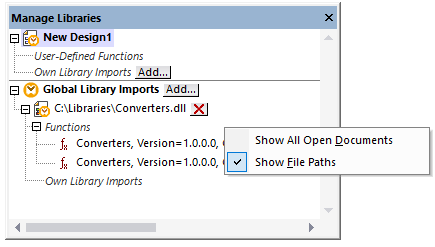
•If a mapping uses custom functions (for example, functions implemented in .dll or .class files), the corresponding library files are not deployed automatically with the mapping because they are resolved only at runtime. In this case, you must manually copy the required library files to the target machine. The path to each .dll or .class file on the server must match the path specified in the Manage Libraries dialog in MapForce (see screenshot below).
•Some mappings read multiple input files by using a wildcard path. In this case, input file names are not known until runtime and therefore are not deployed. For the mapping to execute successfully, the required input files must exist on the target machine.
•If the mapping output path includes directories, those directories must already exist on the target machine. Otherwise, an error occurs when the mapping is executed. This behavior differs from MapForce, where non-existing directories can be created automatically if the Generate output to temporary files option is enabled.
•If the mapping calls a web service that requires HTTPS authentication with a client certificate, the certificate must also be transferred to the target machine (see Digital Certificate Management).
•Before deploying a mapping to FlowForce Server or compiling it to a MapForce Server execution file, ensure that the mapping validates successfully in MapForce.
Making paths portable
To run a mapping on a server, ensure that the mapping follows the applicable path conventions and uses a supported database connection.
To make paths portable to non-Windows operating systems, use relative paths in MapForce mappings:
1.Open a mapping design file (.mfd) with MapForce on Windows.
2.Select the menu item File | Mapping Settings and clear the Make paths absolute in generated code check box.
3.For each component, open the Properties dialog box, make all file paths relative, and select the Save all file paths relative to MFD file check box.
For more information about relative and absolute paths in mappings, see the MapForce documentation.
Working directory
MapForce Server and FlowForce Server use the working directory against which all relative paths are resolved. The working directory is specified at mapping runtime as follows:
•FlowForce Server: By editing the Working Directory parameter of a job.
•MapForce Server API: Through the WorkingDirectory property of the COM and .NET API or through the setWorkingDirectory method of the Java API.
•MapForce Server command line: The working directory is the current directory of the command shell.
Compiling mappings for MapForce Server execution (Java)
When you compile a mapping for execution with MapForce Server and select Java as the transformation language, you can use the following run command options to avoid issues with Java class path resolution:
•--java-classpath
•--java-ignore-codebase
For more information about these options, see the MapForce Server documentation (command options of the run command).
Deploying mappings to FlowForce Server (Java)
When you deploy a mapping to FlowForce Server and select Java as the transformation language, you can configure the class path and the java-ignore-codebase option in the MapForce_<version>.tool file to avoid issues with Java class path resolution. To customize the tool file, take the following steps:
1.Copy the tool file from:
C:\Program Files\Altova\FlowForceServer<year>\tools
to the instance directory of FlowForce Server:
C:\ProgramData\Altova\FlowForceServer\data\tools (default location)
2.Edit the file in the instance directory as follows:
[Options]
java.codebase.ignore=1
[Environment]
CLASSPATH=<path>
Database connections
If the mapping includes database components that require specific database drivers, those drivers must also be installed on the target machine.
When you deploy a mapping to non-Windows platforms, ADO, ADO.NET, and ODBC database connections are automatically converted to JDBC. In this case, you can configure the JDBC connection in MapForce using one of the following options before deploying the mapping or compiling it to a server execution file:
•Create a JDBC connection to the database.
•Fill the JDBC database connection details in the JDBC-specific Settings section of the database component.
Native SQLite and PostgreSQL connections are preserved and require no additional configuration.. If the mapping connects to a file-based database such as SQLite, additional configuration may be required (see File-Based Databases below).
Requirements for running mappings with JDBC connections
Running mappings with JDBC connections requires that a Java Runtime Environment or Java Development Kit be installed on the server machine. This may be Oracle JDK or an open source build such as Oracle OpenJDK. Note the following important points:
•The JAVA_HOME environment variable must point to the JDK installation directory.
•On Windows, the Java Virtual Machine path in the Windows registry takes priority over JAVA_HOME.
•The JDK platform (64-bit, 32-bit) must match the platform of MapForce Server. Otherwise, you may get the following error: "JVM is inaccessible".
Setting up a JDBC connection on Linux
To set up a JDBC connection on Linux, follow the steps below:
1.Download the JDBC driver supplied by the database vendor and install it on the operating system. Make sure to select the correct bit version for your platform.
2.Set the environment variables to point to the location where the JDBC driver is installed. Consult the documentation supplied with the JDBC driver to determine which environment variables must be configured.
File-based databases
If the mapping connects to a file-based database such as Microsoft Access or SQLite, the database file is not included in the package deployed to FlowForce Server or in the compiled MapForce Server execution file. Therefore, the database file must be manually transferred to the target machine or stored in a shared directory accessible to both the source and target machines.
Manual transfer
To manually transfer the database file, follow the steps below:
1.In MapForce, open the menu item File | Mapping Settings and clear the check box Make paths absolute in generated code.
2.Open the database component's settings and specify a relative path to the database file. To prevent path-related issues, keep the mapping and database file in the same directory.
3.Copy the database file to a directory on the target machine.
To run the mapping on the server, do one of the following:
•If the mapping is deployed to FlowForce Server, configure a FlowForce Server job to point to the location where the database file is stored. For an example, see Exposing a Job as a Web Service.
•If the mapping is run by standalone MapForce Server at the command line, change the current directory to the working directory (for example, cd path\to\working\directory) before calling the run command.
•If the mapping is run by the MapForce Server API, set the working directory programmatically before running the mapping. The property WorkingDirectory is available in the COM and .NET API, and the method setWorkingDirectory is available in the Java API.
Shared directory
If the source and the target machines are Windows machines running on the local network, you can configure the mapping to read the database file from a shared directory:
1.Place the database file in a shared directory accessible by both machines.
2.Open the database component's settings in the mapping and specify an absolute path to the database file.
Global resources
If a mapping includes references to Global Resources instead of direct paths or database connections, you can use these resources on the server as well. Note the following points:
•When you compile a mapping to a MapForce Server execution file (.mfx), the references to Global Resources are preserved. This allows you to supply the actual resources on the server at mapping runtime.
•When you deploy a mapping to FlowForce Server, you can optionally choose whether the mapping should use resources available on the server.
For a mapping to run successfully, the resources you provide as Global Resources must be compatible with the server environment:
•File or folder paths must follow the conventions of the server operating system (for example, Linux-style paths if the mapping will run on a Linux server).
•Database connections defined as Global Resources must be valid and accessible from the server machine.
For further information, see Global Resources.
XBRL taxonomy packages
When you deploy a mapping referencing XBRL Taxonomy Packages to FlowForce Server, MapForce collects all external references from the mapping and resolves them using the current configuration and installed taxonomy packages:
•If there are resolved external references that point to a taxonomy package, that package is deployed together with the mapping.
•FlowForce Server uses the deployed package, exactly as it was during deployment, to execute the mapping.
•To refresh the taxonomy package used by FlowForce Server, you need to update it in MapForce and redeploy the mapping.
Root catalog
The root catalog of MapForce Server influences the way taxonomies are resolved on the target machine. The root catalog is located at the path relative to the MapForce Server installation directory:
etc/RootCatalog.xml
The following rules apply:
•Taxonomy packages deployed with a mapping are used only if the root catalog of MapForce Server does not contain the package or a package defined for the same URL prefix.
•The root catalog of MapForce Server has priority over the deployed taxonomy.
Standalone MapForce Server
If MapForce Server runs in standalone mode (without FlowForce Server), you can specify the root catalog to use for the mapping:
•Command line: Add the -catalog option to the run command.
•MapForce Server API: Call the SetOption method with "catalog" as the first argument and the path to the root catalog as the second argument.
Mappings using table linkbases
If a mapping uses XBRL components with table linkbases, the taxonomy package or its configuration file must be supplied to the mapping at runtime:
•MapForce Server command line: Add the --taxonomy-package or --taxonomy-packages-config-file option to the run command.
•MapForce Server API: Call SetOption with "taxonomy-package" or "taxonomy-packages-config-file" as the first argument and the path to the taxonomy package of configuration file as the second argument.