HTTP Requests from OpenAPI
In XMLSpy, you can create HTTP requests from an OpenAPI document by using the OpenAPI wizard of the HTTP Window.
Create HTTP requests
Based on the OpenAPI document, the wizard creates and sends the request in three broad steps:
1.Select an operation from a path described in the OpenAPI file.
2.Depending on the operation, specify content-type of the request body and/or the request's parameter.
3.Send the request. The response will be displayed in the Info pane of the HTTP output window.
The procedure below shows how to create an HTTP GET request from an OpenAPI document file and submit it to a web service.
1.In the HTTP Window, click Create HTTP Request from WSDL, WADL, or OpenAPI  .
.
2.In the dialog that appears, enter the location of the OpenAPI Document file and click OK. For example: https://petstore3.swagger.io/api/v3/openapi.json.
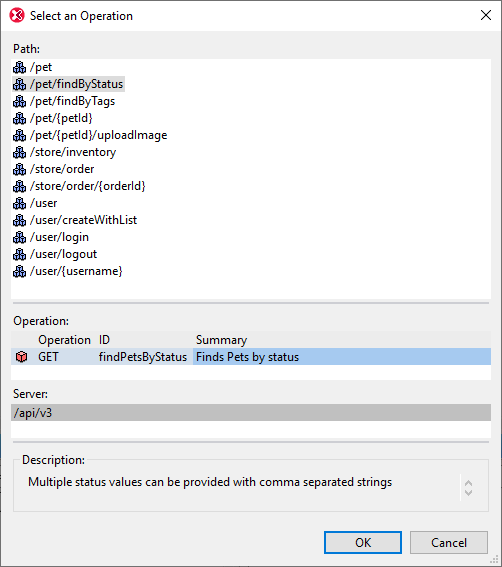
3.In the next dialog, Select an Operation (screenshot below), select the path and operation that you want. For example, in the screenshot below, the path selected is /pet/findByStatus and its GET operation is the selected operation. (Note that, in the dialog, you can filter the paths and sort the displayed items.)
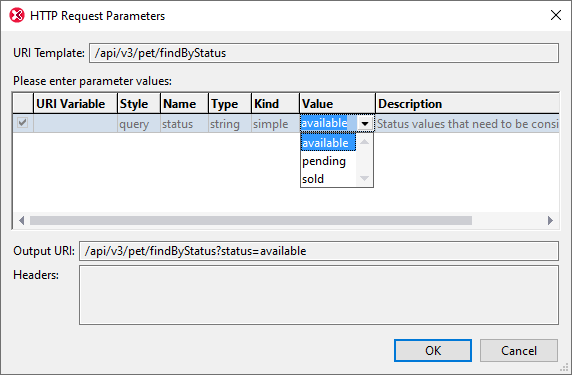
4.On clicking OK, the HTTP Request Parameters dialog appears (screenshot below). The values that have been defined in the OpenAPI Document for this parameter will be displayed in the combo box of the Values column. Select the value you want and click OK.
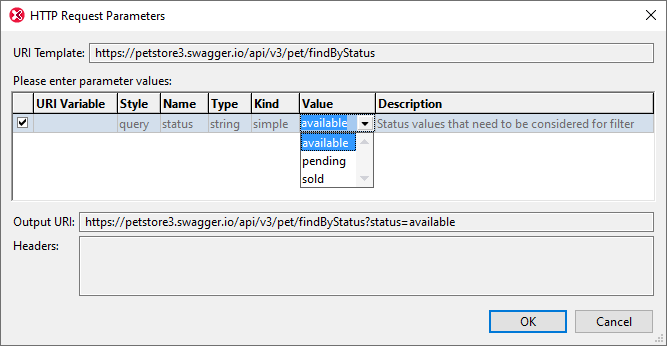
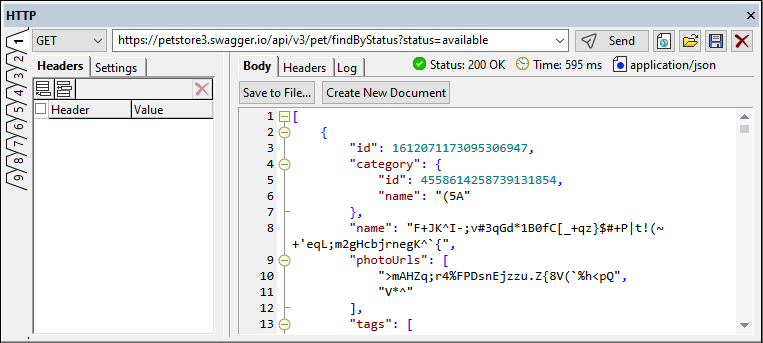
5.The GET request will be created and its URI will be shown at the top of the HTTP Window (see screenshot below).
6.On clicking Send, the request will be sent, and the response will be displayed in the right-hand Results pane (see screenshot below).
Also see the following HTTP topics for more information: Sending the Request and Receiving the Response. The wizard's content-type selection for PUT and POST requests are described in Sending the Request.
HTTP requests from Text View or Grid View
If an OpenAPI file is open in Text View or Grid View, you can create an HTTP directly from any location in the document. To do this right-click the location and select the context menu command New HTTP Request. (screenshot below).
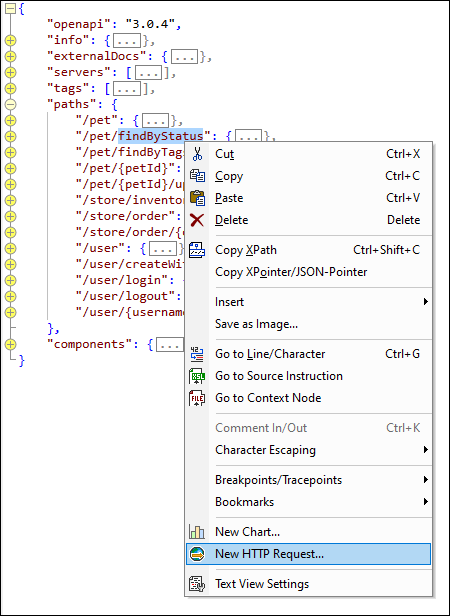
The wizard will automatically complete the steps in its procedure based on the chosen location and you can proceed with the wizard from the next step onwards. For example, in the screenshot above, we right-click the /pet/findByStatus path to create a request for one of the path's operations. As a result, the wizard knows the path information from the OpenAPI document. It also knows that this path provides one operation, a GET operation, which takes one parameter (status). Since only one operation (GET) is possible, the wizard opens directly in the Parameters step so that you can enter the value of the status parameter (screenshot below). On clicking OK, the sample HTTP request will be created and is ready to send.
The wizard will open at the first step where multiple choices are possible. If there is no ambiguity through all steps (for example, only one operation and no parameter), then a sample request is created right away and you can send the request immediately (by clicking Send); alternatively you can modify the request and then send it.
Multipart HTTP requests from an OpenAPI file
In an OpenAPI file, if the description of a POST request requires multiple files or a mix of data (for example, JSON and binary data) to be uploaded, the OpenAPI wizard will create the POST request as a multipart/form-data request. You can create the request from the HTTP Window or from Text View or Grid View, and the procedure is similar to those described above.
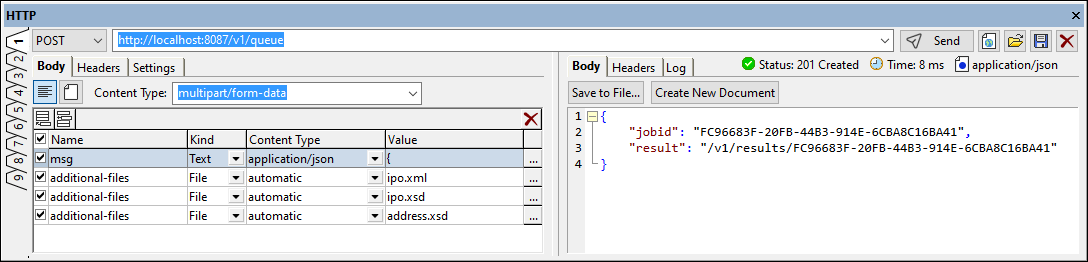
Selecting the description of a POST operation that requires multiple inputs will cause the wizard to take you, possibly through preliminary steps, to the step where you enter the values of the multipart request's various form-data parts. This step of the wizard will be a grid view in which each grid line represents one form-data part (see screenshot below). After entering the values, you can review the request's parameters and then send the request.
The screenshot below shows the parameters of a multipart POST request that is based on an OpenAPI description. After sending the request, the response is displayed in the right-hand pane.
For a good example of how to use multipart HTTP requests from OpenAPI files, see the description of how an OpenAPI file is used to communicate with the HTTP Server API of Altova RaptorXML+XBRL Server.
Also see Sending the Request for more information about the multipart/form-data content-type in the HTTP output window.