Menu Commands
This topic describes the commands available on the EIOPA ribbon (screenshot below). The commands are organized into four groups: Report, Windows, Table Operations and Add-In. For more information, see the subsections below.

Report

Creates a new report. This command is disabled if the report sheet has already been inserted into the workbook. For more information, see New Report.
|
Imports an XBRL instance file into the current Excel spreadsheet. This command is disabled if the report has already been inserted into the workbook. To enable the command, save and close the current report (workbook) and create a new workbook. For details, see Data Import.
|
The Update Entrypoint command enables you to switch to a different version of the same taxonomy. For more details, see New Report.
|
Exports data from all currently active sheets to an XBRL instance file. For more details, see Data Export.
|
Validates report data against the underlying XBRL taxonomy and displays validation results in the Validation Report dialog box. For details, see Data Validation.
|
Converts multiple XBRL instance files to Excel. For more information, see XBRL-to-Excel Batch Conversion.
|
Windows
Toggles the Filing Pane on or off. By default, this pane is visible.
|
Shows or hides the Validation Report window. See Data Validation.
|
Enables you to search for the Legal Entity Identifier (LEI) of an entity and copy it into the appropriate fields. See LEI Search.
|
Table Operations
Adds a new sheet which allows entering data in a third dimension. This button is enabled only if a third dimension is allowed for the current table by the XBRL taxonomy. For more information, see Multi-Dimensional Tables.
|
Removes the previously added z-axis sheet.
|
Adds a new row above or below the currently selected row. This button is enabled only if extending the current table vertically is supported by the taxonomy.
|
Deletes the currently selected row. This button is enabled only if extending the current table vertically is supported by the taxonomy.
|
Adds a new column to the left or to the right of the currently selected column. This button is enabled only if extending the current table horizontally is supported by the taxonomy.
|
Removes the currently selected column. This button is enabled only if extending the current table horizontally is supported by the taxonomy.
|
Add-In
Displays a dialog box where you can view and change the add-in settings.
|
This command opens the XBRL Taxonomy Manager tool, which allows viewing, installing, and uninstalling XBRL taxonomies. See XBRL Taxonomy Manager.
|
Displays the activation status of the add-in and provides options to enter or purchase a license key code.
|
The Export History dialog (see screenshot below) informs you about the previously used Entity Identifiers. 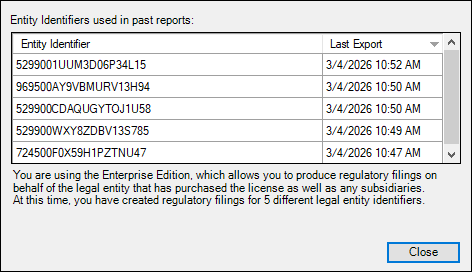 |
Displays information about the add-in version.
|
Checks with the Altova server whether a newer version than yours is currently available and displays a message accordingly.
|
Provides links to the Altova website, including the Online Support Center, training and tutorials.
|
The Help command opens the add-in's Help documentation (its user manual). By default, the Online Help in HTML format on the Altova website will be opened.
If you do not have Internet access or do not want, for some other reason, to access the Online Help, you can use the locally stored version of the user manual. The local version is a PDF file named EIOPA (Solvency II) XBRL Add-in.pdf that is stored in the application folder (in the Program Files folder). If you want to change the default format of the user manual, you can do this in the Misc section of the Settings dialog.
|