Altova FlowForce Server is a highly-customizable workflow engine for efficient automation of enterprise-level data integration tasks.
FlowForce Server automates workflows for XML and XBRL processing, data transformation, report and document generation, and many other tasks executed on dedicated servers, virtual machines, or workstations scaled for the scope of the project.
Altova FlowForce Server is a highly-customizable workflow engine for efficient automation of enterprise-level data integration tasks.
FlowForce Server automates workflows for XML and XBRL processing, data transformation, report and document generation, and many other tasks executed on dedicated servers, virtual machines, or workstations scaled for the scope of the project.
Altova FlowForce Server is an exciting tool for automated execution of XML/XBRL processing tasks, data mappings, and data transformations. FlowForce Server provides comprehensive workflow management and control for dedicated high-speed servers, virtual machines running locally or in the cloud, or even regular workstations scaled for the size of the task.
FlowForce Server employs a Web interface to conveniently implement, manage, and modify data transformation jobs in a busy data processing environment. FlowForce Server can administer multiple transformation jobs simultaneously, lets users define and adjust a variety of job triggers and actions on the fly, performs housekeeping tasks like moving output files or cleaning up intermediate work, and much more.
FlowForce Server continuously checks for trigger conditions, starts and monitors job execution, and records detailed logs of all activity.
FlowForce Server Highlights:
Cross-platform Support:
FlowForce Server is available as a direct download as well as a free Azure VM template.
Learn to configure and deploy a data processsing pipeline on FlowForce Server
A FlowForce Server job is a task or a sequence of tasks to be executed by the server. Jobs can be as simple as moving a file or sending an email, or a job may perform multiple actions to execute complex workflows and pass the results (for example, a file) as parameters to other jobs. A job consists of input parameters, steps, triggers, and other settings.
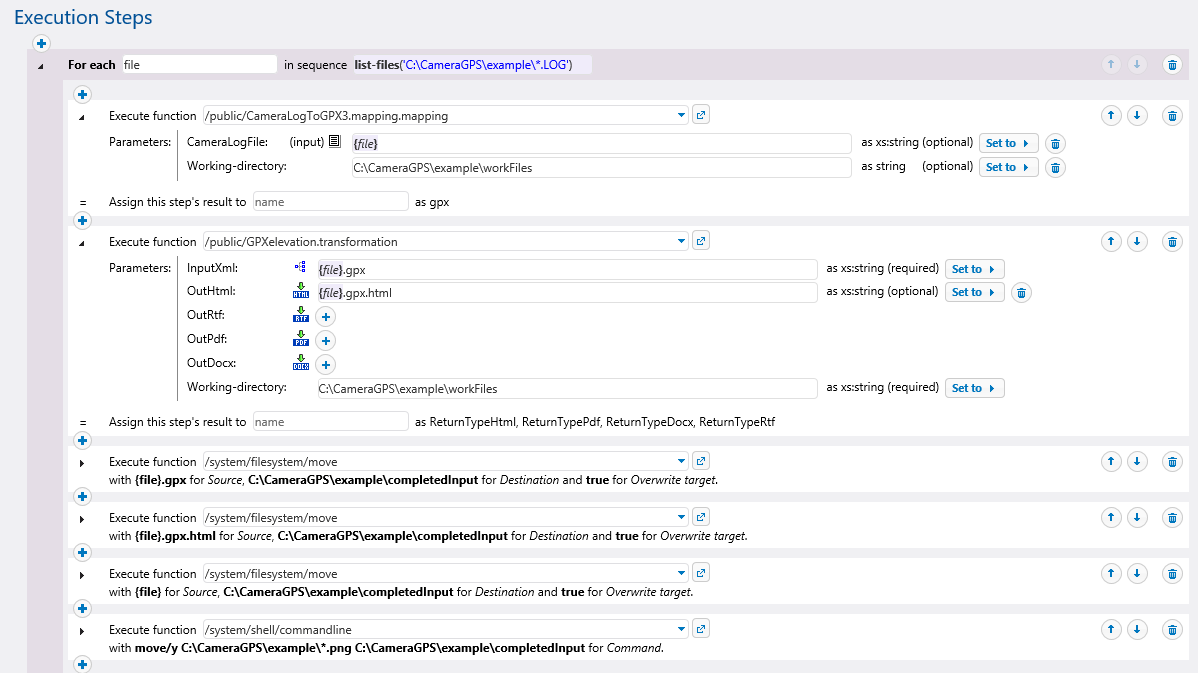
Steps define what the FlowForce Server job must actually do. In its simplest form, a job step is an operation that executes a function and reports either a successful or failed outcome. Structures can be defined to execute job steps conditionally or in a loop. Nesting is possible, since one step can execute an entire separate job. A job may include as many steps as required, and they are executed in the defined sequence.
FlowForce Server includes built-in functions for common file system operations - copy, delete, move, etc., an FTP client, a mail function to send customizable event notifications, a command line shell, and more. Job steps can be defined to execute any built-in function, empowering users to efficiently perform routine housekeeping steps associated with data transformation and reporting tasks.
Workflow automation occurs via job triggers that specify the conditions (or criteria) that will cause the job to start. FlowForce Server continuously monitors all defined triggers and executes any job whenever the trigger condition is met.
FlowForce Server can automate many common server processes, since one type of job step is an operating system command line with all its required parameters.
FlowForce Server administrators can define jobs as HTTP services, empowering authorized users to execute the job on demand, as easily as opening a Web page. The last job step can be a StyleVision Server transformation that creates a rich HTML-based Web page delivered to the end user and simultaneously saved in the enterprise workflow.
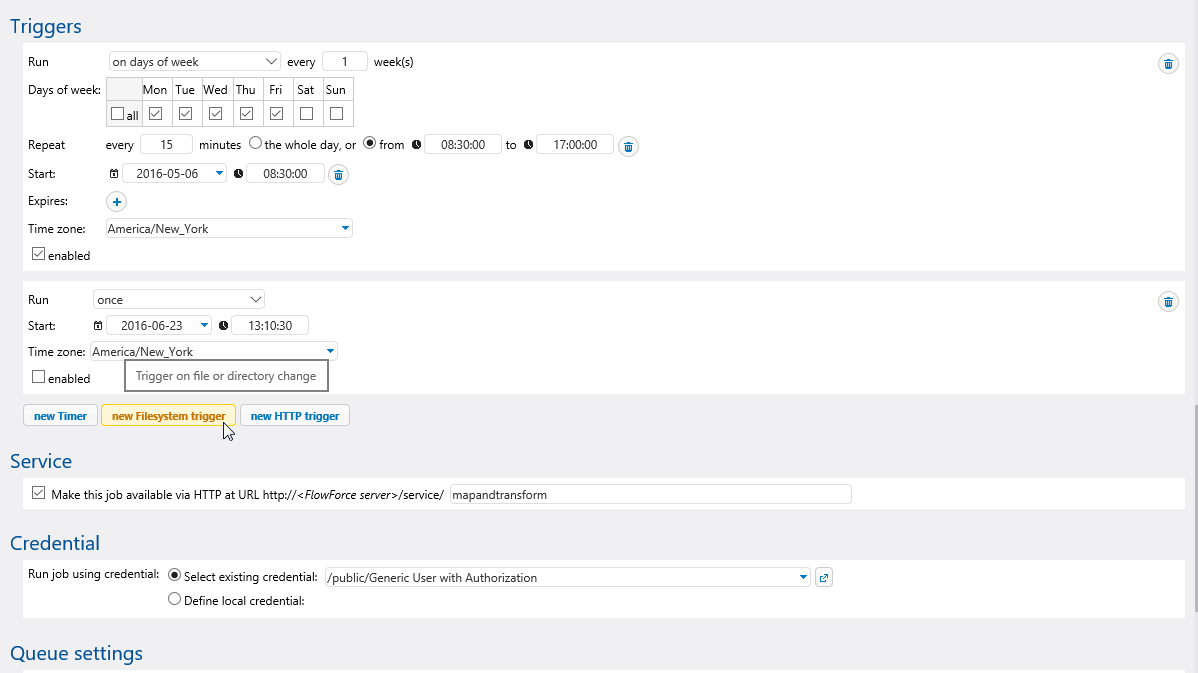
A flexible and highly customizable system of job triggers lets you schedule FlowForce Server processing based on each job's unique requirements.
Time triggers start one-time or repetitive job execution, file system triggers start jobs when a change is detected in a file or folder, or HTTP triggers poll a URI for changes.
Multiple triggers may be defined per job and several triggers can be active simultaneously. Whenever any trigger is fired, all execution steps of the job are processed.
Active Triggers
The Home screen of the Web interface lists all active triggers that will start future execution of FlowForce Server jobs along with the date and time of the next run for time-based triggers.
Another section of the Home screen displays all currently running jobs, with activation times and further details.
Time Triggers
Time triggers offer options to schedule execution by start and end time on days of the week, dates in the month, and more. You can schedule jobs to repeat at specified intervals, and even run multiple instances simultaneously if workflow requires.
Trigger Files and Execution Steps
FlowForce Server lets you capture the names of new files that arrive in a watched folder. Each trigger file name can be defined as an input parameter for job execution steps, including data mappings executed by MapForce Server or transformations performed by StyleVision Server.
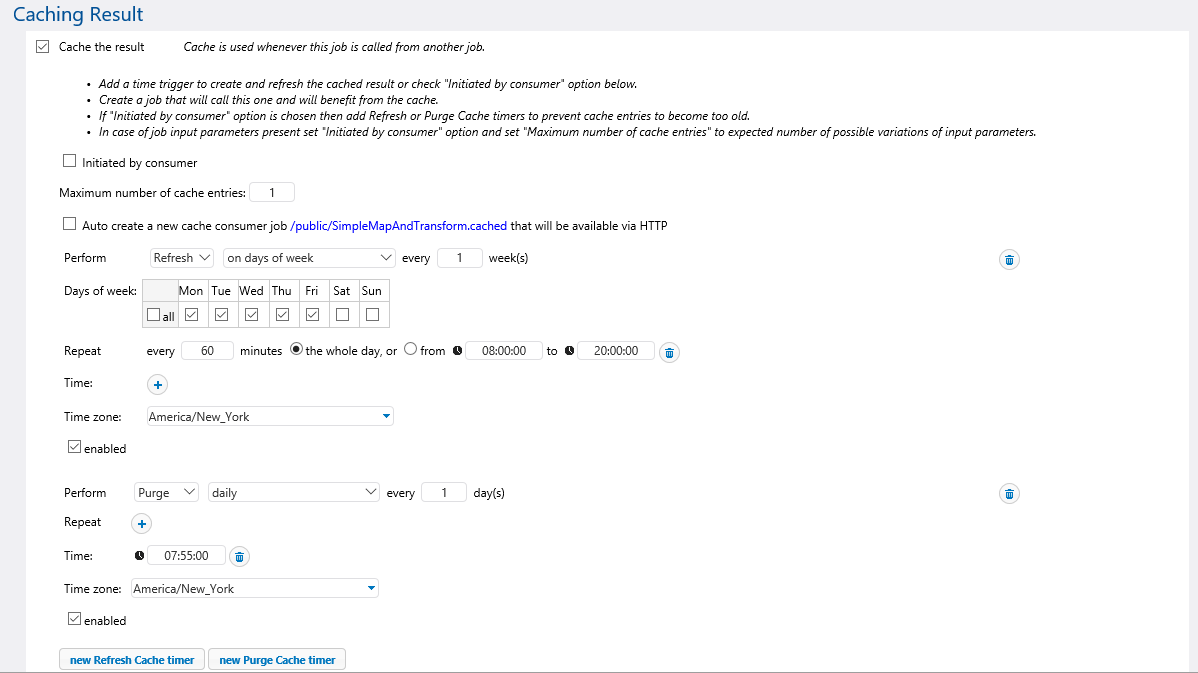
FlowForce Server administrators can schedule execution of a time-consuming job and cache the results. The cached data can then be provided when any user executes the job as a service, delivering instant results. When a FlowForce Server job is exposed as a Web service, cached job results deliver instantaneous response to local or mobile users, limited only by network speeds.
Caching is especially beneficial for FlowForce Server enterprise-level data transformation jobs that work with large amounts of data, require complex database queries, or consume Web services where the performance of an external system may not be predictable.
Caching is supported for jobs that use parameters and combinations of multiple parameters. In the job configuration dialog, administrators specify multiple cache entries to match the number of possible parameter combinations that are expected in typical day-to-day usage.
The Refresh Cache timer triggers FlowForce Server to automatically run the job again in the background, using the same parameters, to update the cache. Instead of the typical stale cache expiry, you get automatically refreshed cache entry and can fine-tune the exact performance load on your back-end systems.
The same behavior applies for each possible combination of parameters, corresponding to each individual cache entry. Each parameter combination is seeded the very first time it runs, then, based on the Refresh timer, it is continuously updated.
FlowForce Server includes a robust set of security features to control access to the system.
Administrators can configure security features to permit multiple departments or user teams to share use of a single powerful physical server without compromising each other's server objects or private data stores anywhere on the network.
Users and Roles
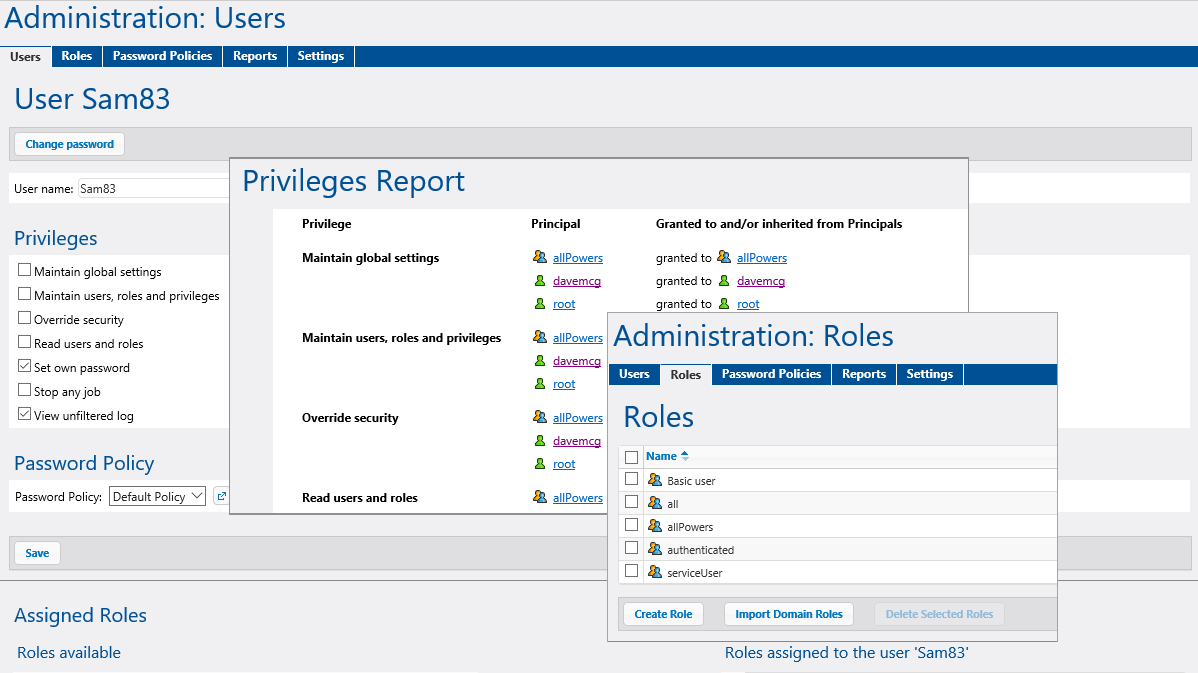
All access to the FlowForce Server starts by logging in with a valid user name and password. System administrators create new user accounts and assign user privileges. Users are also assigned to one or more operating roles within the system.
Roles can be defined in a structure where one role is a member of another role and inherits all the wider role's privileges. In addition, the narrower role can confer unique privileges. For instance, a role might be called Director of Manufacturing and be a member of the Manufacturing Department role, which in turn is a member of the Employees role.
This system allows administrators to easily configure groups users with identical privileges and creates a hierarchical organization of powers and responsibilities.
Containers
A container is similar to a folder in a file system. FlowForce Server containers create a hierarchical structure for storing configuration objects and even other containers. Administrators define access to containers by assigning access permissions for each role, and roles are in turn assigned to users.
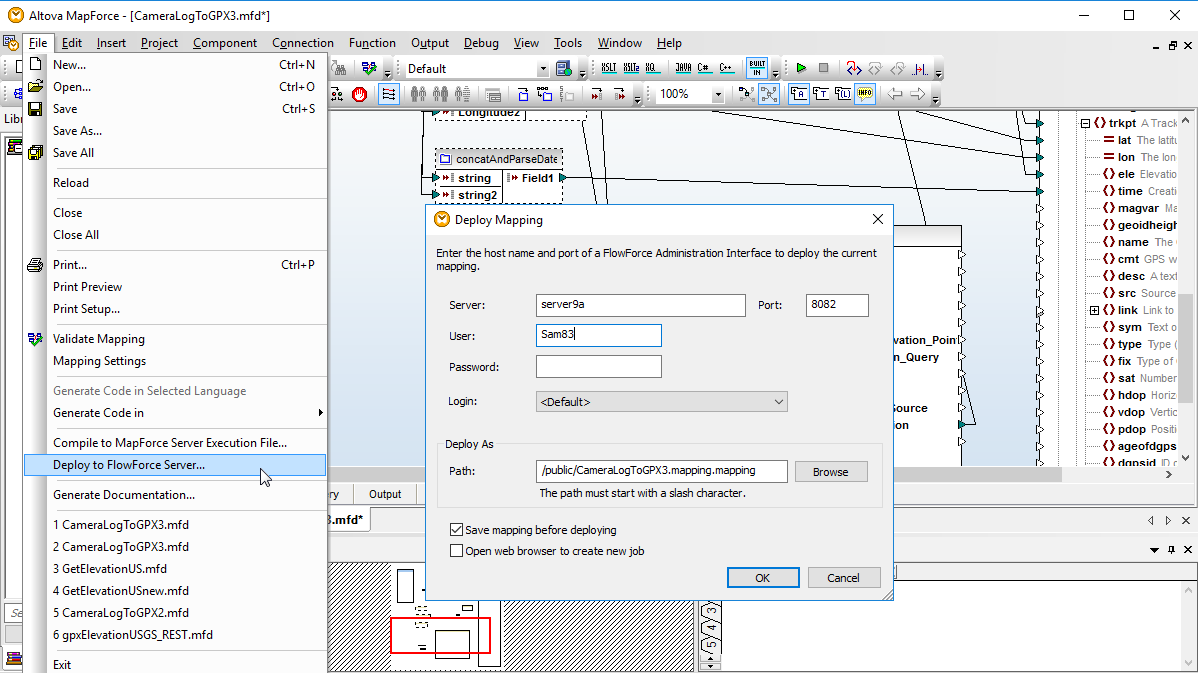
Two predefined containers exist in FlowForce Server: /system contains built in system functions to allow FlowForce Server jobs to copy, move, or rename files, create directories, etc., and /public is the default container for mappings deployed from MapForce and stylesheets uploaded from StyleVision.
Administrators may create additional containers as needed, for example to isolate the resources of departments or other groups of users.
Credentials
A credential is a stored operating system login used to execute FlowForce Server jobs.
FlowForce Server jobs start automatically when a defined job trigger condition is met. FlowForce Server runs the job using a specific operating system user account, ensuring that job steps may not access unauthorized data, either accidentally or intentionally.
Every FlowForce Server job MUST have an assigned credential for the job steps to be executed. Additionally, the operating system user referenced by the credential must have sufficient access permissions to directories holding FlowForce Server components.
Credentials can be defined as standalone objects and assigned to multiple FlowForce Server jobs, or a credential can be manually entered for any specific job.
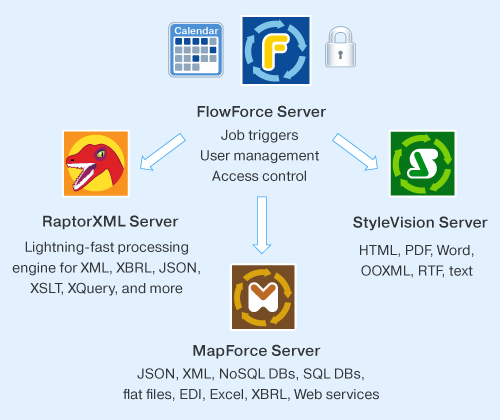
RaptorXML Server and RaptorXML+XBRL Server processing tasks can be defined as FlowForce Server job steps to validate XML, perform XQuery and XSLT operations, and validate XBRL instance documents and XBRL taxonomies.
A FlowForce Server job can combine RaptorXML Server functions with MapForce Server data mappings, StyleVision Server report generation, and built-in file system operations to create a complete automated, high-performance solution for data transformation and reporting for XML, XBRL, database, flat file, EDI, Excel, and Web Service data sources.
Altova MapForce Server is based on the built-in data transformation engine developed for MapForce and performs data transformations for any combination of XML, database, EDI, XBRL, flat file, Excel, JSON, and/or Web service using preprocessed and optimized data mappings stored in MapForce Server Execution files. When MapForce Server operates under the management of FlowForce Server, data mappings are executed as FlowForce Server job steps.
Parameters defined in the FlowForce Server job allow users to specify runtime input and output filenames or query databases as required by the mapping.
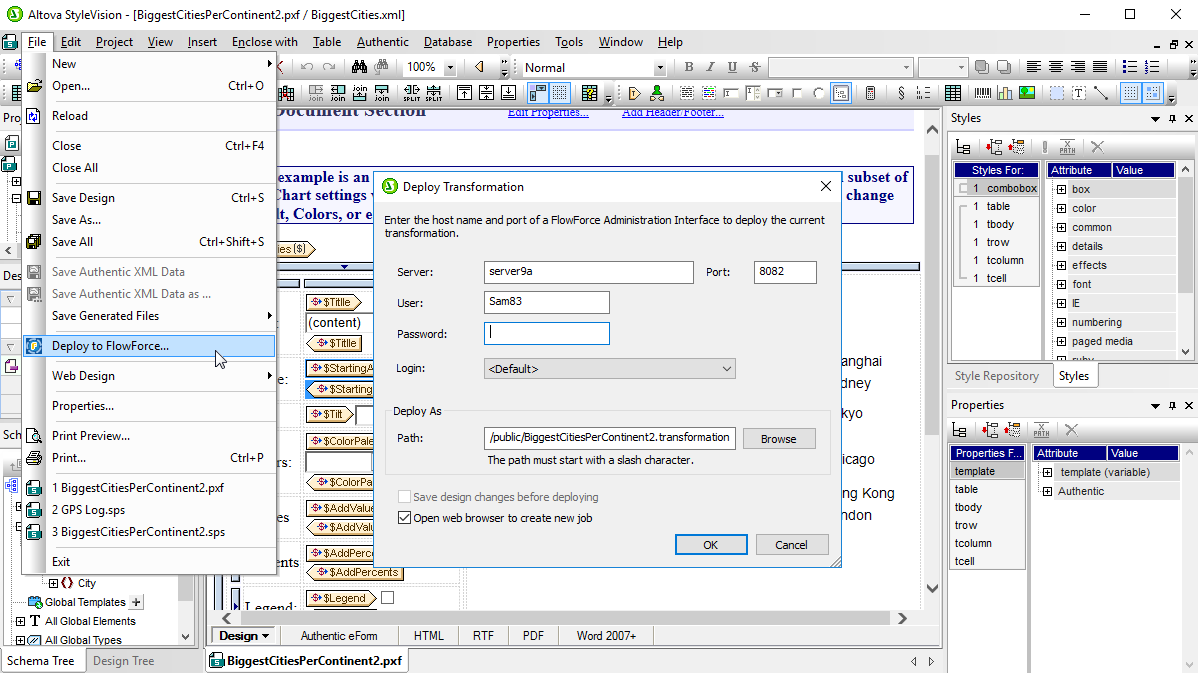
Altova StyleVision Server is based on the built-in report and document generation engine developed for StyleVision. StyleVision Server renders XML and/or XBRL data into HTML, RTF, PDF, or Microsoft Word files based on StyleVision stylesheets. A StyleVision stylesheet can be deployed to Altova FlowForce Server and executed by StyleVision Server as a FlowForce Server job step to automate business report and document generation.
All required design elements are uploaded with the stylesheet, and parameters defined in the FlowForce Server job allow users to specify input and output file names, or generate output in multiple formats from a single input source.
The FlowForce Server Web-based user interface provides operating information and all system administration functionality from anywhere in the network.
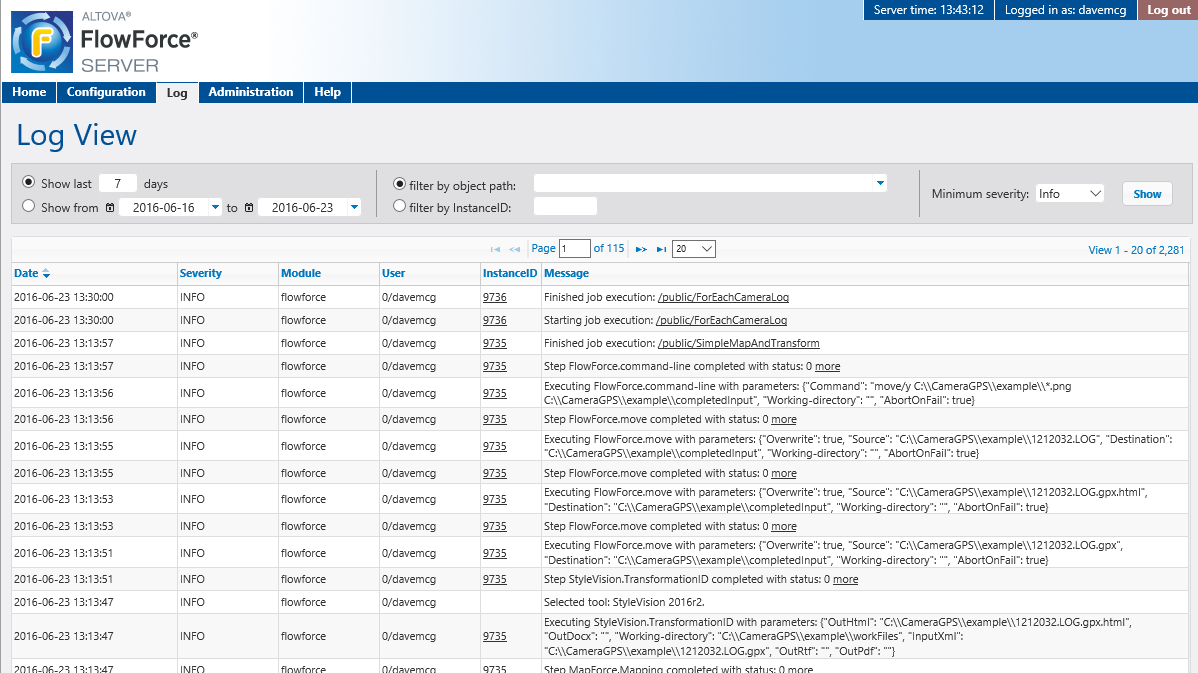
While FlowForce Server is running, the Web interface job log view provides a detailed history of all system activity and the job definition view provides intuitive access to all job definition options and functionality.
The Web interface enhances functionality in cross-platform environments since the interface can be displayed in any Web browser on any workstation on the network. Access to administrative resources and other server objects is defined by the log-in profile for each user.
Initial installation of FlowForce Server on any supported platform is simplified with a default configuration setup page. The full HTML help system with complete step-by-step instructions is just a click away.
FlowForce Server Advanced Edition is tailored with special features for the most demanding workflow automation requirements.
FlowForce Server Advanced Edition includes support for the AS2 specification for transporting data securely and reliably over the internet. AS2 is intended to improve upon existing file transfer protocols with increased security and includes an option feature to further encrypt data. Every transfer can also generate a return message to the sender identifying whether the transfer completed successfully or failed. AS2 was developed in conjunction with users who routinely transfer EDI, financial information, and other business data. AS2 support is a critical feature for enterprises that need to exchange EDI and XML data with partners in a secure way.
FlowForce Server Advanced Edition supports sending and receiving AS2 messages, and as such can act as both an AS2 client and server.
Advanced Edition also supports server clustering and job distribution across multiple servers. Load sharing provides excellent scalability, with a group of computers sharing heavy data processing jobs. At the same time, this allows for high-availability: if one of the secondary computers stops functioning, the system will still continue to process FlowForce jobs.
A cluster represents a group of multiple instances of FlowForce Server running on different machines that communicate to allow job distribution. A cluster consists of one master server and one or more worker servers. The master is a FlowForce Server instance that continuously evaluates job-triggering conditions and provides the FlowForce service interface. The master is aware of worker machines in the same cluster and may be configured to assign job instances to them, in addition to or instead of processing job instances itself.
Running FlowForce Servers as a cluster offers the following benefits:
Load balancing
When hardware limits cause FlowForce Server to be overwhelmed by multiple job instances running simultaneously, it is possible to redistribute the workload to another running instance of FlowForce Server (a so-called "worker"). You can set up a cluster comprised of one master machine and multiple worker machines and thus take advantage of all the licensed cores in the cluster.
Leaner resource management
One of the machines designated as a master continuously monitors job triggers and allocates queued items to workers or even to itself, depending on the configuration. You can configure the queue settings and assign a job to a particular queue. For example, in larger clusters, you can configure the master machine not to process any job instances at all. This will free up the master's resources to be dedicated to the continuous provision of FlowForce Service as opposed to data processing.
Easier scheduled maintenance of workers
You can restart or temporarily shut down any running instance of FlowForce Server that is not the master, without interrupting the provision of service. Note that the master is expected to be available at all times; restarting or shutting it down will still interrupt the provision of service.
High availability
In the case of hardware failures, power outages, unplugged network cables, etc., affecting worker servers, new instances of jobs can be taken over by a different machine.
Support for distributed execution makes it easy to scale your FlowForce Server deployment seamlessly to accommodate work loads that increase over time without any degradation in performance. In smaller clusters, the master server can still process some jobs and delegate others to worker(s). As a cluster scales, the workload can be spread over multiple workers.
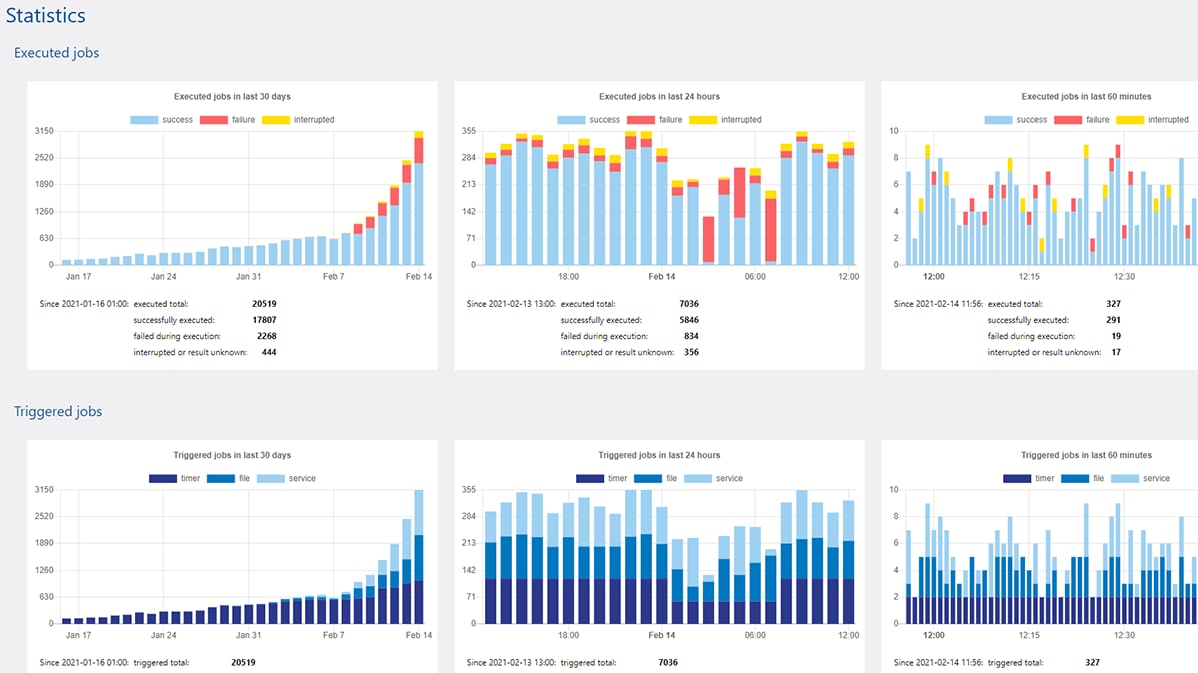
The Advanced Edition’s web interface includes a charts and statistics dashboard for monitoring jobs and server performance to help you quickly identify and resolve any issues.
For example, charts are available to help the FlowForce administrator: