Excel MappingAltova MapForce® 2012 includes support for mapping data based on the spreadsheet format for Microsoft® Excel 2007+ under the new Office Open XML file format specification. Office Open XML (also commonly known as OOXML or OpenXML) is a powerful emerging specification for electronic documents and is the default file format for the popular Microsoft Office 2007 suite. Recently approved by the International Organization for Standardization (ISO) as an International Standard, OOXML was originally developed by Microsoft to replace the binary file formats that it had traditionally used for data storage. As Microsoft customers continue to upgrade to the newest version of the Office suite, support for Excel 2007+ will become an indispensable feature for sophisticated data integration applications. MapForce supports the use of Excel files as mapping sources or targets, enabling you to take advantage of its powerful graphical interface for both legacy data conversions and advanced spreadsheet transformations. Mapping support includes:
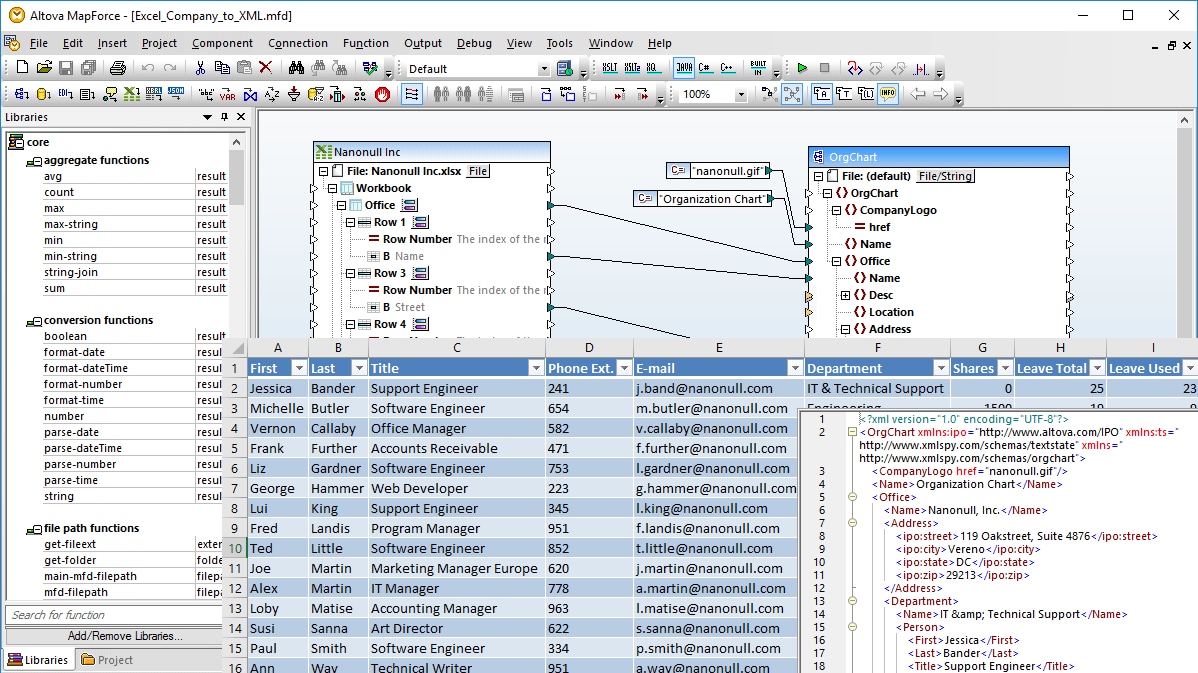
When encountering an existing Excel workbook as an input component, you may find that individual spreadsheets contain multiple data sets in different data tables and formats. MapForce® 2012 allows you to select and map each unique data table in the spreadsheet, avoiding manual extraction, export, or other pre-processing of complex Excel worksheets outside MapForce before they are inserted into your mapping design. When an Excel document is the output component, the ability to define multiple ranges lets you combine related data into a single spreadsheet. Developing Excel MappingsWhen you begin a new mapping based on an Excel 2007+ (XLSX) file, MapForce will prompt you to assign a sample file or global resource to preview your transformation. In the case of using an Excel 2007+ spreadsheet as a target component, MapForce will load an empty template without a sample file. To develop an Excel mapping based on an existing spreadsheet or workbook, simply open your source file in MapForce using the File menu command, or drag and drop your document into the design pane. MapForce will display a graphical representation of the file structure, depicting rows, columns, and cells, as well as references to numbers and names. This component includes clickable icons which allow you to define and specify mappable data.
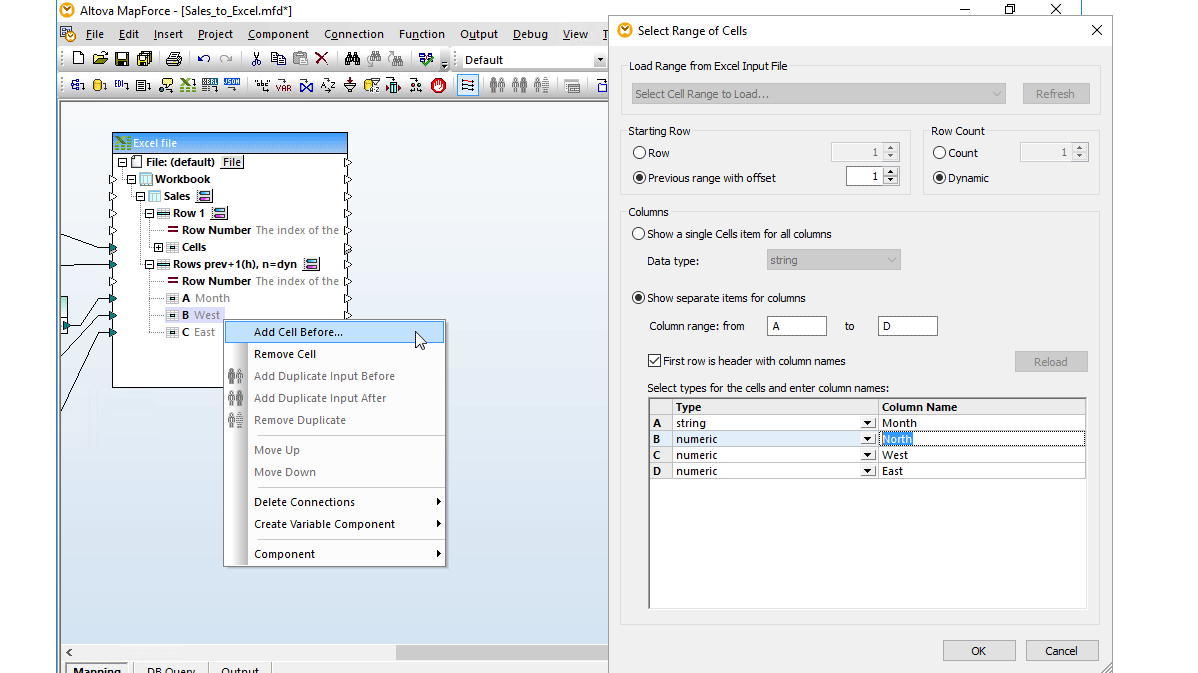
Clicking this icon will cause the Select Range of Cells dialog to appear, where you can configure your mapping component by specifying cells by named ranges within the worksheet, by starting row, or by offset from a previous selection. You can also define a single datatype for the entire range, or spcify datatypes separately by column. If you check the box next to First row contains column names, MapForce will automatically extract this information from the first row of your source file. (In the case of mapping to an Excel 2007+ target, checking this box will cause your output document to be updated with the data that you input here.)
These settings will populate the source file, ensuring an explicit mapping design. You may add additional cell ranges from the same worksheet via the right-click context menu.
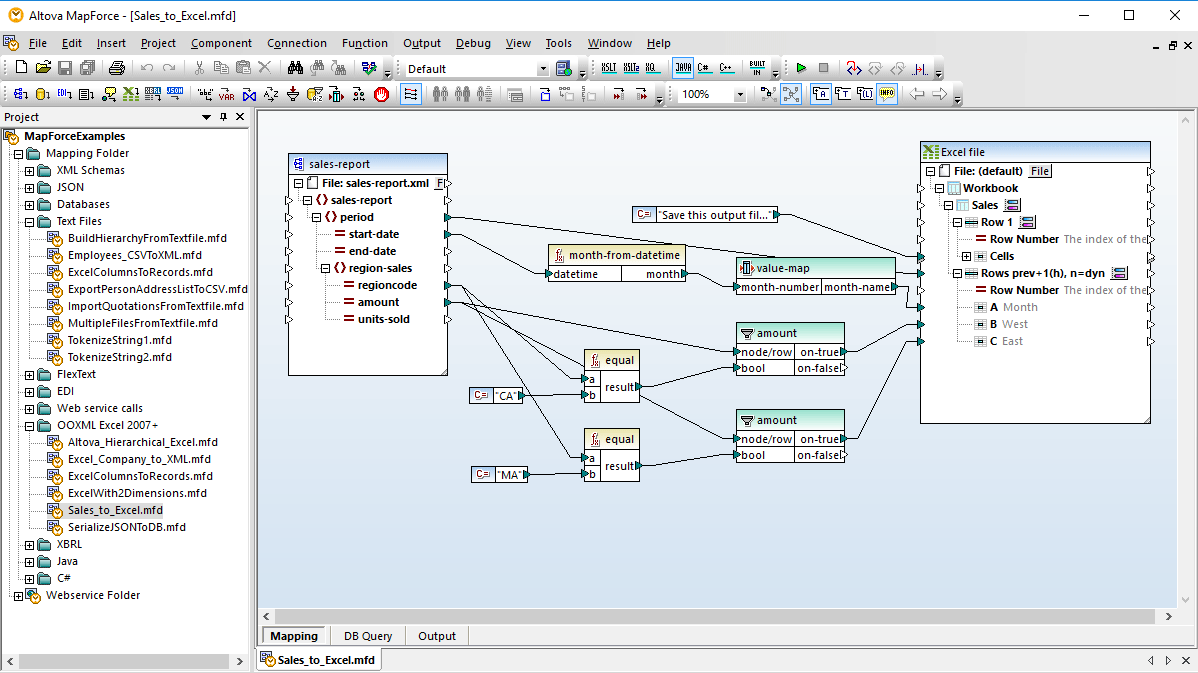
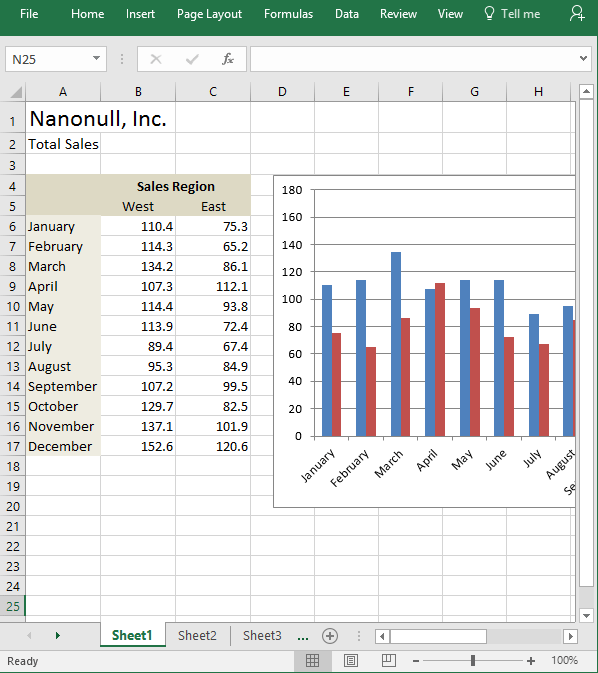
Now you can simply import a target structure and drag connecting lines to associate data. Filtering and Processing DataMapForce also provides flexible support for filtering and processing data via advanced processing functions based on Boolean conditions or manipulating data as it’s converted from source to target format. You can create and combine custom functions, or build advanced functions using MapForce’s extensive function library. See the Data Processing Functions page for more information. Automating Excel MappingsOnce you have finished defining your Excel mapping and processing functions, MapForce can autogenerate the program code required to migrate data from the source to the target content structure for use in your customized data integration applications. This allows you to reuse your mapping structure for future iterations. Transformation code can be generated in Java or C#, which ensures compatibility and interoperability across different platforms, servers, programming languages and database environments. MapForce also supports automating data conversions via data integration API, ActiveX control, or the command line. Learn more in the Automate Data Integration section. Instant Data ConversionOnce your mapping is defined, the built-in MapForce Engine allows you to view and save the results with one click. Mappings to Excel 2007+ produce Office Open XML (OOXML) markup. An example of Excel 2007 output is shown below.
Learn more in the Output View section. See how MapForce® 2012 can help you map your data with the Excel 2007+ (OOXML) format. Download a free 30-day trial of MapForce. |
| ||||||||||||||||||||||||||||||||
| Company | Legal | Press | Partners | Careers | Sitemap | Contact Us | Altova Blog | Mobile | Full Site | |||
|