Altova DiffDog is the unique XML-aware diff / merge tool that lets you compare and merge text or source code files, XML or JSON files, and Word documents. Compare and synchronize directories, database schemas and content, and much more.
With a straightforward and consistent user interface, DiffDog is a powerful diff/merge tool for all common comparison tasks.
Altova DiffDog is the unique XML-aware diff / merge tool that lets you compare and merge text or source code files, XML or JSON files, and Word documents. Compare and synchronize directories, database schemas and content, and much more.
With a straightforward and consistent user interface, DiffDog is a powerful diff/merge tool for all common comparison tasks.
“In no time at all, Altova DiffDog identified a minute discrepancy between our XML files that would have taken me hours to identify manually. Problem found equals problem solved – I'm a DiffDog fan for life!”
DiffDog includes powerful capabilities that let you compare and merge any type of text-based file, with support for Unicode, ASCII, MBCS, and any other file formats.
DiffDog allows bi-directional merging as well as direct editing of both compared files. DiffDog automatically creates a backup of each file, allowing you to re-load the original file from the server or disk at any time should you need to start over.
DiffDog also supports unlimited undo, so you can backtrack to any point in the editing and merging process.
The XML differencing and editing features in DiffDog draw on Altova’s legacy as creator of XMLSpy, the world’s leading XML development. With robust features such as well-formedness and validation checking, code completion, DTD/schema based entry helpers, and more, DiffDog is a must-have differencing utility for Web and software developers working with XML.
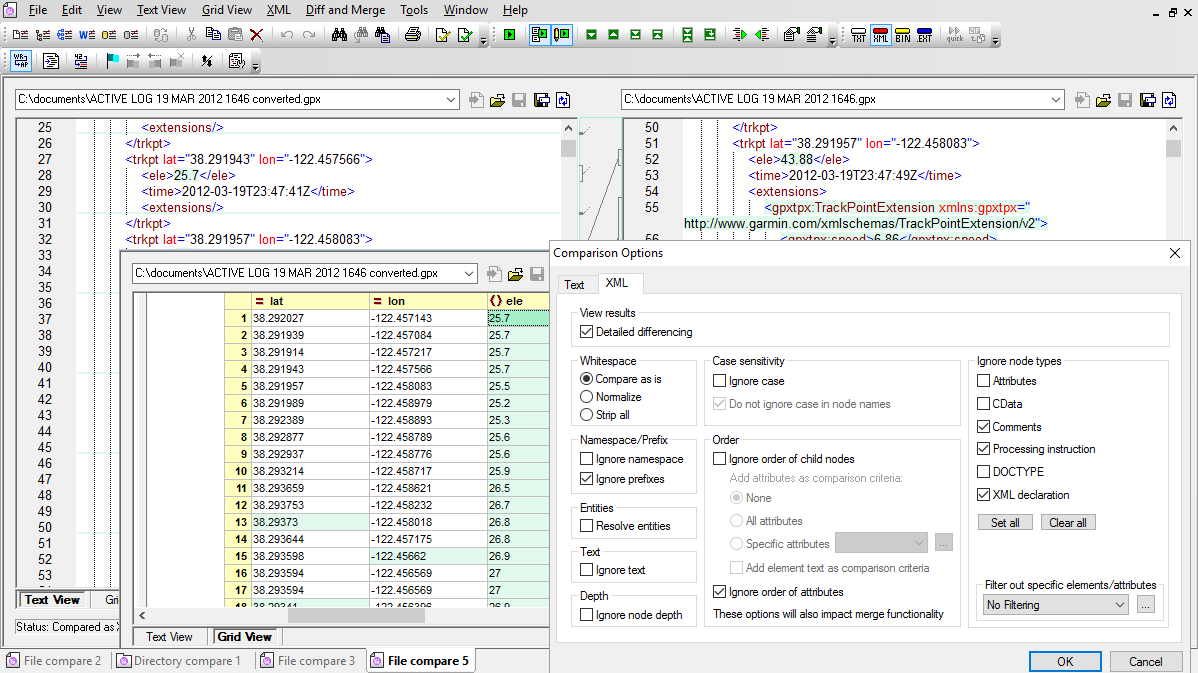
DiffDog recognizes when two files are XML equivalent even if they contain differences in namespace prefixes, order of XML attributes, or order of child elements that can be irrelevant to XML processors, but prevent files from appearing equal in a simple text comparison.
DiffDog offers two options for displaying XML files: advanced text view and enhanced grid view. Advanced text view includes visual and navigation aids such as line numbers, book marks, and a source folding margin.
Enhanced Grid View displays the hierarchical structure of an XML document through a set of nested containers. These can be easily expanded or collapsed to visualize the document's tree-like structure.
DiffDog allows users to compare and merge differences between three files side-by-side. This feature is especially relevant for files managed in any source control system where two users may started from the same source file then make different changes which must be reconciled.
A three-way file compare permits display and navigation of all differences between both new versions and the common ancestor file. For each encountered difference, DiffDog users can decide which change ("left", "right", or "middle") should be kept.
DiffDog includes powerful XML Schema differencing functionality that extends and complements XML-aware file comparison of .xsd documents and eases conversion of XML data.
The DiffDog Schema comparison tool automatically maps schema elements with the same names. You can select different root elements for each XML Schema, and you can also manually connect dissimilar elements to map them, or override automatic element mappings.
After you map two XML Schemas, DiffDog lets you generate an XSLT file to transform existing XML documents for the new schema, saving significant time and effort compared to writing and debugging XSLT code by hand.
DiffDog lets you generate a fully editable MapForce mapping file between the schemas for more complex mappings that require data processing functions. Check out the DiffDog online manual for complete details on XML Schema comparison.
The diff/merge tool is a powerful, easy-to-use tool for comparing and merging directories on your workstation, the local network, and even folders on local and remote FTP and HTTP servers (based on user privileges).
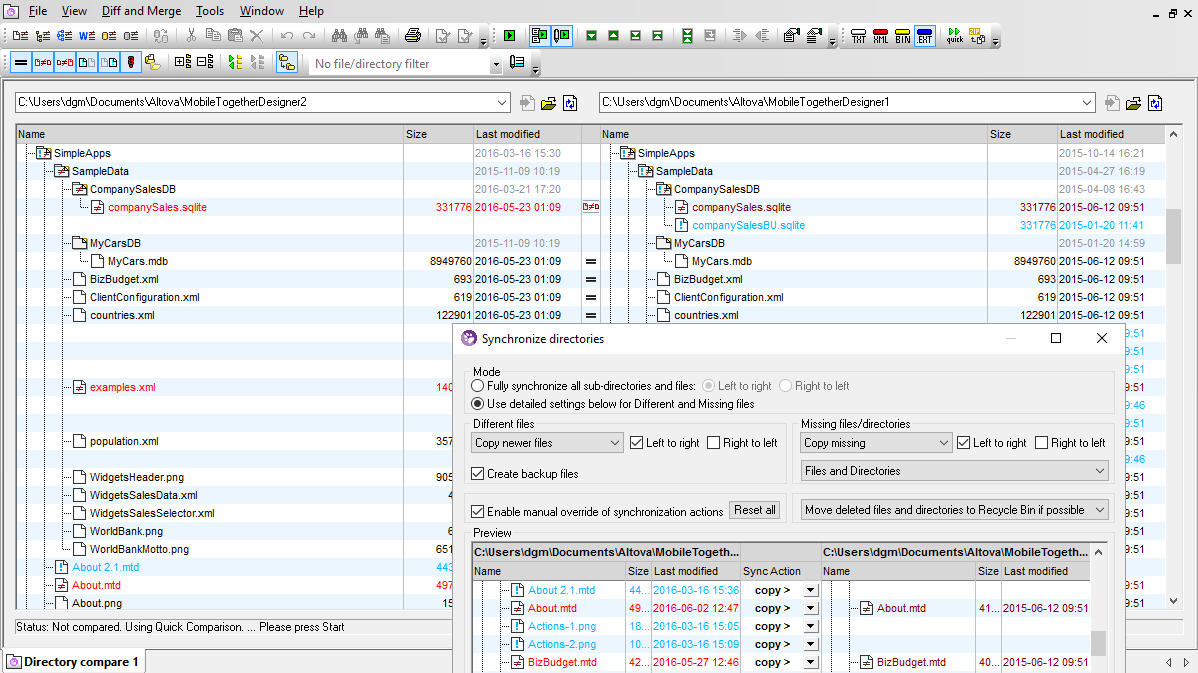
DiffDog provides five options to compare folders: Quick compare mode compares files by size and date only, Text comparison mode compares actual textual content of files in each directory, XML comparison mode compares actual file content with XML-aware intelligence, and Binary comparison mode for non-text files such as EXEs, MP3s, JPGs, etc. Extension comparison mode automatically selects a specialized mode based on the file pair extension.
You can open a file comparison directly from the directory comparison window by simply double-clicking the desired file.
The Synchronize Directories dialog lets you set the rules for merging folders. You can review all the scheduled file updates across both folders, then click the Start button to synchronize.
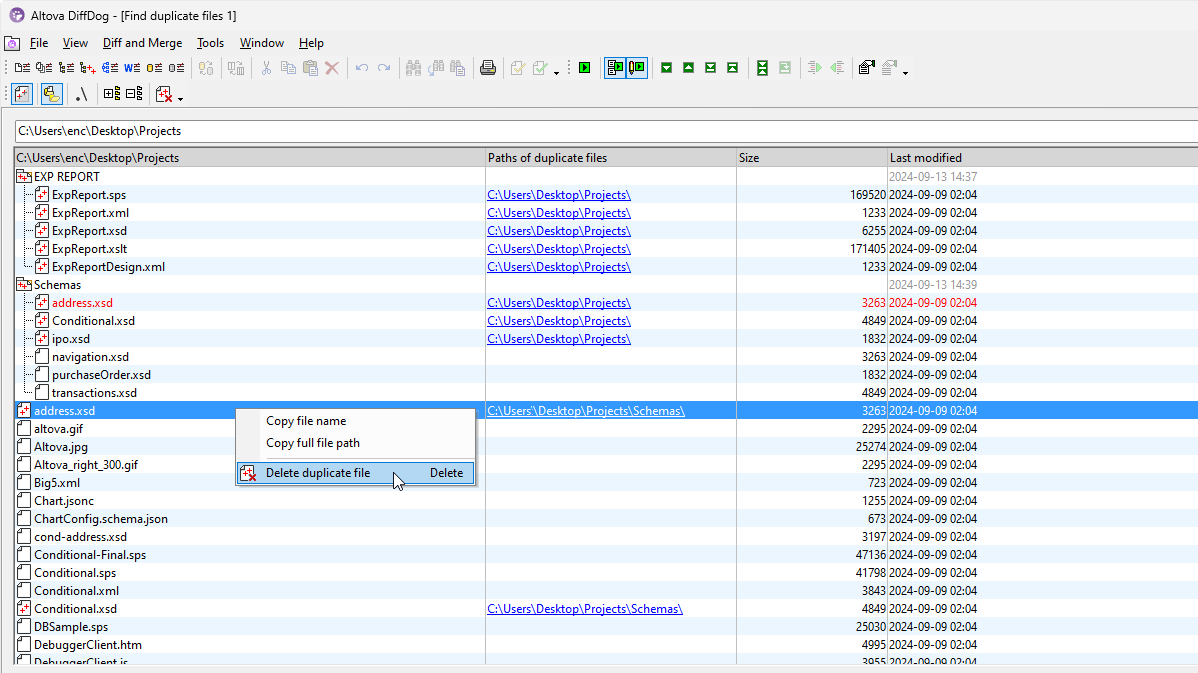
DiffDog also includes a toolbar button to detect duplicate files. It can search through a folder and its subfolders to identify duplicate files, i.e., those with the same filename and contents. You can see the location of duplicates to make decisions about which file(s) to save.
Helpful options make it easy to manage how duplicates are handled:
This functionality is especially useful for maintaining folders and directories that have grown over time, helping to save storage space and eliminate redundant resources.
Altova DiffDog includes enhanced support to diff/merge ZIP archives and the files contained in them.
DiffDog ZIP differencing lets you compare and merge text or source code files stored in ZIP archive just like comparing uncompressed files. Or, compare and edit XML files stored in ZIP format with advanced XML-aware functionality. DiffDog even recognizes whether binary files stored in ZIP archives are identical or different.
DiffDog applies the correct comparison options based on file extensions, so you examine the files and merge differences with the same functionality available when comparing the uncompressed originals.
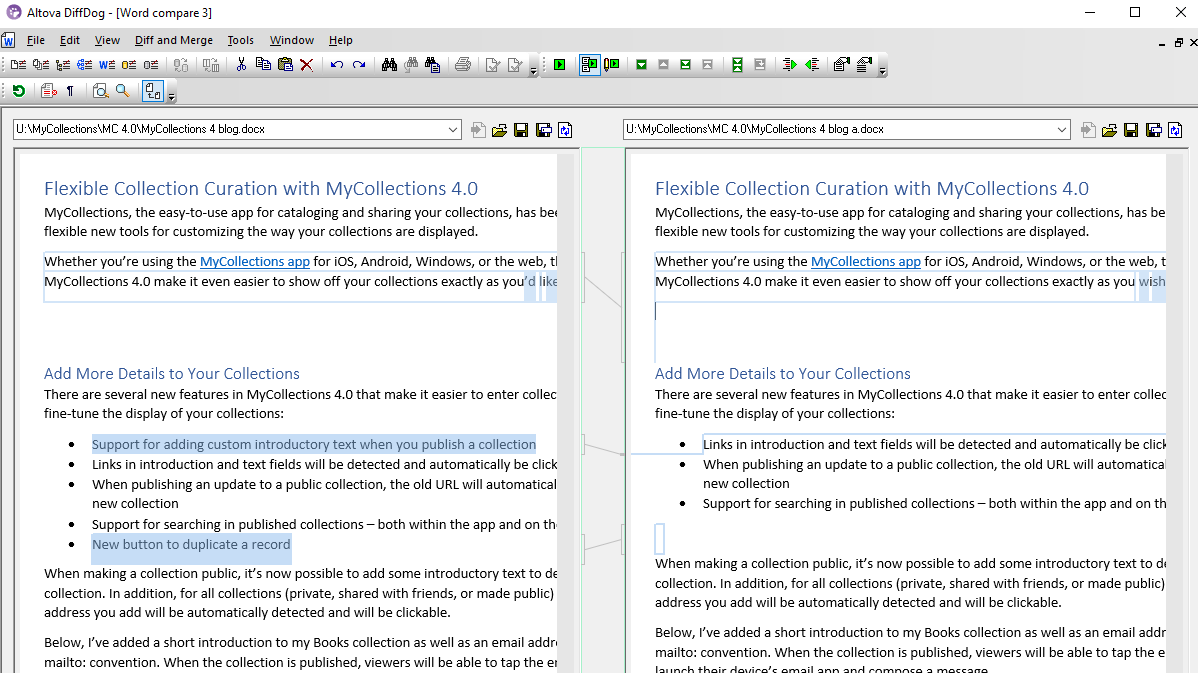
DiffDog includes a special compare feature for Microsoft Word® documents. If Microsoft Word 2003 or later is installed on your computer, DiffDog can compare document files by opening two embedded Microsoft Word windows and display the document differences side-by-side.
DiffDog Word comparison is especially useful to manage document revisions over time, particularly where change tracking was not used.
You can directly edit the content of the files in the DiffDog Word file diff windows using all the features of Microsoft Word via the context menu or keyboard shortcuts. When your edits are complete, use the DiffDog Save or Save As buttons in each Word file comparison window, or the File / Save menu option to save your work.
CSV is often used for exporting database data, and the ability to compare such data - either with another version of a database dump or to the data in the database itself - is a common requirement. DiffDog supports CSV as a native format for comparison, allowing you to:
A CSV comparison is similar to file comparisons: once you connect your data sources will be displayed as left and right components. A "component" is just a representation of the CSV or database structure from where you can conveniently select the tables or columns that are to be compared.You can either merge all differences as one batch, or you can display the differences for each table in a data grid, and then review and merge each difference individually at row level.
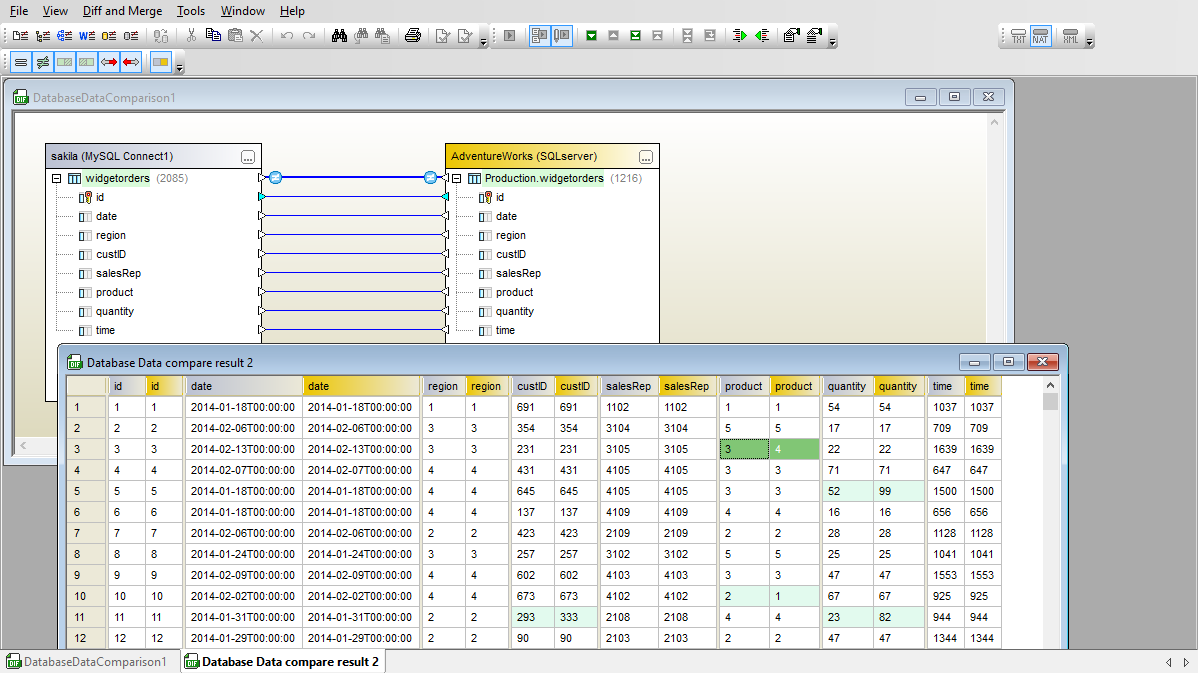
In addition to CSV to database comparison, Altova DiffDog lets you easily compare and merge the contents of tables between two databases. DiffDog displays database comparisons in an intuitive graphical table representation with connecting lines to illustrate column mapping between tables.
DiffDog can compare different versions of a table in the same database type, or you can compare and merge the content of equivalent tables in different database types. When you compare different database types, DiffDog even resolves datatype naming inconsistencies.
Automatic table mapping options let you instruct DiffDog to map columns based on name, datatype, or column position. If the results of automatic mapping are inaccurate or incomplete, you can also manually map comparisons by dragging connecting lines between table columns.
Supported Databases:
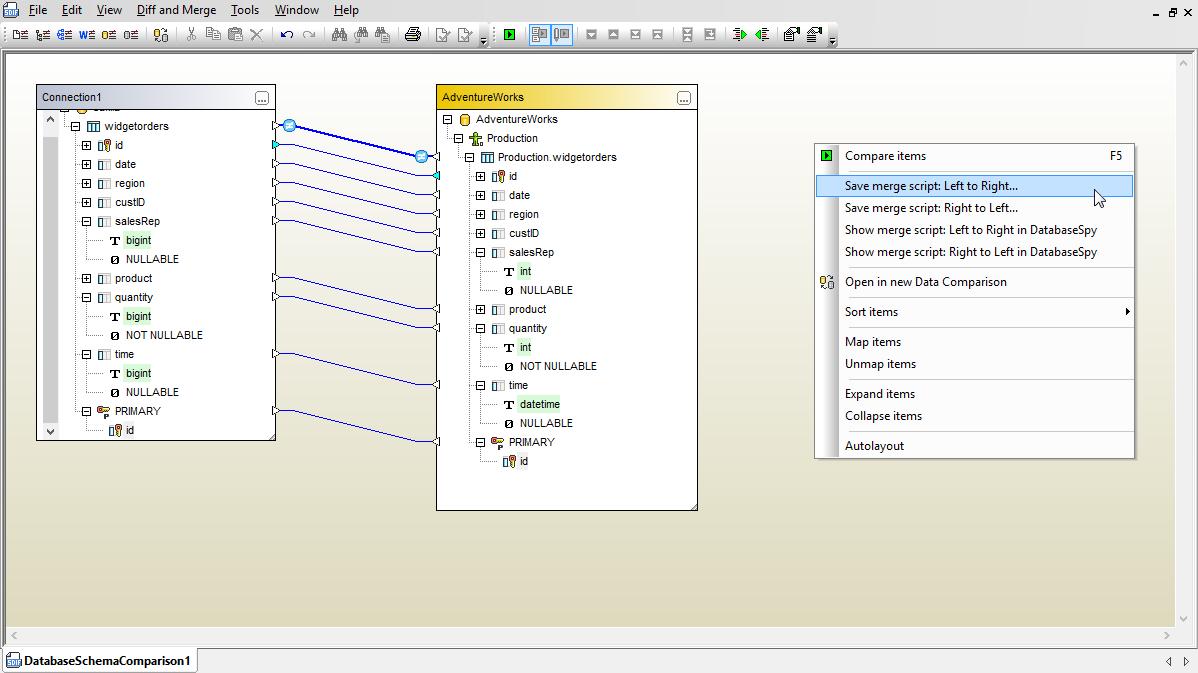
DiffDog lets you compare database structures and visually identify and merge differences. You can compare databases of the same type or you can compare two schemas of different database types.
You can choose to compare individual tables, groups of tables, or entire database schemas.
You can merge differences by clicking either the left- or right-merge button on the toolbar. The right-click context menu offers more comprehensive merge options, including a choice to immediately open a database content comparison for the selected tables.
Whichever merge option you select, DiffDog always creates a SQL change script for the target database for you to review. You can save the SQL change script to a file, send the script to a SQL Editor window in DatabaseSpy, execute the SQL change script directly from DiffDog, or cancel your merge request and abandon the script.
Altova DiffDog includes enhanced support to diff/merge Microsoft Office Open XML (OOXML) files.
Many diff/merge tools treat Office Open XML (OOXML) files as binary file types that are simply recognized as identical or different based on file size and modification date. DiffDog empowers you to compare and display detailed differences in the contents of Office 2007 (and higher) OOXML file pairs.
DiffDog lets you merge differences in either direction, with full support for all the advanced XML-aware differencing options DiffDog offers during XML file comparisons. You can also display and edit file pairs stored inside OOXML files in Grid View. In many cases Grid View can provide a more easily comprehensible representation of the file contents.
Developers and other project stakeholders often want to keep a record of changes to source code and other important files. DiffDog can create diff reports for all comparisons of text-based files, including source code files.
DiffDog can also create differences reports for directory comparisons. The Export differences dialog lets you choose to create a diff report in text, XML, or HTML format. Text reports follow the well-accepted Unix diff style. Report files in XML format include descriptive element names and record the comparison mode and the paths of the directories compared. HTML reports are the most human-readable option.
You can also use the DiffDog directory report functionality to create diff reports for comparisons of Zip archives or OOXML documents.
DiffDog Server is high-performance server software that takes advantage of the power of today's parallel computing environments to automate high-volume comparisons and generate diff reports comparing files, directories, and URLs.
“DiffDog saved my life! Recordare developed MusicXML as an Internet-friendly format for publishing and sharing digital sheet music. As MusicXML became more popular, we needed a truly XML-aware differencing program to evaluate the XML files created by our Dolet plug-ins. DiffDog gives us the high quality regression testing tool that we had long sought for our MusicXML projects.”
While Altova XMLSpy and DiffDog both support XML-aware document comparison, DiffDog is a dedicated differencing tool.
DiffDog recognizes when two files are XML equivalent even if they contain differences in namespace prefixes, order of XML attributes, or order of child elements that can be irrelevant to XML processors but prevent files from appearing equal in a simple text comparison. XML comparison features in DiffDog include well-formedness and validation checking, code completion, and DTD/schema based entry helpers. DiffDog supports 2- and 3-way comparisons.
Altova DiffDog is a unique diff/merge tool that handles directory and document comparisons.
It lets you compare, merge, and synchronize folders (including zip archives) and directories with a simple point and click interface. It’s also easy to compare and merge documents in DiffDog. Supported document types include text (e.g., source code), XML, JSON, and Word docs. DiffDog also lets users compare database content and structure. It’s a great tool for developers and IT pros who need a technical diff/merge tool.
A great option for database comparison tasks is Altova DiffDog. This product supports connections to all major SQL databases including SQL Server, MySQL, Oracle, PostgreSQL, SQLite, DB2, and others to compare both database structure and/or content. It can even diff/merge across different database types.
Comparisons are displayed in an easy to understand table with connecting lines indicating column mapping between tables. You can open detailed results windows for each table comparison. Whether comparing database schemas or content, you can merge differences in either direction. DiffDog then generates the corresponding change script.
Altova DiffDog lets you compare any two or three Word documents.
Both .doc and .docx Word comparisons are supported. The comparison will be opened using the familiar Word interface and you can merge changes in any direction across two or three files. DiffDog also allows you to directly edit the content in compared documents. Once you have DiffDog installed, you can even select two documents in Windows Explorer and pick “Compare with DiffDog” from the right-click context menu.
Altova DiffDog has impressive RDBMS support with build in comparisons available for 15 of the most prevalent SQL database types in use today including SQLite, SQL Server, PostgreSQL, Firebird, DB2, Oracle, SQLite, and several others.
DiffDog supports comparing both database content and structure and will generate SQL scripts to merge and/or sync differences. You can even compare data in databases of different types, for instance, to migrate data from Oracle to SQL Server or to sync data between systems running DB2 and Firebird databases.