Home. 
.

transparent

transparent

transparent

Folder Differencing

Altova DiffDog® 2012 is a powerful, easy-to-use tool for comparing and merging directories.

Today’s power users and developers need a quick, efficient way to keep their many directories in sync – whether they contain source code and documentation files, or MP3s and digital photographs. In addition to its compelling file comparison capabilities, Altova DiffDog® 2012 allows you to compare and merge folders and directories of any size.

DiffDog® 2012 supports several options for opening a directory comparison. You can drag and drop two directories from your file explorer window or select them using browse functionally. In addition, DiffDog® 2012 remembers recently compared directory pairs, allowing you to re-open a recent comparison with one click.

The DiffDog Open dialog even opens folders on local and remote FTP and HTTP servers (based on user privileges) to compare, merge, or synchronize folders. Individually select the folder for each comparison window from anywhere on:

  • your local workstation
  • a shared drive on your network
  • an FTP or HTTP server

This flexibility is especially suited for comparing and updating servers with the latest revisions from your local machine.

Intelligent File Differencing

DiffDog® 2012 displays compared directories side-by-side as expandable/collapsible trees, and the size and date modified are indicated for each folder and file. Differences between the directories are indicated with color coding and easy to identify icons.

Folder diff tool display

Click image to enlarge screenshot

DiffDog® 2012 provides five options for directory comparisons:

  • Quick compare: compares files by size and date only. This is useful for quick comparisons as well as for directories that contain many different types of files, including non-text files such as MP3s, JPGs, etc.
  • Text comparison: compares actual textual content of files in each directory
  • XML comparison: compares actual file content with XML-aware intelligence
  • Extension comparison: compares files as text or XML, depending on their file extension
  • Binary comparison: compares actual content of non-text files such as EXEs, MP3s, JPGs, etc.

Differences between the directories are indicated using color coding and icons, a few of which are shown in the examples below.

The files are equal:

Folder diff tool display for equal files

The file on the left is newer:

Folder diff tool display for left is newer

The file on the right is newer:

Folder diff tool display for right is newer

The file exists only in the right-hand directory:

Folder diff tool display for file only exists on right

As you are comparing, the DiffDog® 2012 directory comparison toolbar allows you to control which files are displayed. For instance, you can show or hide all equal files, show or hide older or newer files, and expand and collapse directories and sub-directories.

As with the file comparison functionality, DiffDog® 2012 includes features to make navigating easy as you compare directories. With one click you can move to the next or previous difference, go back to the current difference, and so on. You can also merge files from one directory to the other in either direction, and you can even open a file comparison directly from the directory comparison window by simply double-clicking the desired file.

Synchronize Folders

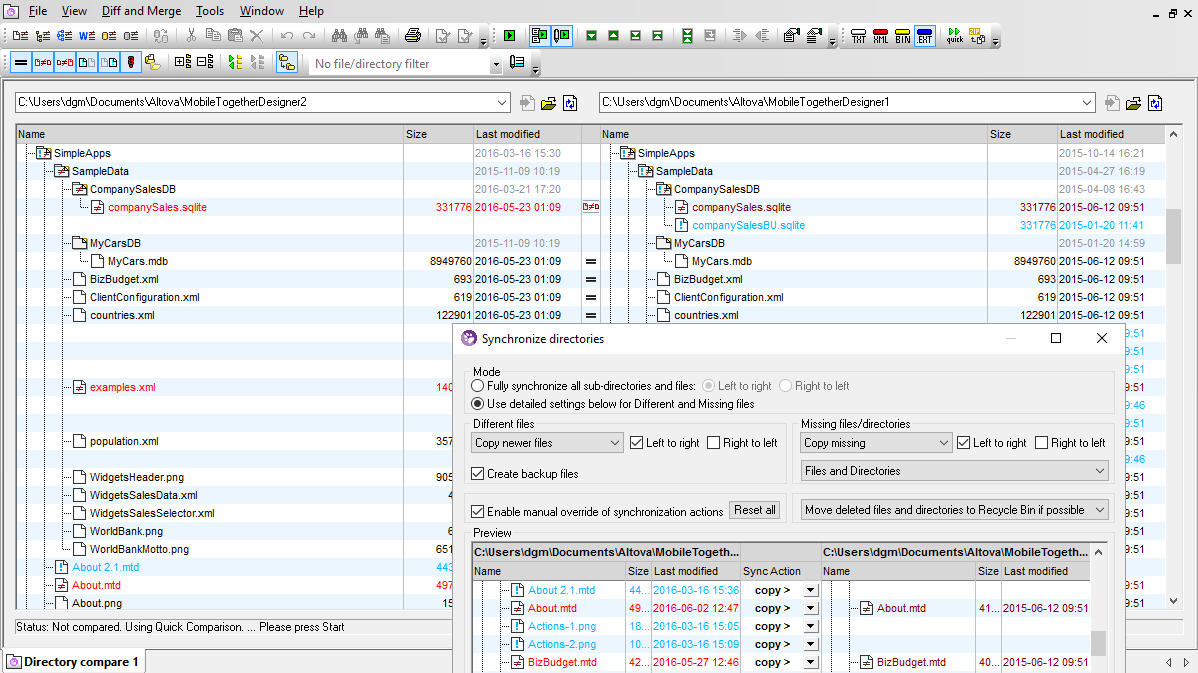
DiffDog® 2012 includes a special feature that allows you to update/merge entire directories, including sub-folders, with a single step. Updating the backup copy of a folder with many files and subfolders is a snap, since users can choose to skip the steps of reviewing and merging each difference individually. Large, complex directories can now be sync’ed with a single click.

Folder diff tool folder sync dialog

Click image to enlarge screenshot

The Synchronize button on the directory options toolbar opens a Synchronize Directories preferences dialog that lets you set the rules for merging files. The dialog even shows a preview of synchronization activity. You can review all the scheduled file updates across both folders, then modify the settings if you like. No changes are made in either directory until you click the Start button.

The requirements for an exact copy are a bit different than a conventional directory diff/merge comparison, since the source directory could contain an older version of a file than the target, or the source could be missing files that exist in – and should be deleted from – the target. If you want an exact backup copy of a directory including all sub-folders, simply choose the Fully synchronize button at the top of the Synchronize dialog.

DiffDog directory sync menu

Click image to enlarge screenshot

If you prefer a more customized merge of two similar directories, you can apply detailed settings to refine handling of different and missing files. The Enable manual override button even lets you select individual treatment for each file pair during synchronization.

DiffDog directory sync menu

Click image to enlarge screenshot

ZIP Archives in Folder Comparisons

DiffDog can compare files in ZIP archives similarly to subdirectories, individually comparing the compressed file pairs on the left and right side of the folder comparison pane.

In a folder comparison, ZIP archives are identified with a special compression icon next to the ZIP archive file name (shown next to the Authentic_RSS_Solution_doc.zip file in the screen shot above), followed by the names of each file included in the archive.

Folders on modern workstations and servers often contain thousands of files. DiffDog lets you skip detailed comparison of the contents of ZIP archives to accelerate comparison of very large folders.


ZIP archive option tool

If you deselect the ZIP icon at the end of the DiffDog comparison toolbar, DiffDog will hide the contents of ZIP archives and compare only their names, sizes, and modification dates. This functionality applies to all file extensions identified as ZIP conformant in the File Types tab of the DiffDog Options dialog.

Folder Comparison Filters

DiffDog® 2012 supports file and folder filters to give you ultimate control over directory comparison options. By specifying which files, folders, and subdirectories are processed, you can perform accurate side by side comparisons on directories containing hundreds of large files without enduring long delays.

DiffDog® 2012 even includes pre-defined filters for popular file sets that you can use as-is or further customize. Included filters are set up to select XML-conformant files, text files, non-binary files or non-CVS files.


Folder diff tool filter library

You can apply a filter to a the directory comparison by selecting it from a pull-down menu in the Directory Compare toolbar.

Folder diff tool filter selection

Click image to enlarge screenshot

You can even define a custom filter set and save it with a descriptive name to refine a directory comparison by including or excluding certain files and directories.


Folder diff tool filter definition

Your custom filter is conveniently stored in the filters library for reuse at any time.

Folder diff tool with custom filter results

Click image to enlarge screenshot

DiffDog® 2012 takes the guesswork out of comparing large, complex directories by instantly identifying differences and allowing you to merge and edit files at lightning speed, saving time and greatly reducing the occurrence of errors – download a free trial today!


transparent
Download
Pricelist
Buy
Comparison
Datasheet
Print
Mail
Like It
Available Languages
.

Altova DiffDog is now available in English, German, and Japanese versions from our download page.

.
.
Acronymophobia
.

(ăk'rə-nĭmă'fōbē-ə)

Noun. Condition caused by exposure to overwhelming number of technology acronyms and buzzwords. Easily cured by the Altova Technology & Acronym Glossary.

.
.

transparent

transparent