![]() |
![]() | ![]() | ![]() | DatabaseSpy SQL EditorThe powerful and flexible DatabaseSpy® 2011 SQL Editor helps database managers accelerate SQL programming tasks. Altova DatabaseSpy® 2011 includes a built-in Editor for SQL with specially designed, easy to use features to help you quickly and efficiently develop, test, and reuse SQL queries in all major relational databases. You can create and edit a single query, or you can assemble multiple SQL statements into complex SQL scripts. DatabaseSpy SQL Editor Supported DatabasesDetails of the SQL database query language vary among implementations of relational database systems from different vendors. DatabaseSpy® 2011 supports multiple database types and automatically adapts its SQL Editor display and formatting to the following databases:
Additionally, you can select and edit SQL configurations as illustrated in the SQL Formatting section below.
DatabaseSpy SQL Editor Windows
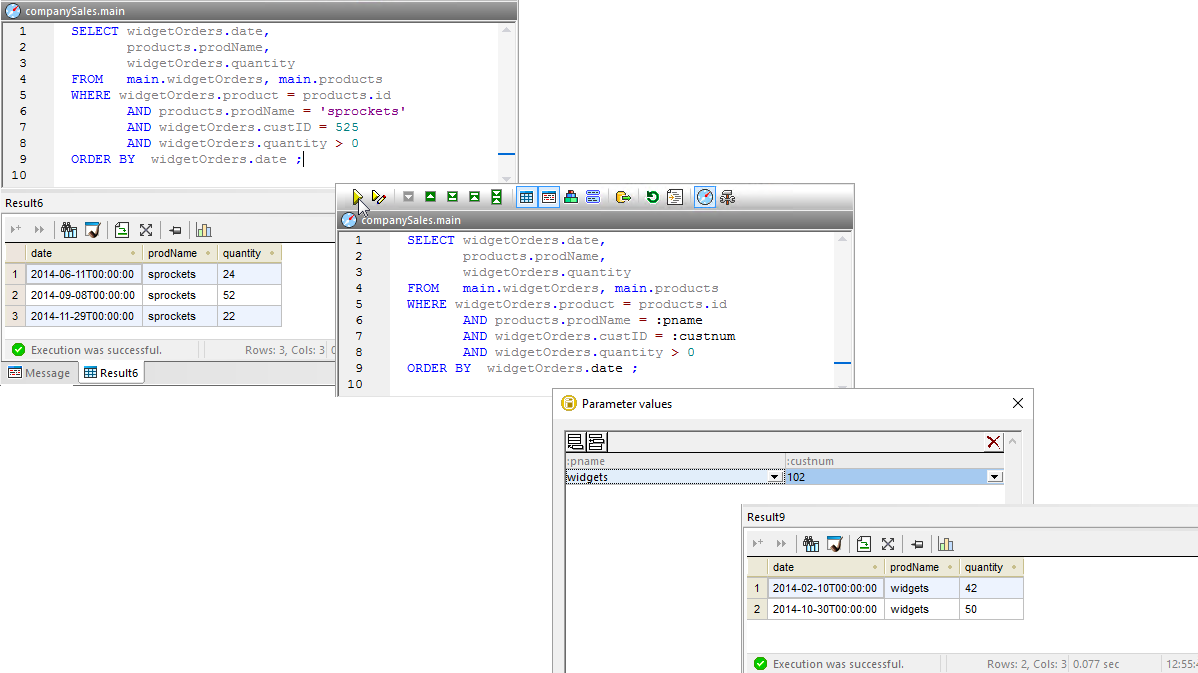
The DatabaseSpy® 2011 SQL Editor is divided into a SQL statement window and one or more tabbed or stacked Result windows, with a convenient Execute button in the SQL Editor toolbar to let you immediately execute your SQL statements and view the output.
The message tab located to the left of the tabs for the SQL query results provides information about each statement executed, including identification of any syntax errors. Efficiently Edit Complicated SQL QueriesAs you construct a new SQL query from scratch, the auto-completion feature prompts with options that match the correct syntax at each keyword of the statement. You can limit the length of the suggestion list by enabling Context-Sensitive Suggestion, to view only items that are valid at your current cursor position within the SQL statement. You can also enable Single Mode to limit the display to one category at a time. By default, the list of suggestions is sorted by type, but you can sort by name or path by clicking in the auto-completion window title bar. You can also use a keyboard shortcut to open the full list of suggestions before you even start typing a statement.
You can modify the list of suggestions offered in the DatabaseSpy® 2011 Auto-completion pop-up menu to create a list customized to your own preferences. The buttons in the toolbar at the bottom of the Auto-completion window let you configure its contents on the fly, enhancing efficiency as you work with complex SQL statements.
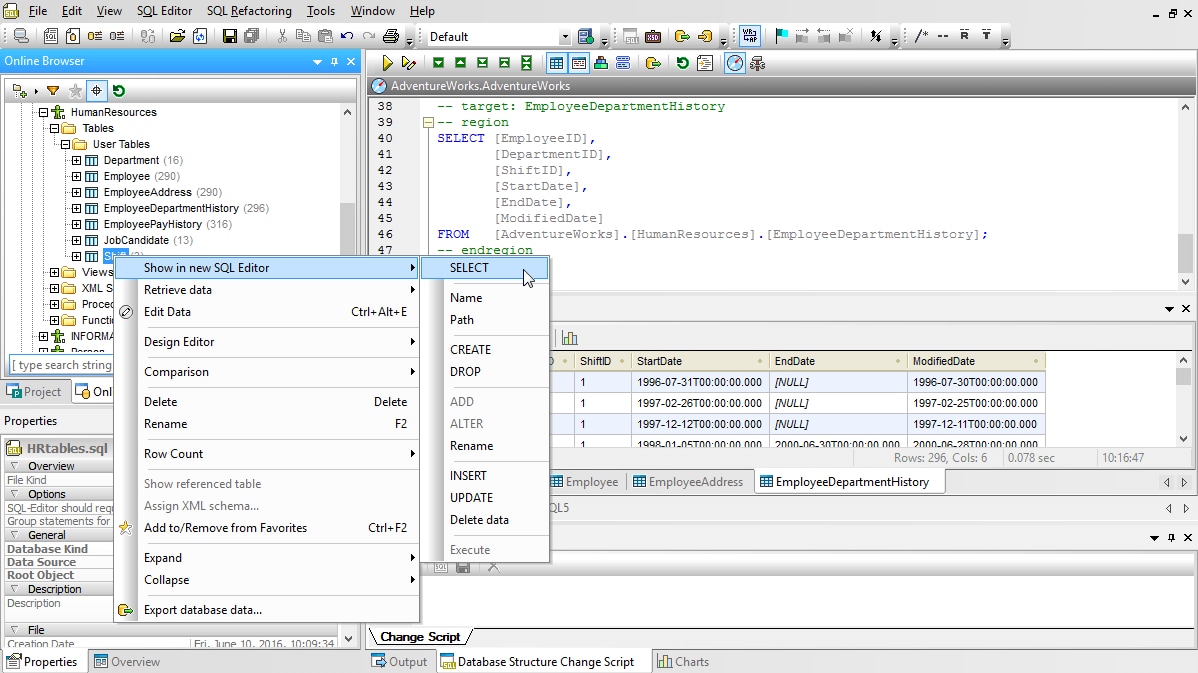
The DatabaseSpy® 2011 SQL Editor lets you organize long and complex groups of SQL statements by separating them into regions that can be individually collapsed or expanded, allowing you to easily focus on portions of the script of immediate interest. Regions can even be nested, and a handy button in the SQL Editor toolbar lets you hide or expand all regions with a single click.
The DatabaseSpy® 2011 Result windows offer options to further refine output after you have executed SQL statements. A click on any column heading at the top of the window reorders output according to that column and the column heading separators can be dragged to adjust column widths. A button in the special toolbar above the Result window highlights the corresponding SQL statement in the SQL edit window to associate the statement with its output. Or, click the chart tool in the Results toolbar to generate a customized chart of SQL query results.
DatabaseSpy® 2011 helps you avoid processing unneeded database queries while you develop and test complex scripts to run against your database. As you refine a portion of a long script, you can highlight and execute just the section you’re currently working on.
Navigation buttons in the SQL Editor toolbar let you step through the editing window statement-by-statement, opening any hidden regions as you go. The SQL Editor window also supports multiple open SQL queries and you can copy and paste between them. The unlimited undo/redo toolbar buttons let you freely experiment with various edits, yet recover an earlier version if you want.
Save Your SQL Queries and Export ResultsWhether working on a single query or a long SQL script, DatabaseSpy® 2011 makes it easy to save your work in progress and the results of your work. The File menu offers open and save options, and the Project menu lets you add files containing SQL queries to a DatabaseSpy® 2011 project, so you can conveniently associate SQL queries with database connections and reload the project in a single step.
SQL FormattingDatabaseSpy® 2011 includes options to let you customize the format of SQL statements based on the database SQL dialect and your own preferences. SQL formatting configurations (shown below) are provided for each supported database. You can select a new configuration from the pull-down menu to easily apply different formatting when you switch databases. Click image to enlarge database tool screenshot SQL RefactoringThe SQL Editor Refactoring menu lets you reformat existing SQL statements and scripts, based on your current SQL formatting configuration and other preferences.
Streamline SQL editing and experience all the productive features of the Altova DatabaseSpy® 2011 for yourself – download a free 30-day trial today! | ![]() |
![]() | ![]() | |||||||||||||||||||
| Company | Legal | Press | Partners | Careers | Sitemap | Contact Us | Altova Blog | |||
|