Altova MapForce offers unparalleled power and flexibility for advanced data mapping, conversion, and transformation.
Altova MapForce is an award-winning, graphical data mapping tool for any-to-any conversion and integration. Its powerful data mapping tools convert your data instantly and provide multiple options to automate recurrent transformations.
Altova MapForce offers unparalleled power and flexibility for advanced data mapping, conversion, and transformation.
Altova MapForce is an award-winning, graphical data mapping tool for any-to-any conversion and integration. Its powerful data mapping tools convert your data instantly and provide multiple options to automate recurrent transformations.
The MapForce Platform is available at a fraction of the cost of big-iron data management products and is unencumbered by baggage like outdated design features inherent in other legacy products.
“We evaluated Altova MapForce against all the major data integration applications in the industry and found it to be the most powerful and easiest to use by far.”
“We have been test driving MapForce for 3 days and are absolutely impressed with the intuitive design and ease of use. Thanks for making our job easier. ”
Check out this quick overview of data mapping tools in MapForce
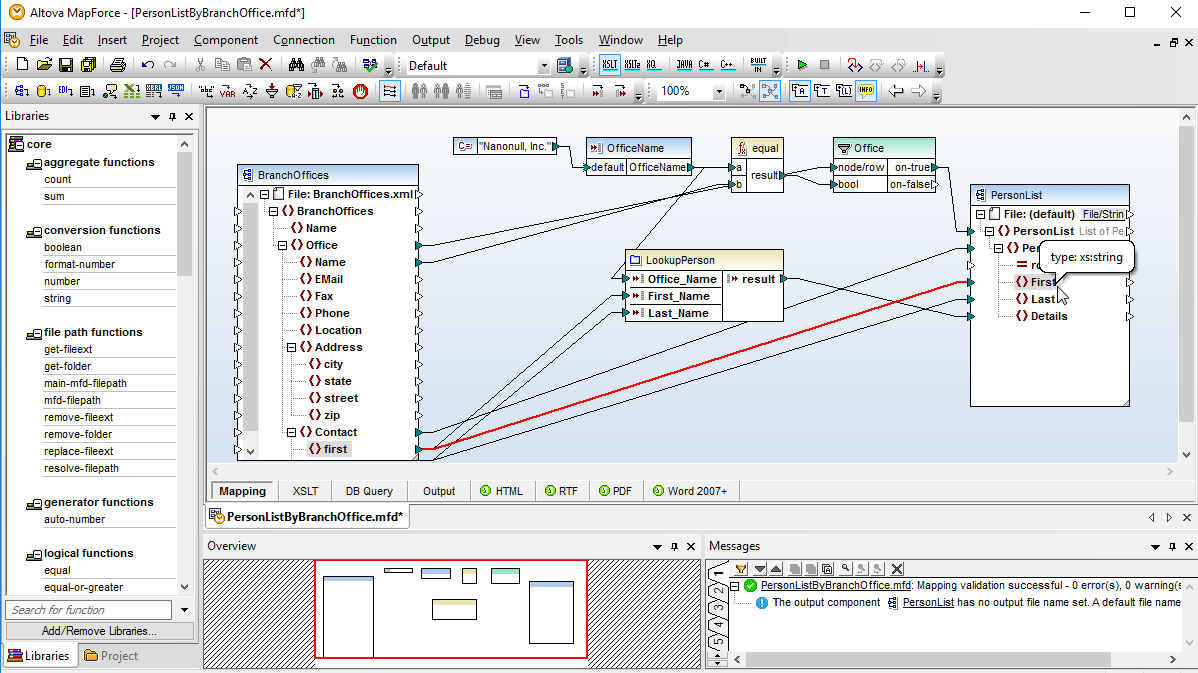
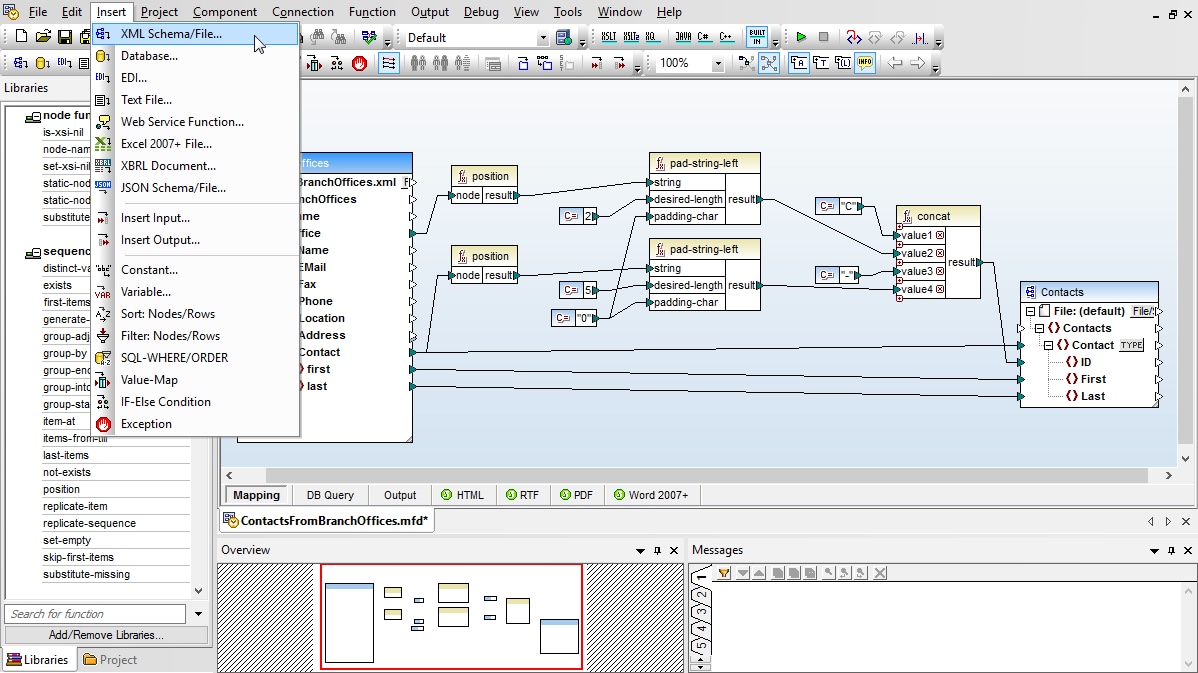
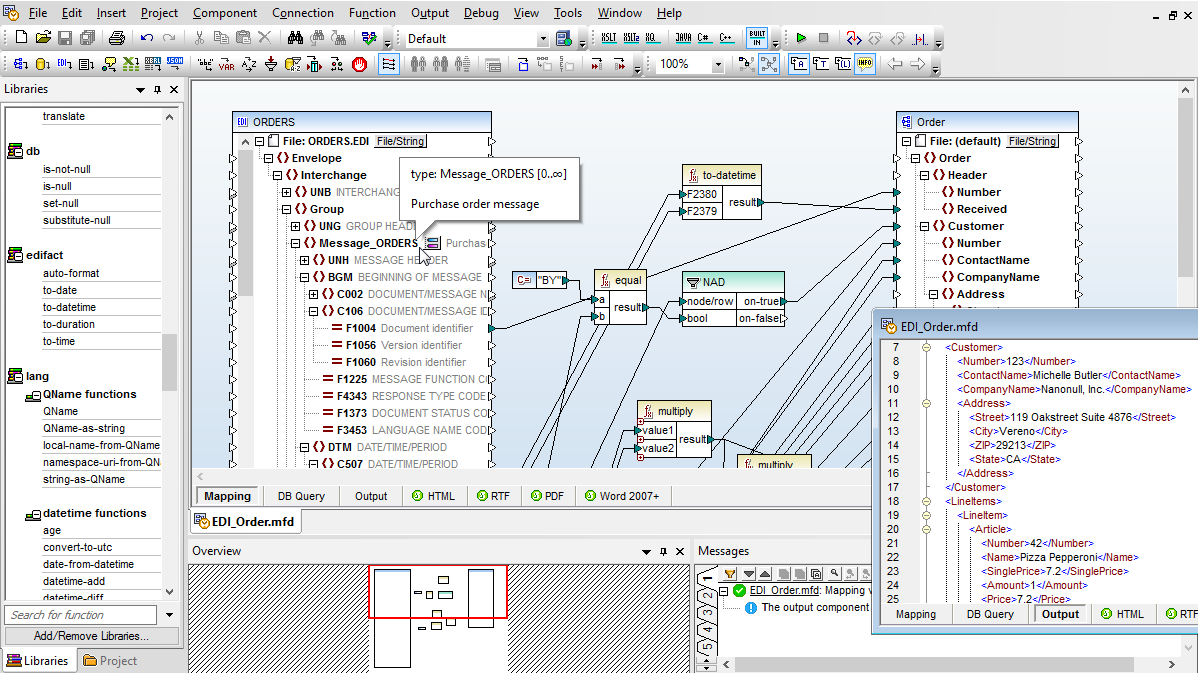
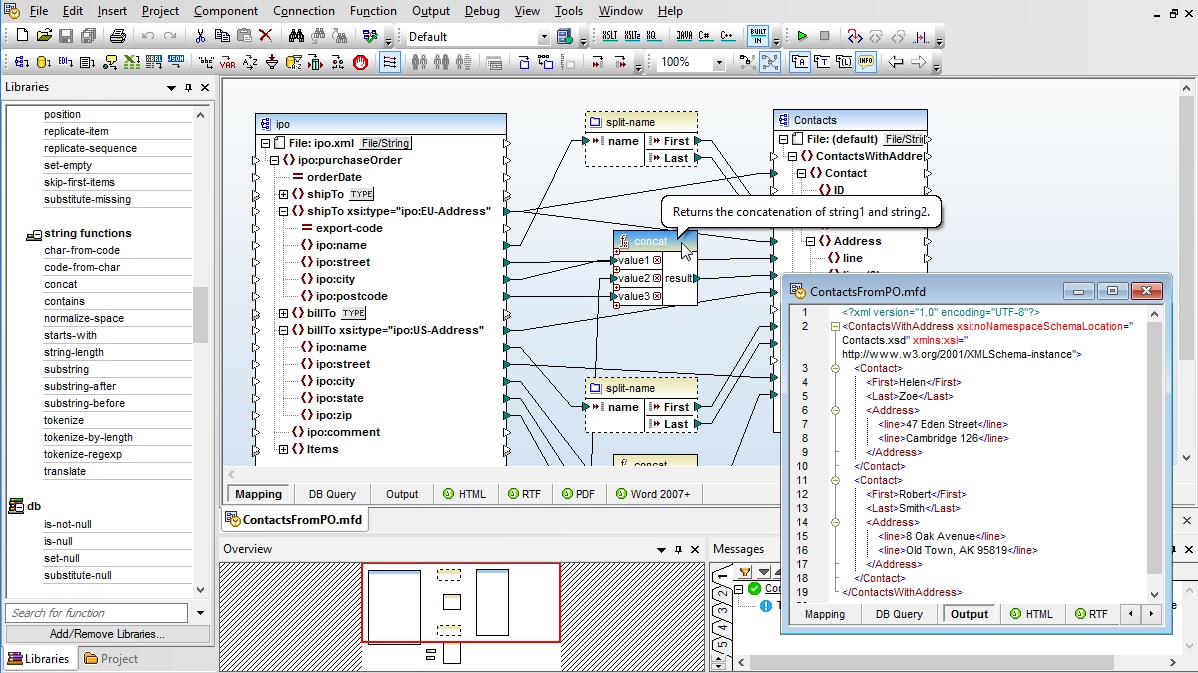
The MapForce interface facilitates data integration with a graphical interface that includes many options for managing, visualizing, manipulating, and executing individual mappings and complex mapping projects. Use the design pane to graphically define mapping components, add functions and filters for data manipulation, and drag connectors to transform between source and target formats.
The design pane includes user-friendly features to help you to easily work with, identify, and redefine even the most complex data mappings. For example, clicking an item name automatically selects it for connecting to another item. Pop-up prompts appear when you position your mouse over parts of the data mapping connections where you can view additional information such as mapping target item(s) or datatype.
Connections are easily moved by clicking and dragging to the desired target, and duplicate connectors (from the same source to another target) can be created by dragging a connection while simply holding down the CTRL key. Activating the autoconnect child items icon automatically connects all child items of the same name under the parent item.
Any data mapping project can have multiple inputs and multiple outputs and combine completely disparate data types.
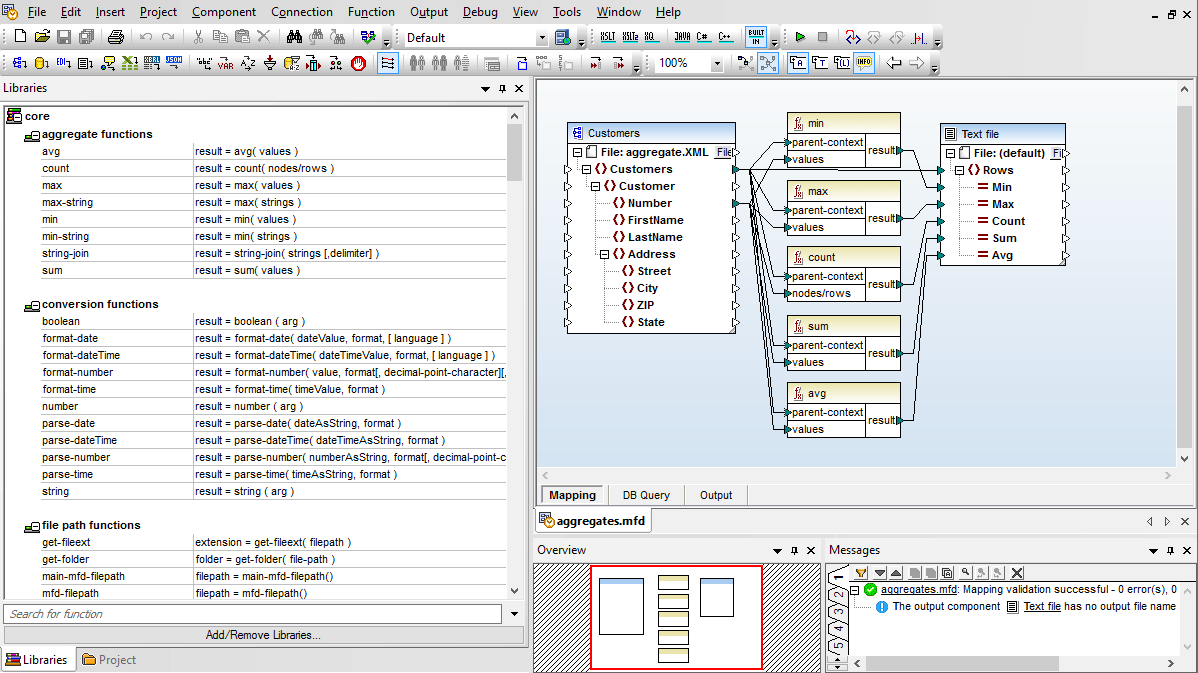
Advanced data mapping tools in MapForce include a rich library of data processing functions to perform virtually any necessary data conversion required by the integration project, and a handy overview window lets you visualize an entire data mapping project and zoom in on specific areas as needed and indicates position within the map when you scroll through the design pane. You can navigate even the largest data mapping project with ease!
For data transformation, MapForce provides an extensible library of data processing and conversion functions to filter and manipulate data according to the needs of your data integration project. MapForce also includes a unique visual function builder to define and reuse custom functions that combine multiple operations. To save time and leverage work you’ve already completed and tested, you can even import existing data transformation code, user defined functions, or an XSLT 1.0, 2.0, or 3.0 file for use as a function library.
To convert XML and other data formats, MapForce can handle the most advanced transformation scenarios, allowing you to define rules based on conditions, Boolean logic, string operations, mathematical computations, SQL and SQL/XML statements, or any user-defined function. You can even use an existing Web service to look up or process data in any mapping.
MapForce Data Conversion Functions:
Many of the built-in functions, such as concat, add, multiply, etc., support an unlimited number of parameters, making it easy to perform mathematical manipulations and combine multiple parameters. Aggregate functions allow you to perform computations on groups of data, including count, sum, min, average, join-string, and others. Conversion functions are provided to conveniently parse complex data types.
Functions in the core library are generalized and not specific to any type of output. Using these core functions, you can create XSLT 1.0/2.0/3.0, XQuery, Java, C++, or C# data conversion code by simply selecting the language(s) you require.
Intermediate variables are a special type of component that store an intermediate mapping result for further processing and can be used to solve various advanced mapping problems. An intermediate variable is equivalent to a regular (non-inline) user-defined function, and is a structural component without an instance file.
Inserting filters and conditions into a mapping allows you to select data from the source based on Boolean conditions.
The if-else condition in MapForce is equivalent to a switch statement in many programming languages, enabling you to easily control the flow of data in your mapping projects by matching a value to a selected criterion.
MapForce supports transformation input parameters, allowing outside parameters to affect mapping transformations. The transformation input parameters can be passed to the main mapping function created by the MapForce code generator in Java, C#, or C++.
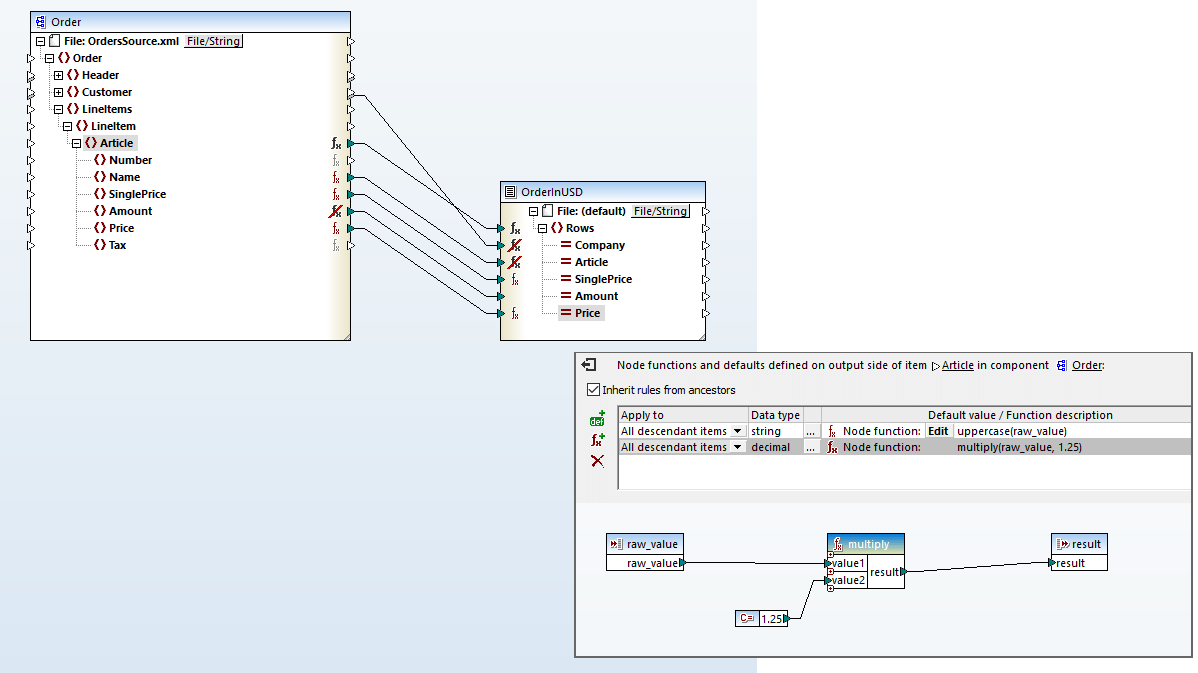
Support for node functions in MapForce means you can define data processing functions and/or default values and assign them to one or more nodes without repeating the same function multiple times - and without drawing mapping lines.
Node functions and defaults are applied at the node level and may apply to one or multiple nodes at once. They are particularly useful when you want to apply the same processing logic to multiple descendant items in a structure to, for example, trim whitespace, enter default values for empty/null values, replace specific values with some other value, etc. You can define a node function or default value for an input or output mapping component, and you can optionally propagate the function or default to some or all children of the node.
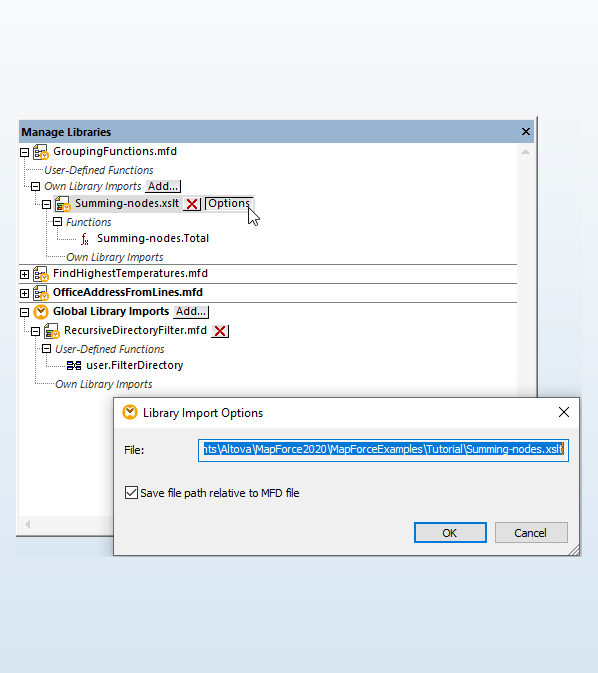
MapForce includes a highly flexible, easy-to-use Manage Libraries window that lets you import user defined functions and custom libraries, both globally and specific to a particular mapping project. This way, when a developer sends a MapForce project file to colleague(s), it will already include any imported libraries – they do not have to be installed separately. This also makes it possible to, for example, simply copy and paste user-defined functions from one mapping to another as needed.
In the case of XML mappings, when a project imports XSLT or XQuery libraries, you have the option to generate XSLT or XQuery code that references the imported library files using a relative path.
Please note that the MapForce COM API also supports library management.
The MapForce built-in execution engine allows you to preview program code and output for XML, database, PDF, flat file, EDI, Excel, Protobuf, and XBRL data mappings. You can execute a mapping transformations, then immediately view and save the result of a mapping as it would be generated in XQuery, Java, C++, or C#, based on the defined target format.
The output tab displays an XML file if the target of the mapping is an XML Schema. Mappings to flat files have output in CSV or text files, mappings to EDI targets produce EDI messages, mappings to Excel produce Office Open XML (OOXML) markup, mappings to XBRL taxonomies produce XBRL financial reports, and mappings to Protocol Buffers produce a binary file in Protocol Buffers format.
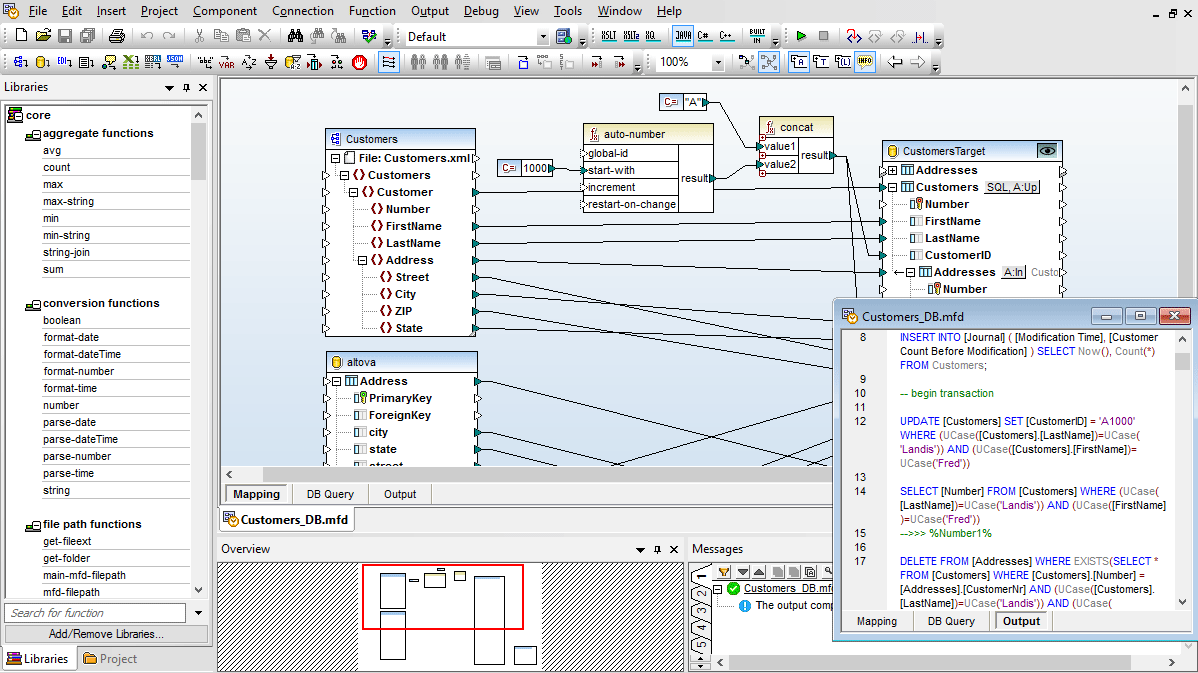
When mapping to a database, the output preview displays the SQL commands that would be executed against the database as a result of your mapping. The MapForce Engine also allows you to actually run the SQL script to execute the transformation and make the changes to the database.
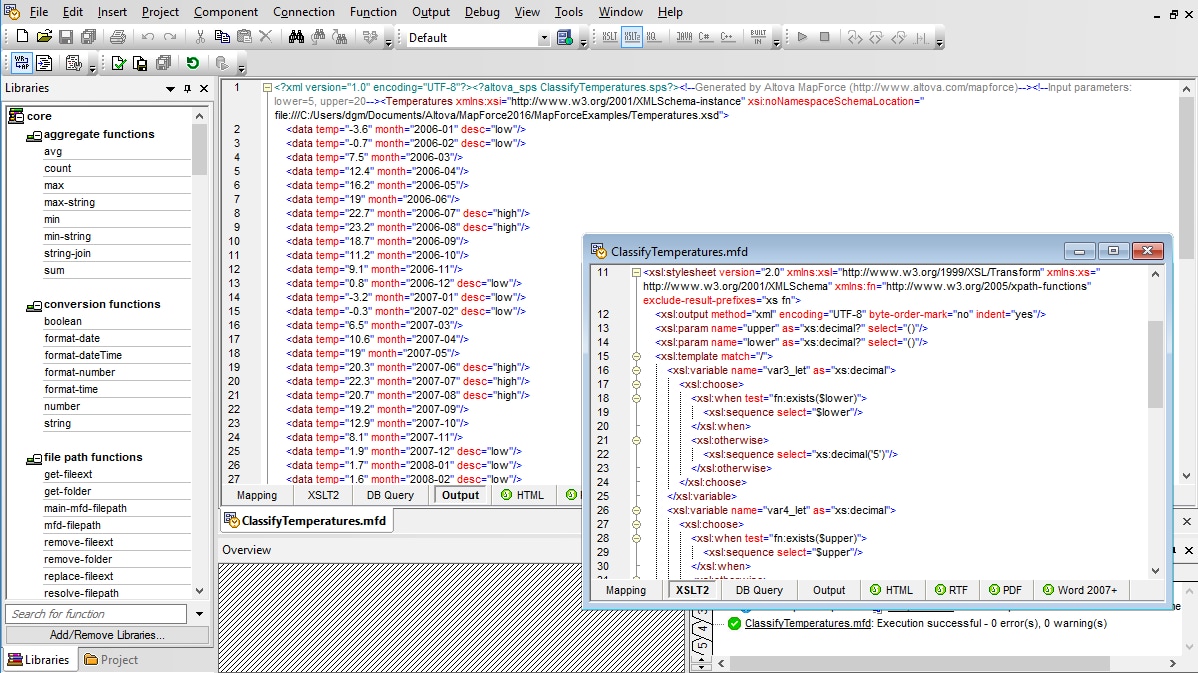
MapForce provides several helpful features to assist with the development of XSLT 1.0/2.0/3.0 stylesheets for XML-to-XML transformations. As you are visually designing data mappings, MapForce is generating an XSLT stylesheet for you behind the scenes. At any time, you can preview the XSLT stylesheet code by clicking on the XSLT tab at the bottom of the main design window.
In addition, when you insert a new XML Schema, DTD, or XBRL taxonomy into MapForce, you can optionally supply a sample XML instance document to accompany it. If you choose to provide sample data, MapForce allows you to easily preview the results of a sample transformation as you are working by clicking on the Output tab at the bottom of the main design window. This helps to ensure that your data mapping achieves the desired result.
Check out our blog for helpful tips, tricks, and how-tos for MapForce.
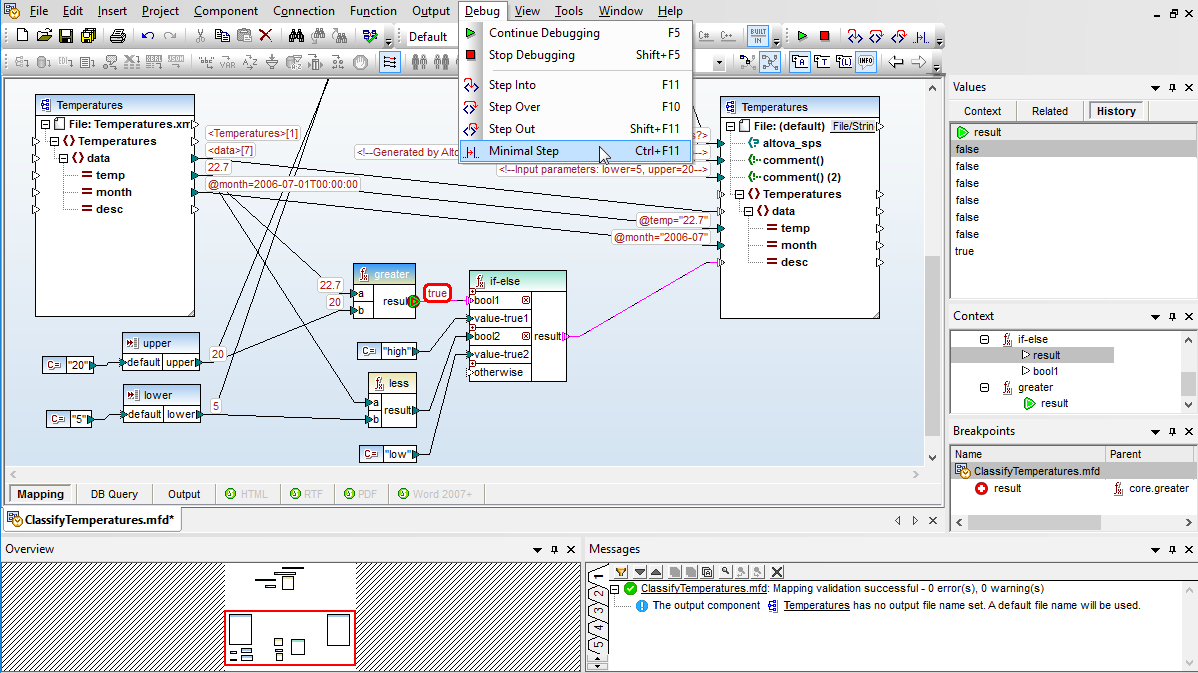
MapForce includes a revolutionary interactive debugger to assist with data mapping design. The debugger allows users to single step through a mapping and see the data actually flow from the sources to the target nodes step by step along the way. The MapForce debugger is supported with menu commands, a special toolbar, and helper windows that are opened automatically while the debugger is running, so users can trace the intermediate processing operations and examine data values during mapping execution.
The MapForce data mapping debugger provides deep insight into the exact inner workings of data integration and ETL projects in a way that was never possible before, not even in much higher-cost mapping products.
The MapForce debugger supports breakpoint and stepping functionality that will be familiar to developers experienced at debugging source code. Breakpoints can be placed on any input or output node, to pause mapping execution at that point, and conditional breakpoints are supported.
Several commands enable stepping with various levels of granularity to manually debug a data mapping or continue execution after a breakpoint is reached, allowing users to view as much detail as they need.
Take a more in depth look at the MapForce debugger in this tutorial on validating data transformations.
After a project is designed and tested in the data mapping tool, it can be executed by MapForce Server to automate business processes that require repetitive data transformations.
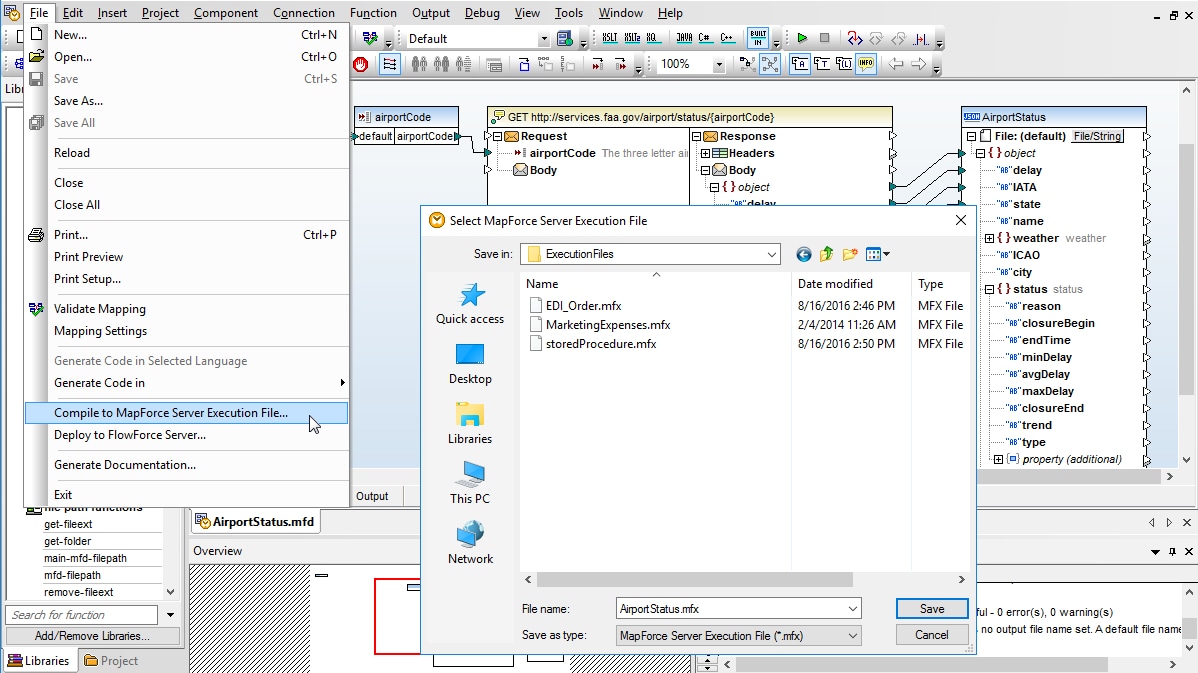
MapForce pre-processes and optimizes data mappings, stores them in MapForce Server Execution files for command-line execution by MapForce Server, and uploads them for use in FlowForce Server jobs. File names that may be defined as data mapping inputs and outputs, or database queries included in the mapping, can be replaced by job parameters at runtime for execution by MapForce Server.
Data mapping tools for XML in MapForce support mapping based on XML Schema or DTD content models. To develop an XML mapping, simply load two or more schemas into MapForce and drag connecting lines between the nodes of the source and target. Mixed content support even enables you to map text data that is interspersed with XML.
If you do not have an associated schema for an XML instance document, MapForce generates an XML Schema from an XML instance document.
MapForce supports advanced XML transformations between multiple input and multiple output schemas, multiple source and/or target files, or advanced multi-pass data transformations (from schema, to schema, to schema, etc.)
Once you have finished defining your XML mapping and data processing rules, you can load a source file, and the MapForce Built-In Execution Engine will instantly convert the data into the new format.
MapForce also autogenerates XSLT 1.0 or 2.0 stylesheets for use in transforming data in multiple XML documents based on the source schema to conform to the target XML Schema.
In addition to XML mapping, MapForce supports mapping any combination of XML, database, PDF, EDI, XBRL, flat file, Excel, JSON, Protobuf, and/or Web service data to build data integration or Web services applications.
The <xs:any> element and <xs:anyAttribute> in an XML Schema design allow any new element or attribute to be placed at the corresponding location in an XML instance document, even though the new element or attribute is not defined in the XML Schema. This is known as an XML wildcard and it is a popular mechanism used to allow a degree of customization in many XML Schemas that support industry standards across a wide variety of businesses.
MapForce supports <xs:any> and <xs:anyAttribute> for mapping to output in XML or any other output format. A new selection button next to <xs:any> or <xs:anyAttribute> in an XML mapping input component opens a wildcard selection dialog.
The <xs:any> element, as well as <xs:anyAttribute>, are commonly used in XML Schema design and support in MapForce has been a frequent user request.
As you design an XML mapping project, the built-in MapForce Engine allows you to view and save the autogenerated XSLT 1.0/2.0/3.0 or XQuery code with one click. You can also click the Output tab to view the actual output generated by your XML mapping.
MapForce includes support for defining and executing data mappings based on JSON (JavaScript Object Notation) models. You can add JSON instance or JSON schema files as source or target components of a data mapping. MapForce can read/write data in JSON, JSON5, and JSON Lines formats.
This blog post on Data mapping JSON lines will give you a more in depth view.
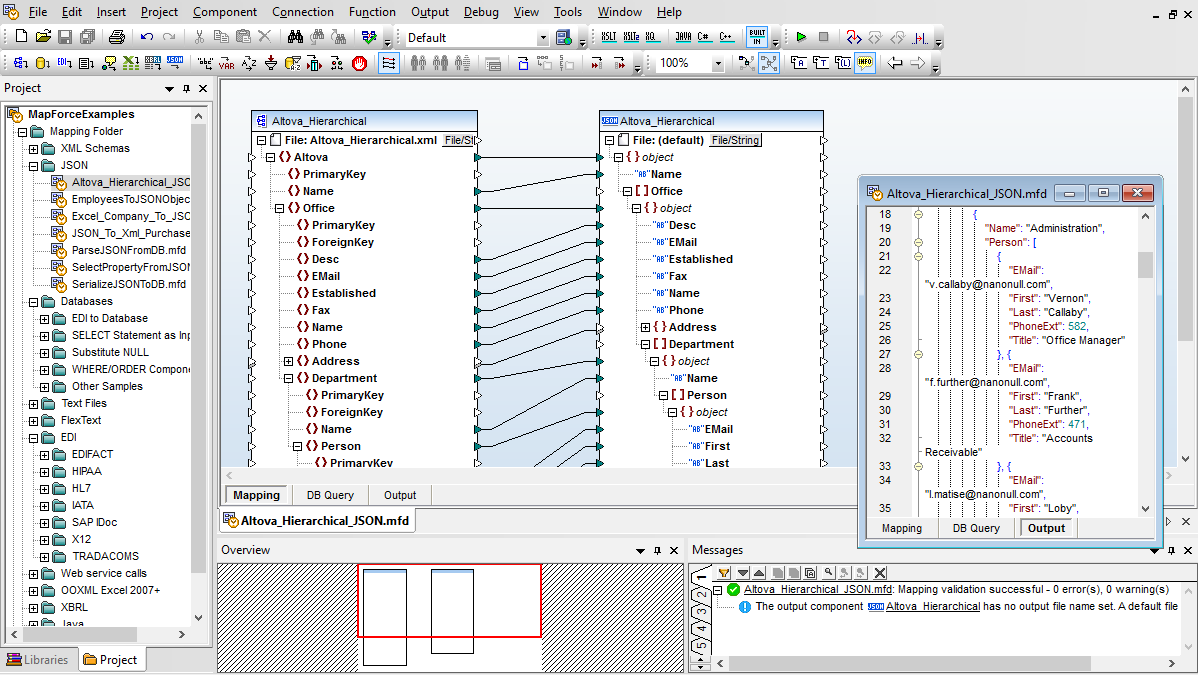
As shown below, JSON components are displayed with appropriate element syntax and their data types are clearly indicated.
Data processing functions from the MapForce Function Library can be applied to transform JSON data, exactly as they are used with other components.
JSON Data Mapping Tools:
When you add a JSON or JSON5 file to a JSON mapping, MapForce detects automatically whether it is a schema or instance file. For JSON or JSON5 instance files, MapForce prompts you to browse for a schema or generate one automatically. MapForce uses the JSON or JSON5 schema to build the structure of the component.
A JSON or JSON5 schema can allow multiple types to occur at the same location. In such cases, the MapForce component displays separate structure nodes for all basic types that can occur at that location.
MapForce also supports arrays in JSON components. If an array has different types of items in the JSON schema (for example, both strings and numbers), MapForce displays an "item" node for each item type. When writing to a JSON file, this lets you create arrays containing items of different types.
MapForce includes powerful support for database mapping, including mapping between any of database data and XML, JSON, flat files, EDI, Excel (OOXML), XBRL, Web services, and even other database formats.
When you load a database structure in the design window, MapForce automatically interprets the database schema, lets you pick available database tables and views, and recognizes table relationships.
Once you have loaded all of the content models required for your database mapping, complete the mapping by simply dragging connecting lines between the source and target structures.
Supported Relational Databases:
Supported NoSQL Databases:
MapForce supports all major relational databases, as well as popular NoSQL databases, empowering you to create graphical database mapping designs between database source data, data processing functions and filters, and other data structures of various types.
Database Mapping Tools:
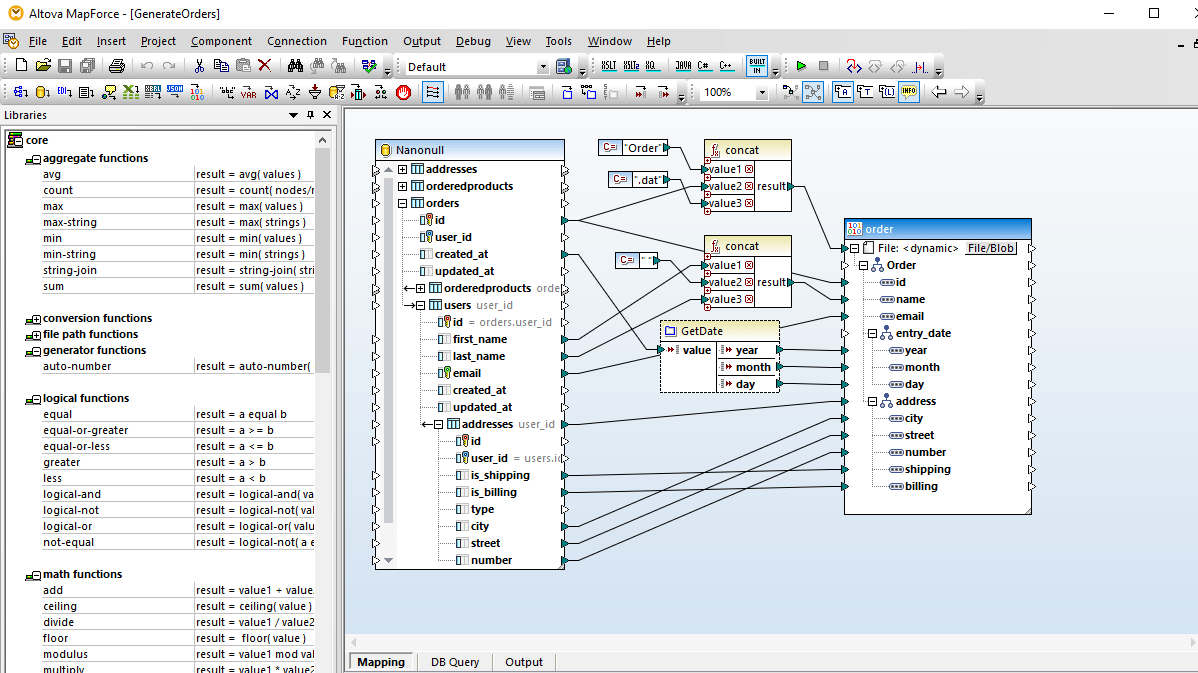
Many database mappings require manipulation of data between the source and target based on Boolean conditions or SQL and SQL/XML statements. You may need to perform logical comparisons, mathematical computations, or string operations, check for database data of a particular value, and make other modifications to the data. In screenshot above, data processing functions appear as the boxes between the lines joining the source and the target data model.
Data processing functions enable you perform advanced database mappings on-the-fly for a multitude of real-world transformation requirements. You can, for example, construct database mappings that use XML or EDI messages to extract database rows based on filter criteria from the XML or EDI elements.
Once your mapping is defined, the built-in MapForce Engine allows you to view and save the results with one click.
Database-to-XML mappings produce an XML output document, database mappings to flat files have output in CSV or fixed-length text files, mappings of databases to EDI can produce EDIFACT, X12, or HL7 messages, database mappings to Excel produce Office Open XML (OOXML) markup, and mappings to XBRL produce XBRL financial reports.
Mappings to a database produce output in the form of SQL scripts (e.g., SELECT, INSERT, UPDATE, and DELETE statements) or NoSQL scripts that are run against your target database directly from within MapForce.
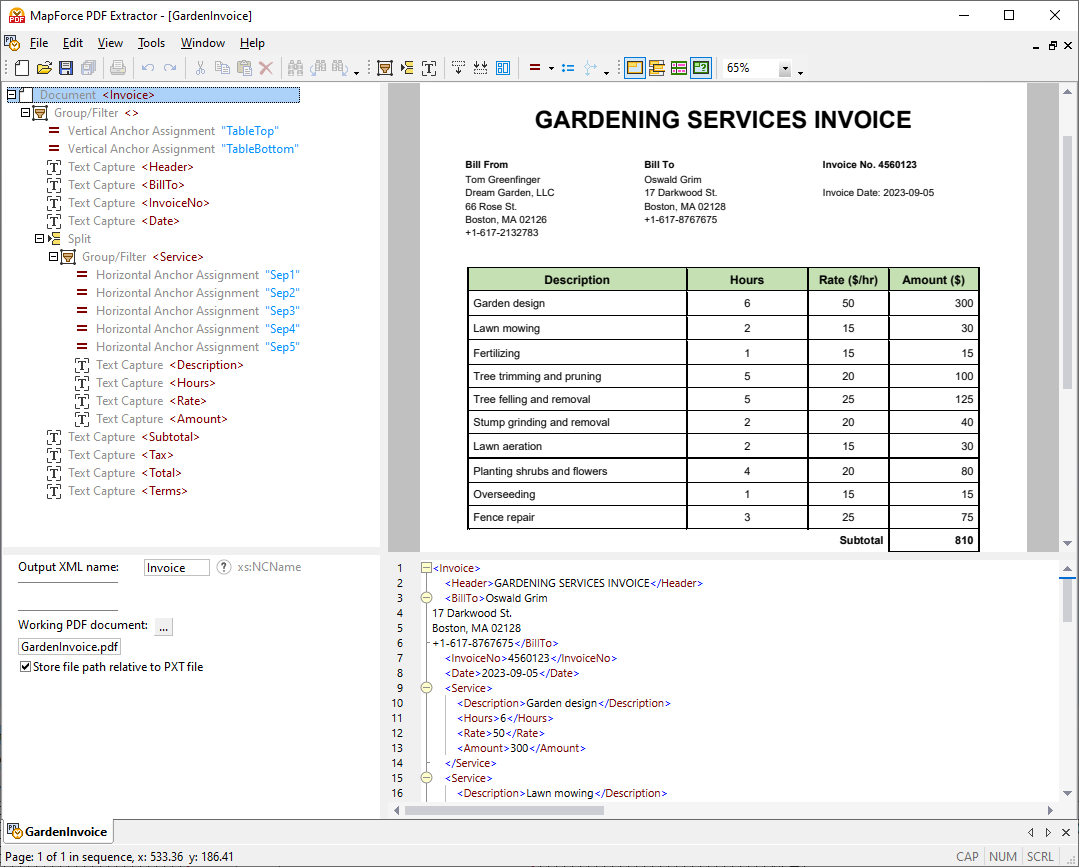
MapForce supports PDF data as the source of any data mapping project. Since PDF data is unstructured, the software includes the powerful MapForce PDF Extractor for creating PDF data extraction templates that can then be used in MapForce.
The PDF Extractor has an easy-to-use, straightforward design for defining PDF document structure in a visual way, using point-and-click and drag-and-drop functionality.
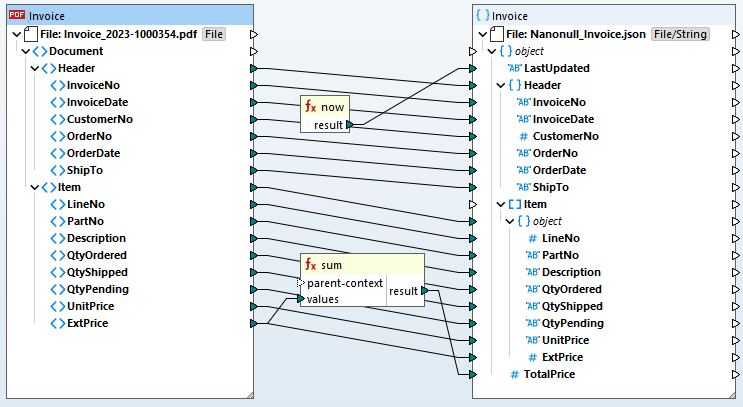
Using the MapForce PDF Extractor, you can finally access the massive volumes of business data locked in PDFs for data mapping, data integration, and ETL processes. Once you have created a template, you can load it in MapForce to efficiently map PDF data to XML, JSON, databases, Excel, and other supported data format.
Read more about working with MapForce PDF Extractor.
EDI standards is a dominant format for e-commerce data exchange, giving organizations a fast and accurate method for exchanging transaction data. EDI preceded other integrated business technologies such as ERP, CRM, and many other supply chain enabling technologies, making data mapping and transformation an important component of any EDI implementation.
MapForce is a graphical EDI mapper with native support for all major business data formats in use today, including XML, databases, PDF, flat files, Excel, Web services, as well as the EDIFACT, X12, HL7, NCPDP SCRIPT, IDoc, PADIS, SWIFT, and ODETTE EDI transaction sets.
MapForce simplifies EDI data integration by allowing you to visually define mappings between UN/EDIFACT, ANSI X12, HIPAA X12, Health Level 7 (HL7), NCPDP SCRIPT, SAP IDoc, IATA PADIS, TRADACOMS, SWIFT, ODETTE, and XML, databases, PDF, flat files, Excel, and other EDI systems, as well as Web services operations. This allows your organization to reap the benefits of exchanging information electronically – without increasing costs or the complexity of your application infrastructure.
MapForce allows you to define a single mapping to accommodate EDI files that contain multiple message types. Support is provided for EDI files containing multiple message types either in the source or target of your data mapping project, providing optimal flexibility for EDI mapping.
In the EDI X12 standard, the 997 acknowledgment message relays the status of an inbound interchange - confirming receipt of a transaction, transaction errors, etc.
MapForce can be easily configured to automatically create a mapping from your input X12 messages to 997 acknowledgments, helping you to define seamless trade links within and beyond your partner network.
MapForce lets you confirm the accuracy of EDI output from your mapping through validation of all EDI source and target components, and the mapping output. This helps you ensure that only valid EDI messages are processed.
MapForce supports the current versions of EDI transactions sets, as well as messages in previous versions via a free integration module. Get detailed information about the messages supported in each version of EDIFACT, X12, HL7, etc.
If you need a quick way to generate a straight EDI-to-XML conversion without manual mapping, you can right-click an EDI component and select Create Mapping to XML. Be sure to select the built-in MapForce Engine for transformation and then click the Output tab to view and/or save the generated XML file.
This feature is a convenient way to quickly export EDI files to XML, and the conversion can be automated via MapForce Server. In addition, since XML is by nature human-readable, it can also be used as an alternative way to preview output being written to an EDI file in a complex mapping.
Protocol Buffers (Protobuf) are a language- and platform-neutral mechanism from Google for serializing structured data. The method involves an interface description language that describes the structure of some data and a program that generates source code from that description for generating or parsing a stream of bytes that represents the structured data. To make data exchange possible, binary files in Protocol Buffers format are accompanied by .proto files, which define the structure of the encoded binary data (similar to how an XSD describes the structure of an XML instance document).
MapForce makes it easy to map and convert data to or from binary instances encoded in Protocol Buffers format, with support for Protocol Buffers as the source or target of your any-to-any data mapping project.
When not using MapForce, in order to create or read data from Protocol Buffers, a developer would need to generate and write program code. With MapForce, however, you do not need to write code or generate it from .proto files. You just add the .proto file to the mapping, and draw the required connections visually. To convert protobuf, MapForce will read data from the source binary file(s), or generate binary files, according to the mapping design.
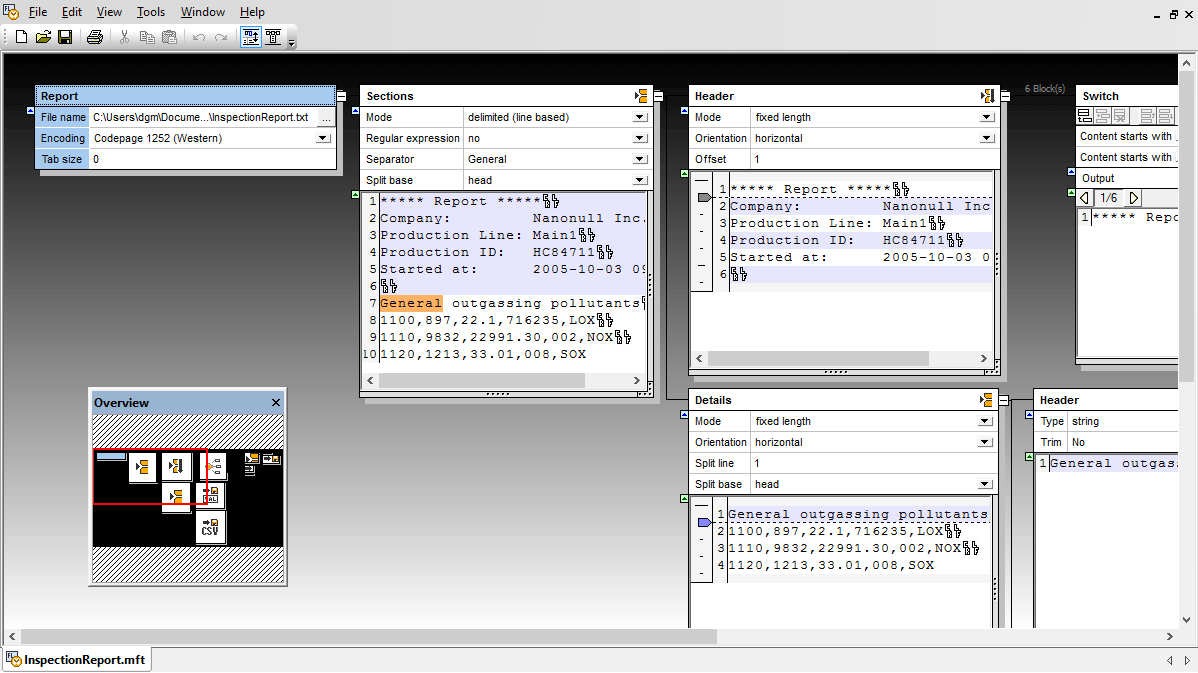
Altova MapForce includes the unique FlexText utility for parsing and converting text files such as mainframe text reports, text-based log files, and other legacy text file types in mapping designs. With its visual interface, FlexText lets you insert an existing text file and extract the portions you want to convert in the MapForce mapping interface.
FlexText produces a template that is then loaded into MapForce, where individual text nodes can be converted to any combination of XML, database, PDF, EDI, XBRL, flat file, Excel, JSON, and/or Web service data. By saving the configuration you create in FlexText, you can reuse the same template to convert multiple text files in multiple mappings for common requirements such as converting JSON to CSV.
FlexText allows you to create rules for text file conversion templates. When you open a text file in the FlexText interface, the file is displayed in two blocks. The root block represents the original file, while the operation block (to its right) displays the data of the file in real-time as you extract the data you need.
The result of every operation you make is visible in real-time, so you can immediately see if you’ve achieved the desired result.
Legacy text files may contain useful data in CSV (comma-separated values) or FLF (fixed length field) formats inside a more complex flat file. FlexText allows you to directly extract such data using the CSV and FLF operations. After applying Split and other operations, you can store remaining CSV- or FLF-formatted fields by configuring the field names, lengths, etc.
Looking for a bit more information, check out this blog and video on converting legacy text files.
FlexText allows you to isolate the data you need to access by removing non-relevant text, characters, and whitespace using split commands. Each split presents your data in two new blocks: one that contains the data you have split out, and another displays the modified view of your converted file. You can immediately see the result of each operation you perform.
FlexText supports Node and Ignore operations for further flexibility in constructing the information tree. An Ignore operation marks a block of text as irrelevant for conversion purposes and instructs MapForce to ignore it. The Node operation creates a new node in the information tree in MapForce so that you can properly represent the hierarchical nature of your text data when needed.
The Switch operation allows you to define multiple conditions for a single block of text. Data in the text file is passed to the associated container for use in your MapForce conversion only if it meets a defined condition.
FlexText also supports for regular expressions. For instance, an input file could be a system-generated report with numbers and letter codes in the left margin that indicate record types where a sequence of any five digits followed “O” indicates the beginning of a new section for one office location.
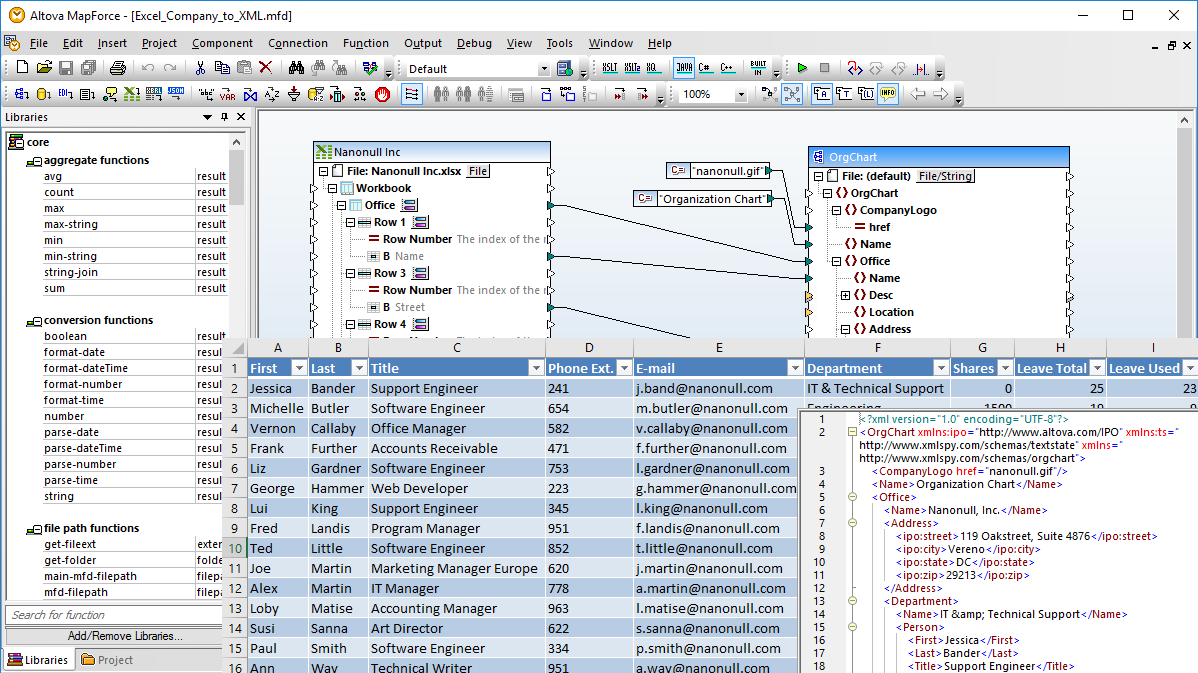
MapForce includes support for mapping data based on the spreadsheet format for Microsoft® Excel 2007 and later versions, under the Office Open XML file format specification. MapForce supports Excel spreadsheets as mapping sources or targets, enabling you to take advantage of its powerful graphical interface for either data mapping to or from Excel files.
To develop an Excel mapping based on an existing spreadsheet or workbook, simply open your source file in MapForce using the File menu command, or drag and drop your document into the design pane. MapForce will display a graphical representation of the file structure, depicting rows, columns, and cells, as well as references to numbers and names. This component includes clickable icons which allow you to define and specify mappable data.
Additionally, MapForce supports an optional file format introduced in Microsoft Office 2013, the Strict Open XML Spreadsheet format (ISO/IEC 29500 Strict) as a data mapping input component.
MapForce allows you to select and map each unique data table in the spreadsheet, avoiding manual extraction, export, or other pre-processing of complex Excel worksheets outside MapForce before they are inserted into your mapping design.
Once your mapping is defined, the built-in MapForce Engine allows you to view and save the results with one click. Mappings to Excel produce Office Open XML (OOXML) markup.
MapForce offers unparalleled power and flexibility for advanced data mapping, conversion, and transformation, making it the ideal tool for global and intra-enterprise data integration projects. You can easily integrate data from multiple files in different formats.
With support for automating data integration, MapForce is an ideal middleware product for connecting distributed applications in any local enterprise, Web-based workflow, or even Cloud architecture.
Whether it is an XML or database schema, EDI configuration file, or XBRL taxonomy and beyond, MapForce integrates data based on data structures, regardless of underlying particular instance of content. This means that you can re-use data mappings as business data changes.
MapForce can generate MapForce execution files for execution by MapForce Server, or royalty-free data integration code in Java, C#, or C++ for automated reprocessing of data mappings. This lets you implement scheduled or event-triggered data integration/migration operations for inclusion in any reporting, e-commerce, or SOA-based applications. MapForce data integration operations can also be automated via a data integration API, or ActiveX control.
Data integration projects often require data manipulation to convert input data before it is consumed by the target system. MapForce provides an intuitive visual function builder, fully scalable data processing functions with built-in libraries, filters and conditions, and more, to empower you to easily manipulate data and integrate disparate formats.
MapForce supports calling SOAP and REST Web services directly from within a mapping. You can insert a Web service call into a mapping and supply input parameters and username/password or other authentication.
MapForce also supports generic HTTP Web services that typically carry custom request or response structures in the message body. MapForce supports both JSON or XML data in the request or response body, allowing you to call virtually any HTTP Web service that requires or returns XML or JSON structures.
As technology rapidly advances, organizations are often left burdened with legacy data repositories that are no longer supported, making the data difficult to access in its native format. MapForce provides the unique FlexText utility for parsing flat file output so that legacy data can easily be integrated with any other target structure.
From the graphical design of the MapForce data mapping through deployment to production workflows, data Integration can be implemented end to end without writing any code.
Most enterprises want to leverage existing assets in place, such as SQL database views and procedures, customized Excel spreadsheets, or other legacy data. All these assets and more are completely compatible with the MapForce integration platform.
MapForce does not depend on assembling a collection of adaptors or other extra-cost add-ons. Users have complete control over design and implementation of data integration and transformations of all datatypes, including any combination of XML, database, PDF, flat file, EDI, Excel, XBRL, and/or Web service data.
Yes, this is a common requirement. Enterprises often receive and store data in various formats, including databases and structured text files. A tool that can convert database and text file formats allows for integration of data from diverse sources without the need for multiple tools or complex integrations.
Altova MapForce supports converting data from several SQL databases as well as NoSQL DBs. It also lets users convert between a variety of additional prevalent data formats including XML, JSON, CSV and other flat files, PDF, Excel, etc.
Using a visual, drag and drop interface, you can define data conversion rules and data processing functions to transform any of these formats, and MapForce will convert the data instantly.
Cost-effective ETL tools offer numerous benefits, including affordable scalability, faster ROI, and accessibility to departments with budget constraints. While some less expensive ETL tools have limited feature sets, Altova MapForce is an option that provides full featured data integration and ETL capabilities and even support server-based automation.
MapForce is desktop software for graphical data mapping. It supports for the most prevalent data formats (XML, JSON, PDF, databases, CSV, etc.). For high-performance ETL automation, MapForce projects can be deployed to MapForce Server. Both products are designed around an affordable and scalable fee structure.
One disadvantage of open source tools is lack of vendor reliability and ongoing product maintenance. Unlike some affordable ETL tools, MapForce is not open source software. Altova has been creating developer tools for over 20 years and MapForce is a mature product. An advantage of choosing a well-established vendor is that MapForce customers have access to comprehensive documentation and training, expert technical support, and frequent product updates.
In today’s data-driven world, most organizations have data stored in multiple database systems due to historical reasons, mergers, acquisitions, or departmental preferences. Supporting multiple database types allows a data integration tool to access and integrate data from diverse sources, providing a comprehensive view of the organization's data assets.
An example of a data integration solution that supports all database types is Altova MapForce. This software lets customers connect to more than a dozen of the most prevalent relational database types including SQL Server, PostgreSQL, MySQL, Oracle, MariaDB, and others. It also connects to NoSQL databases like CouchDB and MongoDB. These databases are all supported by MapForce; customers do not have to purchase separate connectors for each.
A graphical ETL tool is a great choice when you need powerful data integration capabilities and also need to learn to use software quickly. One product that takes a visual approach to defining ETL rules is Altova MapForce. It has a graphical, drag-and-drop interface for mapping source data to an ETL target. It also has a built-in library of data transformation functions that can be dragged into the mapping definition. For more complex transformation rules, MapForce includes a visual function builder that still requires no coding.
In addition, Altova publishes free training videos that can help customers learn different aspects of the software in a few minutes’ time.
AI offers numerous benefits for data integration and ETL processes. One advantage is its ability to intelligently map data by understanding semantic context. For example, AI can classify human language inputs and other unstructured data before integrating it into databases, increasing accuracy and relevance in the integration process. This semantic understanding allows for more contextually relevant integration decisions, streamlining the process and enhancing data quality.
An ETL tool that supports AI integration is great for increasing productivity and even adding additional value to your data.
Altova MapForce is one ETL solution that supports AI without any additional fees. You can use its visual, no-code interface to set up calls to any AI system API, such as the OpenAI API, Azure OpenAI API, AWS AI Services, etc., to configure AI-powered data processing in any data mapping project. Customers have used MapForce for automating sentiment analysis, document classification, voice transcription and categorization, and myriad other applications.