UML Timing Diagrams
UModel supports UML timing diagrams, which are based on hardware timing diagrams that are developed for electrical engineering.
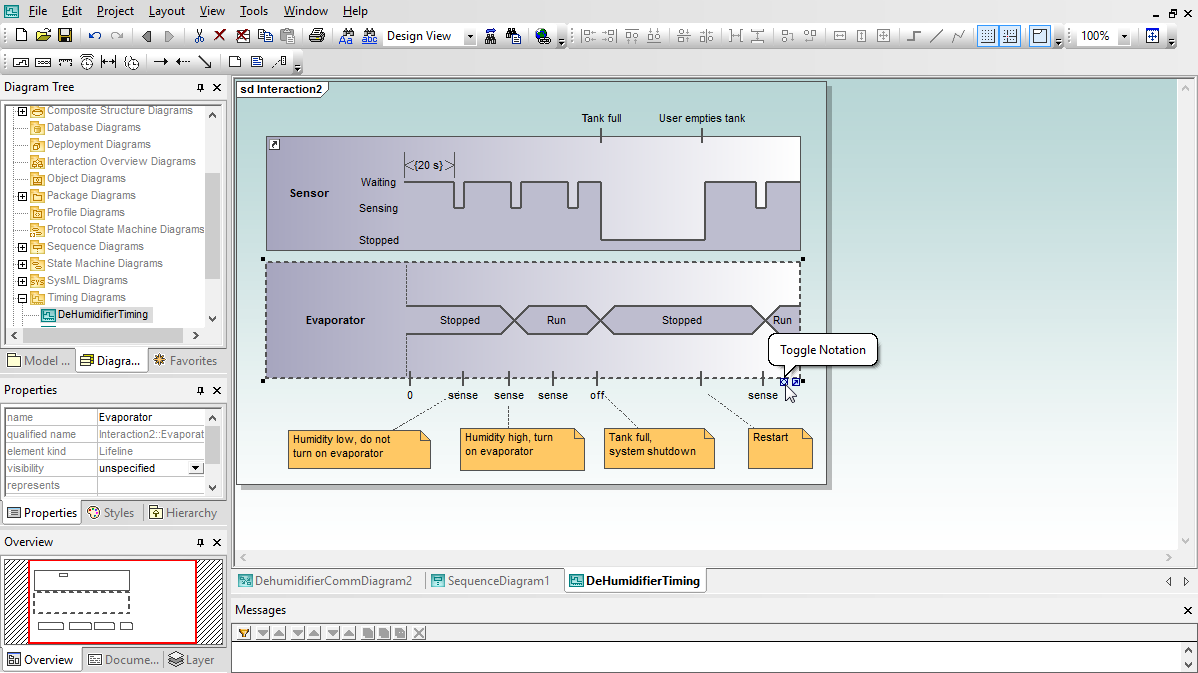
Software modelers use UML timing diagrams to precisely document a schedule of interactions or state changes in a system. As you start constructing a timing diagram in UModel by clicking the lifeline icon in the timing diagram toolbar, you’ll find familiar visual tools and intuitive selections in the right-click context menu to resize the lifeline and add new states, duration and time constraints, tick marks, and event stimulus elements. Any element can be renamed by typing in the diagram or by editing the properties window.
UModel supports both area style and line notation for timing diagram, with a Toggle Notation to convert existing diagrams. As always, if you don't like the results you can click the Undo button to go back.
Timing diagrams are often used to design control software for embedded systems and can provide an additional perspective to state machine diagrams, sequence diagrams, or activity diagrams. UModel lets you attach a hyperlink to any element in your timing diagram to quickly open any other diagram in your model. You can even define the text that pops up when any user rolls the cursor over a hyperlink in your diagram.


